

About This File
===============================================================================
    WinIDS v4.1 Deployment Framework - Remote Node & Host Conversion Install Guide
    Copyright © 2026 WinSnort.com | Michael Steele
===============================================================================OPERATIONAL OVERVIEW
This toolkit provides the automated framework required to convert a standalone sensor into a Master Host and facilitate the deployment of WinIDS Remote Nodes. This architecture enables decentralized packet inspection paired with centralized database logging.
ARCHITECTURAL PREREQUISITES
* Active Instance : A functional Standalone WinIDS Sensor is required.
* Node Conversion : This process upgrades a Standalone Sensor to a Master
                    Management Server role and initializes the Remote Node
                    environment.
-------------------------------------------------------------------------------PHASE I: PRE-DEPLOYMENT SPECIFICATIONS
-------------------------------------------------------------------------------
* Target Environment : Optimized for clean OS installations.
* Archive Integrity  : Extract all package contents to a dedicated directory.
* Archive Security   : w1nsn03t.c0m
-------------------------------------------------------------------------------
PHASE II: MASTER SERVER PROVISIONING
-------------------------------------------------------------------------------
To allow inbound database traffic, the Master Management Server must be provisioned prior to remote node initialization. Ensure you have the Remote Node IP address ready before beginning.
Access the $WinIDSRoot/tools directory on the Master Host.
Right-click 'InitializeNode.exe' and select "Run as Administrator" and enter the IP of the remote Node at the input prompt.
TECHNICAL IMPACT: This utility automates Windows Firewall scoping and configures database permissions for that specified $RemoteIP. Upon completion, the executable will display the Master Host’s IP Address and Database Port. Record these values; they are required for Phases III and IV.
Note: Run this process for every new remote node added to the environment.
-------------------------------------------------------------------------------
PHASE III: CONNECTIVITY & VALIDATION
-------------------------------------------------------------------------------
Perform these steps on the Remote Node. You will need the Master Host IP and Database Port recorded during Phase II.
Access the local extraction directory on the Remote Node.
Right-click 'Node2Host.exe' and select "Run as Administrator" and enter the IP of the Master Host. Next it will ask for the Database port. If using the default port, press [Enter] to initiate an automated port scan. If using a custom port, type the port number and press [Enter].
CRITICAL: Connection verification is mandatory. If the handshake fails, troubleshoot the network path before proceeding to Phase IV.
-------------------------------------------------------------------------------
PHASE IV: REMOTE SENSOR DEPLOYMENT
-------------------------------------------------------------------------------
Locate the config.conf file in the local extraction directory on the Remote Node.
Open it with a text editor (such as Notepad) and configure the following variables:
$TempDir            = ""    # Path for temporary installation/download files (e.g., "D:\files")
$WinIDSRoot         = ""    # Primary home directory for WinIDS installation (e.g., "D:\home")
$Oinkcode           = ""    # Your 40-character Snort.org Oinkcode for rule updates
$SensorName         = ""    # A unique name for this Node Sensor (e.g., "NodeName")
$EnableAllRules     = $true # Set to $false to disable rule testing and high-volume logging
$EnableRestorePoint = $true # Set to $false to skip System Restore point creation
The credentials below must match the SnortUser and SnortPass defined during the Master Host configuration. These allow Barnyard2 to authenticate with the Master ALERT database.
$SnortUser  = "snort"  # Master Host ALERT Database Username
$SnortPass  = "l0gg3r" # Master Host ALERT Database Password
Input the MasterHostIP and MasterHostPort acquired in Phase II to establish the network link between the Remote Node and the Master Host.
$MasterHostIP   = ""   # Master Host IP Address (e.g., "192.168.1.50")
$MasterHostPort = ""   # Master Host Database Port (e.g., "3306")
Save all changes to config.conf and close the editor.
Right-click Installer.exe and select "Run as Administrator" to begin the installation.
DEPLOYMENT DURATION ESTIMATES
Completion times vary based on the selected database engine and host operating system. The following estimates are based on standard network throughput and hardware resource availability. Workstation standalone or node deployments generally complete in ~15 minutes. Server host deployments generally complete in ~40 minutes. Performance is directly influenced by available system resources and network bandwidth.
RECOVERY AND RESILIENCY LOGIC
The WinIDS framework is designed with automated resume capability. In the event of a package acquisition failure, you will need to manually download the required asset to your defined $TempDir and re-initialize the installer. The framework will automatically detect the local file and resume the deployment. Do not terminate the installer during active system modifications or registry updates to prevent system corruption.
SYSTEM RESTORE OPERATIONS
In workstation environments, when EnableRestorePoint is active, the installer generates a system restore point prior to setup. This process initializes the required snapshot services, clears existing restore points, and creates a fresh baseline snapshot before cycling the services back to manual. This specific sequence ensures the "first-run" pre-installation snapshot remains protected from automatic purging.
If a valid "first-run" snapshot is already present—often the result of a previous removal via the RestorePoint utility—the installer will bypass the creation step to preserve the original baseline for the new installation.
SYSTEM RECOVERY PROCESS
The RestorePoint utility relies on the initial "first-run" snapshot to execute a rollback. If this snapshot is detected, the utility will revert the system to its original pre-installation state. However, if the snapshot is missing, the process will automatically terminate to prevent system instability.
Without a valid snapshot, a clean rollback cannot be performed. In this scenario, you must manually resolve the conflict, restore from a full system backup, or initiate a fresh installation. Note that while the recovery process leaves $WinIDSRoot and $TempDir untouched, performing a new installation will permanently delete all data within the $WinIDSRoot directory.
DATA INTEGRITY
The System Restore feature is intended for configuration recovery and is not a replacement for a comprehensive backup solution. System Restore services are set to manual and toggled as needed. Windows Restore Points are transient and may be purged during routine maintenance cycles if those services are running.
ENVIRONMENTAL CONSTRAINTS & BEST PRACTICES
Server Deployments: Since Windows Server architectures do not natively support System Restore points, this feature is automatically bypassed during Server OS deployments.
PULLEDPORK RULE MAINTENANCE
The original PulledPork by Shirkdog is housed within a sophisticated wrapper, accessible via the WinSnort Start Menu. While the utility is designed for "out-of-the-box" functionality with no manual configuration required, the wrapper offers a highly verbose interface with integrated system checks. Every update attempt is documented in the PulledPork log folder. To maintain system stability, the utility automatically rolls back to the last known-good rule set if an update fails.
The Rule Updater includes a built-in scheduler with configurable intervals ranging from 15 to 60 minutes. It supports automated retention of successful updates and SMTP email notifications. While "Silent Mode" is available for remote or unmanaged sensors, the updater will default to a verbose display if launched manually from the desktop while in "Silent Mode". If executed in silent mode without SMTP, the system continues to capture errors and failures within the local log files.
-------------------------------------------------------------------------------
PHASE V: POST-DEPLOYMENT MANAGEMENT
-------------------------------------------------------------------------------
Upon successful completion, the WinIDS Management Suite will be accessible via Start Menu > WinSnort. Core utilities include:
* Rules Updater    : PulledPork-driven rule-set synchronization.
* System Restore   : System Restore Point (SRP) Utility (Workstation Only).
Although a system reboot is not strictly mandatory, it is recommended to ensure all environment variables are refreshed. Please note that the WinSnort Start Menu group may not appear in the Start Menu until a system restart has been completed.
-------------------------------------------------------------------------------
PHASE VI: POST-DEPLOYMENT VERIFICATION
-------------------------------------------------------------------------------
Management Server Validation:
1. Launch the WinIDS Console on the Master Management Server.
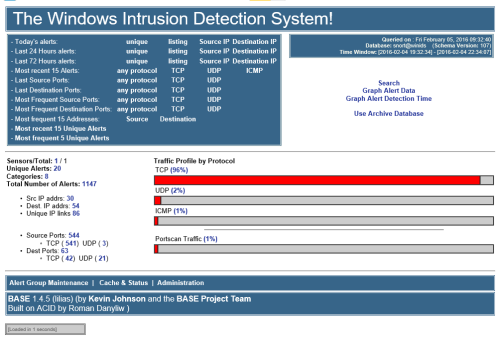
2. Monitor the "Sensors/Total" telemetry indicator.
3. A successful link displays "2/2" (or greater). Verify that "$SensorName" is actively reporting logs to the centralized dashboard.
===============================================================================
TECHNICAL DOCUMENTATION & SUPPORT: http://winsnort.com===============================================================================