
All Activity
This stream auto-updates
- Earlier
-
We are pleased to provide updated guidance on utilizing the PulledPork rule updater for your Windows Intrusion Detection systems. Whether you are managing a standalone sensor or a fleet of remote nodes, following these best practices will help ensure your detection rules remain current and reliable. Deployment Scenarios Standalone Sensors For standalone installations, the updater can be executed directly from the desktop shortcut. Note: While the script may function without elevated permissions, we recommend selecting Run as Administrator to ensure the utility has the necessary access to update system files successfully. Remotely Managed Nodes While the updater is fully compatible with standalone sensors, it is optimized for remotely managed environments. For these deployments, we recommend enabling all three configuration options (Silent Mode, Email Notifications, and Task Scheduling) to ensure seamless, automated maintenance. Recommended Configurations You can optimize the script by adjusting the following variables within the configuration file: Silent Mode ($silent): Set to 1 to mute console output. This reduces overhead and is recommended for remote, automated nodes. Email Notifications ($sendmail): Set to 1 to receive status alerts, requires SMTP setting added. Failsafe Mechanism: If an update fails, the script will automatically roll back to the previous stable ruleset and send a notification detailing the cause of the failure. Scheduling: For instructions on automating your update cycles, please refer to our dedicated tutorial: Scheduling and Updating Windows IDS Rules. Feedback & Continuous Improvement Several fail-safes have been built-in; the process is constantly looking to improve the stability and performance. We welcome your input! If you have any recommendations or encounter issues, please submit your feedback.
-
Version
1 download
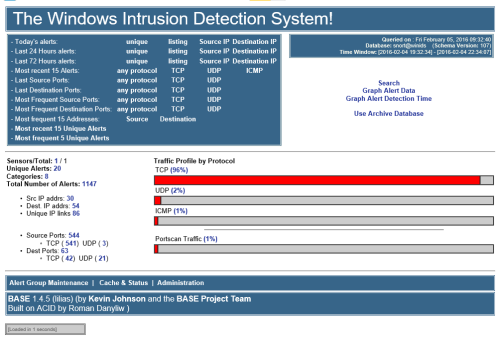
=============================================================================== WinIDS v3.0 Deployment Framework - Remote Node Install Guide Copyright © 2026 WinSnort.com | Michael Steele =============================================================================== OPERATIONAL OVERVIEW This toolkit provides the automated framework required for the deployment of a WinIDS Remote Node. This architecture facilitates decentralized packet inspection with centralized database logging. ARCHITECTURAL PREREQUISITES * Active Instance : A functional Standalone WinIDS Sensor is required. * Node Conversion : This process will upgrade a Standalone Sensor instance to a Master Management Server role. ------------------------------------------------------------------------------- PHASE I: PRE-DEPLOYMENT SPECIFICATIONS ------------------------------------------------------------------------------- * Archive Integrity : Extract all package contents to a dedicated directory. * Archive Security : w1nsn03t.c0m ------------------------------------------------------------------------------- PHASE II: MASTER SERVER PROVISIONING ------------------------------------------------------------------------------- The Master Management Server must be configured to authorize inbound database traffic before the remote Node initialization. On the Master Host open the tools\InitializeNode.ps1 file with Notepad and configure the following critical remote Node IP address: $RemoteIP = "" # IP of the Remote Node (e.g., 0.0.0.0/32) # Don't forget the CIDR (/xx) at the end of the IP. Ensure all changes are saved prior to executing. Execute via an Administrative PowerShell session: > powershell -ExecutionPolicy Bypass -File "InitializeNode.ps1" TECHNICAL IMPACT: This script automates Windows Firewall scoping and handles any remote database user permissions for the specified $RemoteIP. ------------------------------------------------------------------------------- PHASE III: CONNECTIVITY & VALIDATION ------------------------------------------------------------------------------- This will verify the connection from the Node sensor to the Master host and verify which database it is connecting to. In the TempDir folder on the remote Node open the Node2Host.ps1 file with Notepad and configure the following critical Master host IP address and Master host Database port: $MasterHostIP = "" # Master Host IP (e.g., 0.0.0.0) $MasterHostDBPort = "" # Leave blank to trigger Auto-Detect typical ports Ensure all changes are saved prior to executing. Execute via Administrative PowerShell: > powershell -ExecutionPolicy Bypass -NoExit -File "Node2Host.ps1" MANDATORY: Connection verification is a hard requirement. Do not proceed to Phase IV if the handshake fails. Note: Record the Master Host IP address and Port as it will be needed in Phase IV ------------------------------------------------------------------------------- PHASE IV: REMOTE SENSOR DEPLOYMENT ------------------------------------------------------------------------------- From the Remote Node define the operational environment within 'config.conf' using Notepad editor. Configure the following critical variables: $TempDir = "" # Directory for temporary installation and download files (e.g., "D:\files") $WinIDSRoot = "" # The primary home directory for the WinIDS installation (e.g., "D:\home") $Oinkcode = "" # Your 40-character Snort.org Oinkcode; required for automated rule updates $SensorName = "" # Unique Node Sensor name (e.g., "NodeName") $EnableAllRules = $true # Set to $false to disable rule testing and high-volume event logging $EnableRestorePoint = $true # Set to $false to skip System Restore point creation (Workstation only) $SnortUser = "snort" # Master Host ALERT Database HOST Username $SnortPass = "l0gg3r" # Master Host ALERT Database HOST Password $MasterHostIP = "" # IP of the Master Host (e.g., "x.x.x.x") $MasterHostPort = "" # Database Port on the Master Hast (e.g., "xxxx") Ensure all changes are saved prior to executing. Right-click 'Installer.exe' and select "Run as Administrator." SECURITY RECOMMENDATIONS The Username and password values above are factory defaults and must match the SnortUser and SnortPass of the Master Host sensor. DEPLOYMENT DURATION ESTIMATES Completion times vary based on the selected database engine and host operating system. The following estimates are based on standard network throughput and hardware resource availability. Workstation or Server deployments generally complete in ~15 minutes. Deployment performance is directly influenced by available system resources and network bandwidth. RECOVERY AND RESILIENCY LOGIC The WinIDS framework is designed with automated resume capability. In the event of a package acquisition failure, you should manually download the required asset to your defined $TempDir and re-initialize the installer. The framework will automatically detect the local file and resume the deployment. Do not terminate the installer during active system modifications or registry updates to prevent system corruption. SYSTEM RESTORE OPERATIONS Automated Restore Point Creation: For workstation environments, a System Restore point is automatically generated at the commencement of the installation process. To maintain system integrity and avoid redundancy, the installer will automatically bypass this step if a valid restore point from a previous session is detected. Recovery Procedures: In the event of a critical installation failure, system recovery can be initiated using the Restore Point Recovery Utility located in the \Tools directory. Post-installation recovery options are also accessible via the WinSnort group folder within the Start Menu. For user convenience, this group is pinned to the Windows "Recommended" list. Environmental Constraints & Best Practices: Server Deployments: Since Windows Server architectures do not natively support System Restore points, this feature is automatically disabled during Server OS deployments. Data Integrity: The System Restore feature is intended for configuration recovery only and is not a replacement for a comprehensive backup solution. Restore points are transient and will be purged during routine Windows maintenance cycles. ------------------------------------------------------------------------------- PHASE V: POST-DEPLOYMENT MANAGEMENT ------------------------------------------------------------------------------- Upon successful completion, the WinIDS Management Suite will be accessible via Start Menu > WinSnort. Core utilities include: * Rules Updater : PulledPork-driven rule-set synchronization. * System Restore : System Restore Point (SRP) Utility (Workstation Only). Although a system reboot is not strictly mandatory, it is recommended to ensure all environment variables are refreshed. Please note that the WinSnort Start Menu group may not appear in the Start Menu until a system restart has been completed. ------------------------------------------------------------------------------- PHASE VI: POST-DEPLOYMENT VERIFICATION ------------------------------------------------------------------------------- Management Server Validation: 1. Launch the WinIDS Console on the Master Management Server. 2. Monitor the "Sensors/Total" telemetry indicator. 3. A successful link displays "2/2" (or greater). Verify that "$SensorName" is actively reporting logs to the centralized dashboard. =============================================================================== TECHNICAL DOCUMENTATION & SUPPORT: http://winsnort.com =============================================================================== -
The WinIDS installation includes a Rules Updater utility (located in the WinSnort group in the Start Menu). By default, this utility performs a standard rule sync with Sourcefire and applies updates automatically. For administrators who require remote monitoring, the utility includes an optional Email Utility. When activated, it sends a status report to a designated email address, confirming whether rules were updated, already current, or if a validation error occurred. Configuration Procedure To activate and configure the email notification system, follow these steps: 1. Open the Script for Editing Navigate to your WinIDS installation directory and locate the PowerShell script: Path: \scripts\rules-update.ps1 Action: Right-click the file and select Edit (or open it with Notepad/VS Code). 2. Enable the Mail Utility Locate the User Configuration section at the top of the script. Change the $sendmail value from 0 to 1: $sendmail = 1 # Activates the email reporting feature 3. Configure SMTP Settings Input your mail server details between the quotes in the configuration block: $smtpServer: Your mail server address (e.g., smtp.gmail.com or internal relay IP). $smtpPort: Use 587 for SSL/TLS or 25 for standard internal relays. $smtpUser / $smtpPassword: Enter valid credentials if your server requires authentication. $from / $to: Enter the sender and recipient email addresses. 4. Save and Test Save the file. Open the Start Menu and navigate to the WinSnort group. Click the Rules Updater link to execute the script. Observe the console output. If successful, you will see: An Email report of the Rules update has been sent... Troubleshooting & Support Execution Policy: Ensure the script is run with Administrative privileges. Port Blocking: If using Port 25, ensure your antivirus or firewall is not blocking outbound SMTP traffic from PowerShell. Logs: Check the \pulledpork\log\ folder for detailed execution logs if an update fails. Technical Support: Issues during setup, please visit the WinSnort.com Forums under the Auto-Installer section for community-led support and troubleshooting tips.
-
If the High-Volume Logging/Testing option was enabled during the initial Auto-Installer setup, the system likely generated a significant number of events. While this setting is an excellent diagnostic tool to verify that the Windows Intrusion Detection System (WinIDS) is actively receiving data—especially in environments where default traffic might take hours to trigger an alert—it is recommended to revert to the default policy once connectivity is confirmed. Procedure to Restore Default Rule Policy Follow these steps to deactivate the testing rules and return to the standard configuration: Modify Configuration: Navigate to the Pulledpork\etc folder via File Explorer. Right-click enablesid.conf and open it with Notepad. Locate the line beginning with pcre:. Comment out the line by adding a # at the start (e.g., # pcre:.) Save and exit. Clear Temporary Files: Navigate to the Pulledpork\temp folder. Delete the two files located in this directory. Close File Explorer. Update Rule Set: Open the Start Menu and locate and open the WinSnort folder. Run the Rules Updater. This process will fetch the latest rule definitions and reconfigure Snort to the default policy setting, ensuring optimal performance and manageable log volumes.
-
Version
2 downloads
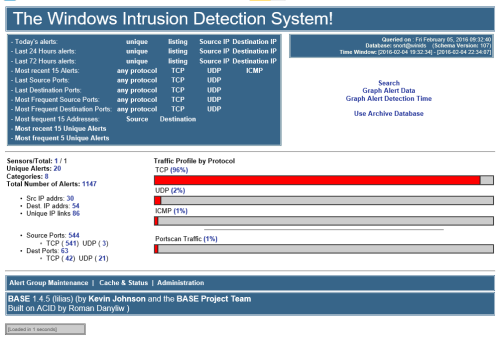
=============================================================================== WinIDS v3.0 Deployment Framework - Standalone Sensor Install Guide Copyright © 2026 WinSnort.com | Michael Steele =============================================================================== OPERATIONAL OVERVIEW This package contains a specialized deployment framework for the Windows Intrusion Detection System (WinIDS). It is engineered for high-performance installations on Windows 10/11 and Windows Server (2016-2025) 64-bit. ------------------------------------------------------------------------------- PHASE I: PRE-DEPLOYMENT SPECIFICATIONS ------------------------------------------------------------------------------- * Target Environment : Optimized for clean OS installations. * Archive Integrity : Extract all package contents to a dedicated directory. * Archive Security : w1nsn03t.c0m ------------------------------------------------------------------------------- PHASE II: PARAMETER CONFIGURATION ------------------------------------------------------------------------------- Before execution, define the operational environment within 'config.conf' using Notepad editor. Configure the following critical variables: $TempDir = "" # Directory for temporary installation and download files (e.g., "D:\files") $WinIDSRoot = "" # The primary home directory for the WinIDS installation (e.g., "D:\home") $Oinkcode = "" # Your 40-character Snort.org Oinkcode; required for automated rule updates $SensorName = "" # Unique Node Sensor name (e.g., "NodeName") $EnableAllRules = $true # Set to $false to disable rule testing and high-volume event logging $EnableRestorePoint = $true # Set to $false to skip System Restore point creation (Workstation only) $SnortUser = "snort" # Master Host ALERT Database Username $SnortPass = "l0gg3r" # Master Host ALERT Database Password $RootUser = "root" # Master Host (Root) MySQL/PostgreSQL Database Username $RootPass = "d1ngd0ng" # Master Host (Root) MySQL/PostgreSQL Database Password SECURITY RECOMMENDATIONS The Username and password values above are factory defaults. For production environments, it is strongly advised to update these credentials to enhance network security. DATABASE Roles The SnortUser/Pass credentials are used by Barnyard2 to authenticate with the ALERT database. These credentials also facilitate the connection between remote nodes and the Master Host across the LAN/WAN. The RootUser/Pass credentials are administrative and used for command-line database management post-installation. DOCUMENTATION Use caution when modifying default settings. Ensure all changes are recorded for future administrative reference. INITIALIZATION Verify that all modifications are saved in config.conf prior to starting the installation. ------------------------------------------------------------------------------- PHASE III: EXECUTION & INITIALIZATION ------------------------------------------------------------------------------- Access the local extraction directory. Right-click 'Installer.exe' and select "Run as Administrator." DEPLOYMENT DURATION ESTIMATES Completion times vary based on the selected database engine and host operating system. The following estimates are based on standard network throughput and hardware resource availability. For workstation deployments, MySQL typically completes in approximately 10 minutes, whereas PostgreSQL may require up to 45 minutes. Server deployments generally complete in 60 minutes, regardless of the database selected. Deployment performance is directly influenced by available system resources and network bandwidth. RECOVERY AND RESILIENCY LOGIC The WinIDS framework is designed with automated resume capability. In the event of a package acquisition failure, you should manually download the required asset to your defined $TempDir and re-initialize the installer. The framework will automatically detect the local file and resume the deployment. Do not terminate the installer during active system modifications or registry updates to prevent system corruption. SYSTEM RESTORE OPERATIONS Automated Restore Point Creation: For workstation environments, a System Restore point is automatically generated at the commencement of the installation process. To maintain system integrity and avoid redundancy, the installer will automatically bypass this step if a valid restore point from a previous session is detected. Recovery Procedures: In the event of a critical installation failure, system recovery can be initiated using the Restore Point Recovery Utility located in the \Tools directory. Post-installation recovery options are also accessible via the WinSnort group folder within the Start Menu. For user convenience, this group is pinned to the Windows "Recommended" list. Environmental Constraints & Best Practices: Server Deployments: Since Windows Server architectures do not natively support System Restore points, this feature is automatically disabled during Server OS deployments. Data Integrity: The System Restore feature is intended for configuration recovery only and is not a replacement for a comprehensive backup solution. Restore points are transient and will be purged during routine Windows maintenance cycles. ------------------------------------------------------------------------------- PHASE IV: POST-DEPLOYMENT MANAGEMENT ------------------------------------------------------------------------------- Upon successful completion, the WinIDS Management Suite will be accessible via Start Menu > WinSnort. Core utilities include: * WinIDS Console : Real-time telemetry, event monitoring, and analysis. * Rules Updater : PulledPork-driven rule-set synchronization. * System Restore : System Restore Point (SRP) Utility (Workstation Only). * Database Utility : Database maintenance utility. Although a system reboot is not strictly mandatory, it is recommended to ensure all environment variables are refreshed. Please note that the WinSnort Start Menu group may not appear in the Start Menu until a system restart has been completed. =============================================================================== TECHNICAL DOCUMENTATION & SUPPORT: http://winsnort.com =============================================================================== -
Version
3 downloads
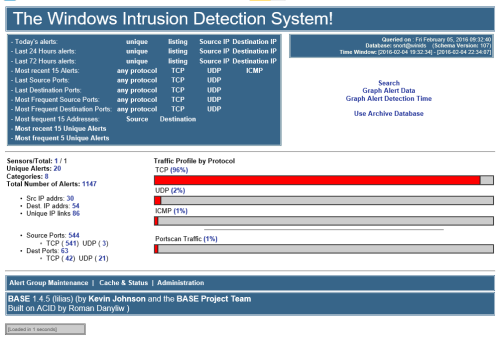
=============================================================================== WinIDS v3.0 Deployment Framework - Standalone Sensor Install Guide Copyright © 2026 WinSnort.com | Michael Steele =============================================================================== OPERATIONAL OVERVIEW This package contains a specialized deployment framework for the Windows Intrusion Detection System (WinIDS). It is engineered for high-performance installations on Windows 10/11 and Windows Server (2016-2025) 64-bit. ------------------------------------------------------------------------------- PHASE I: PRE-DEPLOYMENT SPECIFICATIONS ------------------------------------------------------------------------------- * Target Environment : Optimized for clean OS installations. * Archive Integrity : Extract all package contents to a dedicated directory. * Archive Security : w1nsn03t.c0m ------------------------------------------------------------------------------- PHASE II: PARAMETER CONFIGURATION ------------------------------------------------------------------------------- Before execution, define the operational environment within 'config.conf' using Notepad editor. Configure the following critical variables: $TempDir = "" # Directory for temporary installation and download files (e.g., "D:\files") $WinIDSRoot = "" # The primary home directory for the WinIDS installation (e.g., "D:\home") $Oinkcode = "" # Your 40-character Snort.org Oinkcode; required for automated rule updates $SensorName = "" # Unique Node Sensor name (e.g., "NodeName") $EnableAllRules = $true # Set to $false to disable rule testing and high-volume event logging $EnableRestorePoint = $true # Set to $false to skip System Restore point creation (Workstation only) $SnortUser = "snort" # Master Host ALERT Database Username $SnortPass = "l0gg3r" # Master Host ALERT Database Password $RootUser = "root" # Master Host (Root) MySQL/PostgreSQL Database Username $RootPass = "d1ngd0ng" # Master Host (Root) MySQL/PostgreSQL Database Password SECURITY RECOMMENDATIONS The Username and password values above are factory defaults. For production environments, it is strongly advised to update these credentials to enhance network security. DATABASE Roles The SnortUser/Pass credentials are used by Barnyard2 to authenticate with the ALERT database. These credentials also facilitate the connection between remote nodes and the Master Host across the LAN/WAN. The RootUser/Pass credentials are administrative and used for command-line database management post-installation. DOCUMENTATION Use caution when modifying default settings. Ensure all changes are recorded for future administrative reference. INITIALIZATION Verify that all modifications are saved in config.conf prior to starting the installation. ------------------------------------------------------------------------------- PHASE III: EXECUTION & INITIALIZATION ------------------------------------------------------------------------------- Access the local extraction directory. Right-click 'Installer.exe' and select "Run as Administrator." DEPLOYMENT DURATION ESTIMATES Completion times vary based on the selected database engine and host operating system. The following estimates are based on standard network throughput and hardware resource availability. For workstation deployments, MySQL typically completes in approximately 10 minutes, whereas PostgreSQL may require up to 45 minutes. Server deployments generally complete in 60 minutes, regardless of the database selected. Deployment performance is directly influenced by available system resources and network bandwidth. RECOVERY AND RESILIENCY LOGIC The WinIDS framework is designed with automated resume capability. In the event of a package acquisition failure, you should manually download the required asset to your defined $TempDir and re-initialize the installer. The framework will automatically detect the local file and resume the deployment. Do not terminate the installer during active system modifications or registry updates to prevent system corruption. SYSTEM RESTORE OPERATIONS Automated Restore Point Creation: For workstation environments, a System Restore point is automatically generated at the commencement of the installation process. To maintain system integrity and avoid redundancy, the installer will automatically bypass this step if a valid restore point from a previous session is detected. Recovery Procedures: In the event of a critical installation failure, system recovery can be initiated using the Restore Point Recovery Utility located in the \Tools directory. Post-installation recovery options are also accessible via the WinSnort group folder within the Start Menu. For user convenience, this group is pinned to the Windows "Recommended" list. Environmental Constraints & Best Practices: Server Deployments: Since Windows Server architectures do not natively support System Restore points, this feature is automatically disabled during Server OS deployments. Data Integrity: The System Restore feature is intended for configuration recovery only and is not a replacement for a comprehensive backup solution. Restore points are transient and will be purged during routine Windows maintenance cycles. ------------------------------------------------------------------------------- PHASE IV: POST-DEPLOYMENT MANAGEMENT ------------------------------------------------------------------------------- Upon successful completion, the WinIDS Management Suite will be accessible via Start Menu > WinSnort. Core utilities include: * WinIDS Console : Real-time telemetry, event monitoring, and analysis. * Rules Updater : PulledPork-driven rule-set synchronization. * System Restore : System Restore Point (SRP) Utility (Workstation Only). * Database Utility : Database maintenance utility. Although a system reboot is not strictly mandatory, it is recommended to ensure all environment variables are refreshed. Please note that the WinSnort Start Menu group may not appear in the Start Menu until a system restart has been completed. =============================================================================== TECHNICAL DOCUMENTATION & SUPPORT: http://winsnort.com =============================================================================== -
Version
0 downloads
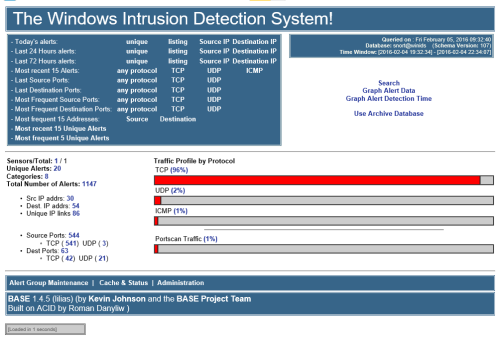
=============================================================================== WinIDS v3.0 Deployment Framework - Standalone Sensor Install Guide Copyright © 2026 WinSnort.com | Michael Steele =============================================================================== OPERATIONAL OVERVIEW This package contains a specialized deployment framework for the Windows Intrusion Detection System (WinIDS). It is engineered for high-performance installations on Windows 10/11 and Windows Server (2016-2025) 64-bit. ------------------------------------------------------------------------------- PHASE I: PRE-DEPLOYMENT SPECIFICATIONS ------------------------------------------------------------------------------- * Target Environment : Optimized for clean OS installations. * Archive Integrity : Extract all package contents to a dedicated directory. * Archive Security : w1nsn03t.c0m ------------------------------------------------------------------------------- PHASE II: PARAMETER CONFIGURATION ------------------------------------------------------------------------------- Before execution, define the operational environment within 'config.conf' using Notepad editor. Configure the following critical variables: $TempDir = "" # Directory for temporary installation and download files (e.g., "D:\files") $WinIDSRoot = "" # The primary home directory for the WinIDS installation (e.g., "D:\home") $Oinkcode = "" # Your 40-character Snort.org Oinkcode; required for automated rule updates $SensorName = "" # Unique Node Sensor name (e.g., "NodeName") $EnableAllRules = $true # Set to $false to disable rule testing and high-volume event logging $EnableRestorePoint = $true # Set to $false to skip System Restore point creation (Workstation only) $SnortUser = "snort" # Master Host ALERT Database Username $SnortPass = "l0gg3r" # Master Host ALERT Database Password $RootUser = "root" # Master Host (Root) MySQL/PostgreSQL Database Username $RootPass = "d1ngd0ng" # Master Host (Root) MySQL/PostgreSQL Database Password SECURITY RECOMMENDATIONS The Username and password values above are factory defaults. For production environments, it is strongly advised to update these credentials to enhance network security. DATABASE Roles The SnortUser/Pass credentials are used by Barnyard2 to authenticate with the ALERT database. These credentials also facilitate the connection between remote nodes and the Master Host across the LAN/WAN. The RootUser/Pass credentials are administrative and used for command-line database management post-installation. DOCUMENTATION Use caution when modifying default settings. Ensure all changes are recorded for future administrative reference. INITIALIZATION Verify that all modifications are saved in config.conf prior to starting the installation. ------------------------------------------------------------------------------- PHASE III: EXECUTION & INITIALIZATION ------------------------------------------------------------------------------- Access the local extraction directory. Right-click 'Installer.exe' and select "Run as Administrator." DEPLOYMENT DURATION ESTIMATES Completion times vary based on the selected database engine and host operating system. The following estimates are based on standard network throughput and hardware resource availability. For workstation deployments, MySQL typically completes in approximately 10 minutes, whereas PostgreSQL may require up to 45 minutes. Server deployments generally complete in 60 minutes, regardless of the database selected. Deployment performance is directly influenced by available system resources and network bandwidth. RECOVERY AND RESILIENCY LOGIC The WinIDS framework is designed with automated resume capability. In the event of a package acquisition failure, you should manually download the required asset to your defined $TempDir and re-initialize the installer. The framework will automatically detect the local file and resume the deployment. Do not terminate the installer during active system modifications or registry updates to prevent system corruption. SYSTEM RESTORE OPERATIONS Automated Restore Point Creation: For workstation environments, a System Restore point is automatically generated at the commencement of the installation process. To maintain system integrity and avoid redundancy, the installer will automatically bypass this step if a valid restore point from a previous session is detected. Recovery Procedures: In the event of a critical installation failure, system recovery can be initiated using the Restore Point Recovery Utility located in the \Tools directory. Post-installation recovery options are also accessible via the WinSnort group folder within the Start Menu. For user convenience, this group is pinned to the Windows "Recommended" list. Environmental Constraints & Best Practices: Server Deployments: Since Windows Server architectures do not natively support System Restore points, this feature is automatically disabled during Server OS deployments. Data Integrity: The System Restore feature is intended for configuration recovery only and is not a replacement for a comprehensive backup solution. Restore points are transient and will be purged during routine Windows maintenance cycles. ------------------------------------------------------------------------------- PHASE IV: POST-DEPLOYMENT MANAGEMENT ------------------------------------------------------------------------------- Upon successful completion, the WinIDS Management Suite will be accessible via Start Menu > WinSnort. Core utilities include: * WinIDS Console : Real-time telemetry, event monitoring, and analysis. * Rules Updater : PulledPork-driven rule-set synchronization. * System Restore : System Restore Point (SRP) Utility (Workstation Only). * Database Utility : Database maintenance utility. Although a system reboot is not strictly mandatory, it is recommended to ensure all environment variables are refreshed. Please note that the WinSnort Start Menu group may not appear in the Start Menu until a system restart has been completed. =============================================================================== TECHNICAL DOCUMENTATION & SUPPORT: http://winsnort.com =============================================================================== -
Version
0 downloads
=============================================================================== WinIDS v3.0 Deployment Framework - Standalone Sensor Install Guide Copyright © 2026 WinSnort.com | Michael Steele =============================================================================== OPERATIONAL OVERVIEW This package contains a specialized deployment framework for the Windows Intrusion Detection System (WinIDS). It is engineered for high-performance installations on Windows 10/11 and Windows Server (2016-2025) 64-bit. ------------------------------------------------------------------------------- PHASE I: PRE-DEPLOYMENT SPECIFICATIONS ------------------------------------------------------------------------------- * Target Environment : Optimized for clean OS installations. * Archive Integrity : Extract all package contents to a dedicated directory. * Archive Security : w1nsn03t.c0m ------------------------------------------------------------------------------- PHASE II: PARAMETER CONFIGURATION ------------------------------------------------------------------------------- Before execution, define the operational environment within 'config.conf' using Notepad editor. Configure the following critical variables: $TempDir = "" # Directory for temporary installation and download files (e.g., "D:\files") $WinIDSRoot = "" # The primary home directory for the WinIDS installation (e.g., "D:\home") $Oinkcode = "" # Your 40-character Snort.org Oinkcode; required for automated rule updates $UseIPv6 = $false # Change to $true to strictly lock to IPv6 $EnableAllRules = $true # Set to $false to disable rule testing and high-volume event logging $EnableRestorePoint = $true # Set to $false to skip System Restore point creation (Workstation only) $SnortUser = "snort" # Master Host ALERT Database Username $SnortPass = "l0gg3r" # Master Host ALERT Database Password $RootUser = "root" # Master Host (Root) MySQL/PostgreSQL Database Username $RootPass = "d1ngd0ng" # Master Host (Root) MySQL/PostgreSQL Database Password SECURITY RECOMMENDATIONS The Username and password values above are factory defaults. For production environments, it is strongly advised to update these credentials to enhance network security. DATABASE Roles The SnortUser/Pass credentials are used by Barnyard2 to authenticate with the ALERT database. These credentials also facilitate the connection between remote nodes and the Master Host across the LAN/WAN. The RootUser/Pass credentials are administrative and used for command-line database management post-installation. DOCUMENTATION Use caution when modifying default settings. Ensure all changes are recorded for future administrative reference. INITIALIZATION Verify that all modifications are saved in config.conf prior to starting the installation. ------------------------------------------------------------------------------- PHASE III: EXECUTION & INITIALIZATION ------------------------------------------------------------------------------- Access the local extraction directory. Right-click 'Installer.exe' and select "Run as Administrator." DEPLOYMENT DURATION ESTIMATES Completion times vary based on the selected database engine and host operating system. The following estimates are based on standard network throughput and hardware resource availability. For workstation deployments, MySQL typically completes in approximately 10 minutes, whereas PostgreSQL may require up to 45 minutes. Server deployments generally complete in 60 minutes, regardless of the database selected. Deployment performance is directly influenced by available system resources and network bandwidth. RECOVERY AND RESILIENCY LOGIC The WinIDS framework is designed with automated resume capability. In the event of a package acquisition failure, you should manually download the required asset to your defined $TempDir and re-initialize the installer. The framework will automatically detect the local file and resume the deployment. Do not terminate the installer during active system modifications or registry updates to prevent system corruption. SYSTEM RESTORE OPERATIONS Automated Restore Point Creation: For workstation environments, a System Restore point is automatically generated at the commencement of the installation process. To maintain system integrity and avoid redundancy, the installer will automatically bypass this step if a valid restore point from a previous session is detected. Recovery Procedures: In the event of a critical installation failure, system recovery can be initiated using the Restore Point Recovery Utility located in the \Tools directory. Post-installation recovery options are also accessible via the WinSnort group folder within the Start Menu. For user convenience, this group is pinned to the Windows "Recommended" list. Environmental Constraints & Best Practices: Server Deployments: Since Windows Server architectures do not natively support System Restore points, this feature is automatically disabled during Server OS deployments. Data Integrity: The System Restore feature is intended for configuration recovery only and is not a replacement for a comprehensive backup solution. Restore points are transient and will be purged during routine Windows maintenance cycles. ------------------------------------------------------------------------------- PHASE IV: POST-DEPLOYMENT MANAGEMENT ------------------------------------------------------------------------------- Upon successful completion, the WinIDS Management Suite will be accessible via Start Menu > WinSnort. Core utilities include: * WinIDS Console : Real-time telemetry, event monitoring, and analysis. * Rules Updater : PulledPork-driven rule-set synchronization. * System Restore : System Restore Point (SRP) Utility (Workstation Only). * Database Utility : Database maintenance utility. Although a system reboot is not strictly mandatory, it is recommended to ensure all environment variables are refreshed. Please note that the WinSnort Start Menu group may not appear in the Start Menu until a system restart has been completed. =============================================================================== TECHNICAL DOCUMENTATION & SUPPORT: http://winsnort.com ===============================================================================
