
About This File
===============================================================================
WinIDS v3.0 Deployment Framework
EveBox + OpenSearch + OpenSSL Console — Enterprise Edition
(Add-On Package)
Installation Guide
Copyright © 2026 WinSnort.com | Michael Steele
===============================================================================
ABOUT THIS FILE
-------------------------------------------------------------------------------
This package provides an automated deployment framework for adding the EveBox
Web Console, OpenSearch Analytics Engine, and OpenSSL PKI certificate generation
to an existing WinIDS / Suricata installation.
• EveBox Web Interface (Port 5636)
• OpenSearch Enterprise Analytics Engine
• OpenSSL Automated CA & TLS Certificate Generation
• HTTPS-Secured Live EVE Ingestion Pipeline
• Automated Windows Service Management & Recovery
===============================================================================
PHASE I: PRE-DEPLOYMENT SPECIFICATIONS
===============================================================================
TARGET ENVIRONMENT
• Windows 10 / Windows 11 (64-bit) or Windows Server (2016–2025) (64-bit)
• Existing active WinIDS / Suricata installation (generating eve.json)
• Local Administrator privileges required
• Active Internet connection recommended (for initial binary retrieval)
DEPLOYMENT MODEL
EveBox Console Add-On backed by OpenSearch enterprise search and OpenSSL
TLS encryption to ingest, index, and secure Suricata event telemetry.
PACKAGE SECURITY & INTEGRITY
• Archive Password : w1nsn03t.c0m
• SHA-1 Hash : E4346B9D3EEACC6DDC88F9AAA5B8F204A813E1CE
ARCHIVE HANDLING
• Extract the full ZIP archive before running setup. DO NOT run
installers directly from inside the ZIP file.
• Preserve all directory structures contained within the archive.
IMPORTANT NOTICE
This package configures background Windows Services, issues local SSL/TLS
certificates, and updates firewall rules. Ensure your core Suricata engine
is already installed and actively producing `eve.json` logs before proceeding.
===============================================================================
PHASE II: PACKAGE CONTENTS
===============================================================================
EveBox-OpenSearch-AddOn-Installer.exe
Primary automated setup utility for EveBox, OpenSearch, and OpenSSL.
EveBox-Console-SSL.exe
Automated OpenSSL CA/Certificate issuer and HTTPS endpoint utility.
EveBox-Cleanup-Restore.exe
Uninstall and disaster recovery utility for OpenSearch & EveBox components.
suricata.conf
Core deployment configuration file containing target path variables.
winids.ico
Application icon file for desktop and Start Menu shortcuts.
===============================================================================
PHASE III: INSTALLATION PROCEDURE
===============================================================================
STEP 1: EXTRACT PACKAGE
Extract the complete production ZIP archive to a dedicated folder.
Example: D:\WinIDS-Addons\EveBox-OpenSearch
(Do not rename or remove files prior to setup.)
STEP 2: RUN PRIMARY ADD-ON INSTALLER
Right-click 'EveBox-OpenSearch-AddOn-Installer.exe' -> Select "Run as administrator"
The framework will deploy OpenSearch, configure Java heap parameters, and set up
the EveBox service automatically.
STEP 3: RUN SSL/TLS CONFIGURATION
Right-click 'EveBox-Console-SSL.exe' -> Select "Run as administrator"
This utility generates local CA credentials, issues node certificates via OpenSSL,
and secures OpenSearch endpoints over HTTPS.
===============================================================================
PHASE IV: ARCHITECTURE OVERVIEW & RESILIENCY
===============================================================================
AUTOMATED PIPELINE
• SEARCH ENGINE INITIALIZATION: Provisions OpenSearch analytics cluster
optimized for high-volume event indexing and rapid querying out of the box.
• PKI CERTIFICATE GENERATION : Leverages OpenSSL to generate private CAs,
issue TLS certificates, and enforce encrypted HTTPS transport across nodes.
• SERVICE REGISTRATION : Registers OpenSearch and EveBox as native
Windows Services via NSSM with automatic recovery and restart flags.
• EVE INGESTION PIPELINE : Establishes live monitoring of the Suricata
`eve.json` output stream to stream alert telemetry into OpenSearch indexes.
COMPONENT STACK
• EveBox : Web-based alert triage, threat analysis, and search console.
• OpenSearch: Enterprise distributed search engine for log indexing and analytics.
• OpenSSL : Cryptographic toolkit providing TLS encryption and local certificate generation.
• NSSM : Service wrapper managing background execution and fault recovery.
• EVE JSON : Structured event log source stream generated by Suricata.
RECOVERY & SYSTEM RESTORE
• RESUME CAPABILITY: If a dependency download fails mid-stream, place the asset
manually into $TempDir and re-run. The installer detects valid files and resumes.
• SYSTEM RESTORE : Creates a clean pre-installation restore point on Workstations
(automatically bypassed on Windows Server OS).
===============================================================================
PHASE V: POST-DEPLOYMENT MANAGEMENT & ACCESS
===============================================================================
CONSOLE ACCESS
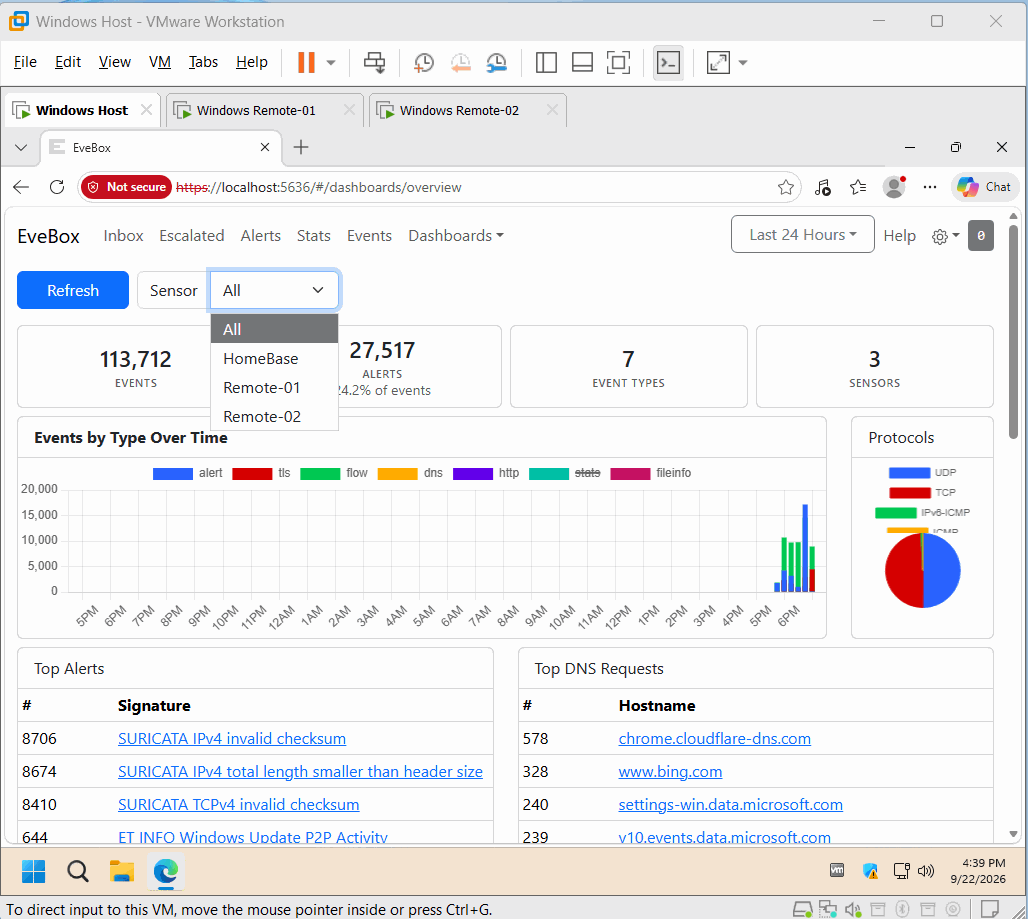
• Browser access: `http://localhost:5636` (or via the generated Desktop/Start Menu shortcut).
• Provides an inbox-style alert triage dashboard, event searching, and timeline telemetry.
SYSTEM REBOOT
• Recommended (optional). Refreshes environment PATH variables and verifies
the OpenSearch and EveBox Windows Service auto-start states.
===============================================================================
PHASE VI: TROUBLESHOOTING
===============================================================================
1. DEPENDENCY DOWNLOAD FAILS
- Review installer console output and log files.
- Verify Internet connectivity and check write access on $TempDir.
- Re-run installer (valid cached downloads will be reused).
2. OPENSEARCH FAILS TO START
- Verify OpenSearch service status in `services.msc`.
- Check SSL certificate file paths and system access permissions in config directories.
- Ensure system RAM meets minimum Java Virtual Machine (JVM) heap requirements.
3. SSL CERTIFICATE ISSUANCE ERROR
- Verify OpenSSL binaries were extracted properly into the framework root.
- Run 'EveBox-Console-SSL.exe' directly as Administrator to regenerate missing certs.
4. EVEBOX CONSOLE UNREACHABLE
- Confirm the EveBox service is active in `services.msc`.
- Verify local port binding status at `http://localhost:5636`.
- Check Windows Firewall settings for blocked local endpoints.
5. EVEBOX DISPLAYS NO EVENTS
- Confirm core Suricata is actively writing fresh data to `eve.json`.
- Ensure the OpenSearch service is running and healthy over HTTPS.
- Check firewall rules for local service communication blocks.
===============================================================================
FINAL DEPLOYMENT CHECKLIST
===============================================================================
[ ] SHA-1 hash verified before extraction (B83B89EFFB21F825DBE106C750C3FDADE794C6E5)
[ ] Archive extracted to a local directory using archive password
[ ] 'suricata.conf' updated with correct installation paths
[ ] Primary add-on installer executed with Administrator privileges
[ ] SSL/TLS script executed and OpenSSL certificates issued
[ ] OpenSearch service active and listening over secure HTTPS
[ ] EveBox web console accessible at http://localhost:5636
[ ] EveBox ingesting live alerts from Suricata `eve.json` into OpenSearch
[ ] Desktop and Start Menu shortcuts generated
[ ] System reboot performed (recommended)
===============================================================================
TECHNICAL DOCUMENTATION & SUPPORT
===============================================================================
WinSnort.com
Website: https://winsnort.com
Maintainer: Michael Steele
===============================================================================
