


Morpheus
-
Posts
645 -
Joined
-
Last visited
-
Days Won
101


Morpheus's Achievements






-
 If a WinSuricata Host is reinstalled, the Host will generate a new registration key causing the Remote Node's to stop communicating with the newly installed Host. This does not normally require reinstalling the Remote Node. WinSuricata includes the WinSuricata Node Key Updater in the Host's management console specifically for this situation. The utility allows an existing Remote Node to receive the new registration information from the Host and update its EveBox Agent configuration without performing a complete Node installation. Important — Each Remote Node Must Be Updated Individually This procedure demonstrates the complete recovery process for one Remote Node. If a Host has multiple Remote Nodes that need to be reconnected, this procedure must be completed separately for every Remote Node. Each Remote Node has its own: Remote Node Alias Remote Node IP address Registration key EveBox Agent configuration Updating one Remote Node does not update any other Remote Nodes. For example, if a Host has Remote-01, Remote-02, and Remote-03, each Node that needs to reconnect must go through its own key-recovery process. Step 1 — Generate the New Node Registration on the Host On the newly installed WinSuricata Host, open the WinSuricata Management Console. Go to the Remote Node configuration area and select: Host Detected - Add Remote Node Enter the information for the specific Remote Node being recovered: Remote Node Alias: Enter the existing alias assigned to that Node. Remote Node IP: Enter the IP address of that Node. The Management Console will generate the new Node registration information using the Host's current registration key. The generated registration files are stored on the Host under: $WinIDSRoot\Nodes\<Remote Alias> For example: D:\WinSuricata\Nodes\date-Remote-01 The Node-specific folder contains the registration information required to update that particular Remote Node. Step 2 — Copy the New Registration Files to the Node Temp Folder Before the Remote Node can reconnect to the Host the new key file must be added. Transfer the two files below from the Host to the Node: For example: D:\WinSuricata\Nodes\Date-Remote-01\ Remote-01-NodeConfig.json root-ca.pem Copy the required files to: D:\WinSuricata\Temp\ Remote-01-NodeConfig.json root-ca.pem Important The Management Console will not display the option to reinstall/update the Node key until the required registration files have been detected in $WinIDSRoot\Temp folder. Step 3 — Use the Management Console to Reinstall the Node Key Once the registration files have been placed in the Node's Temp folder, open or refresh the WinSuricata Management Console. The Node key reinstallation/update option will now be available because the required registration files have been detected. Select the option to reinstall/update the Node key. The Management Console will use the registration information found in the Temp folder to reconnect the Node to the Host. Step 4 — Verify the Remote Node After the Node Key Updater completes, verify that the EveBox Agent service is running on the Remote Node. The Node should now be using the Host's current registration key and should be able to reconnect to the Host. Allow a few moments for the Node to reconnect and begin sending events. Step 5 — Repeat the Process for Every Remote Node If additional Remote Nodes were connected to the Host before the Host was reinstalled, repeat Steps 1 through 6 for every Remote Node that needs to reconnect. For each Remote Node: On the new Host generate the Node registration information using its existing alias and IP address. Locate its registration files under $WinIDSRoot\Nodes\<Remote Alias>. Copy the required registration files to $WinIDSRoot\Temp on the Node. Run the WinSuricata Node Key Updater from the Management console on that Node. Verify that the EveBox Agent reconnects.
 -
WinSuricata OnDemand Rule Updating
Morpheus posted a topic in WinSuricata Management Console Support
Keeping Suricata rules current is an important part of maintaining an effective intrusion detection system. WinSuricata performs an initial rule update during the installation process so that the system begins operation with a current ruleset. After the initial installation, however, Windows users can encounter a significant limitation when attempting to run the Suricata suricata-update utility again. The underlying problem is not with the Suricata detection engine itself. suricata-update is the official Suricata rule-management utility and is the same utility used on Linux and other Unix-based systems. Suricata's documentation recommends suricata-update for downloading, managing, enabling, and disabling rule sources. The difficulty is the Windows execution environment used by suricata-update. The utility is written in Python, and Windows handles temporary files, open file handles, file replacement, and related filesystem operations differently from Unix/Linux systems. These differences have resulted in longstanding Windows-specific problems with suricata-update. Suricata developers have publicly acknowledged these issues, including problems involving temporary files and Windows file handling, and have stated that Windows support has not been well tested or supported. The WinSuricata Solution Rather than attempting to modify or replace the official suricata-update utility, WinSuricata takes a different approach. WinSuricata provides a lightweight Cygwin environment on Windows and uses it as the execution environment for suricata-update. Cygwin provides a Unix-like environment within Windows, allowing the official rule-management utility to operate using the filesystem and command-line environment it was designed to work with. This allows WinSuricata to use the same suricata-update process used on Unix/Linux systems instead of attempting to maintain a separate Windows-specific rule-management implementation. Cygwin is designed to install and maintain individual Unix-like packages on 64-bit Windows systems. The first time an on-demand rule update is requested, WinSuricata automatically installs Cygwin and the packages required to process Suricata rules. Once this installation has been completed, Cygwin remains installed on the system. It does not need to be reinstalled every time the rules are updated. Subsequent rule updates use the existing Cygwin environment and execute suricata-update directly through that environment. Full suricata-update Functionality An important advantage of this approach is that WinSuricata is not creating a limited or proprietary replacement for suricata-update. The official utility is being used to perform the rule update. This preserves the functionality provided by suricata-update, including rule-source management and the ability to control which rules are enabled or disabled. The Suricata documentation specifically identifies suricata-update as the official mechanism for managing rules and provides functionality for updating sources, enabling sources, disabling rules, and rebuilding the active ruleset. The result is a practical solution for Windows installations: Suricata continues to run natively on Windows, while the rule-management operation is provided with a Unix-compatible execution environment when an update is required. On-Demand Rule Updates After the initial installation of Cygwin, the WinSuricata user can perform subsequent rule updates on demand without reinstalling the supporting environment. The process is therefore divided into two stages: Initial WinSuricata Installation Suricata is installed and configured. An initial rules update is performed. The system is prepared for normal operation. First On-Demand Rule Update WinSuricata detects that the Cygwin rule-update environment is not yet installed. Cygwin is installed. Required packages and dependencies are installed. The official suricata-update utility is executed through Cygwin. The updated Suricata rules are placed into the WinSuricata rules environment. Future Rule Updates The existing Cygwin installation is reused. No Cygwin reinstallation is required. The official suricata-update utility is executed again. The user can perform additional rule updates whenever needed. Why WinSuricata Uses This Approach The objective is not to work around Suricata itself. The objective is to provide Windows users with a reliable path to the same rule-management functionality that Suricata users on Unix/Linux systems have available. The Suricata project continues to recognize Windows rule-management limitations. In a recent developer discussion, the Suricata team specifically identified the Python implementation and the lack of Windows-specific expertise as reasons that suricata-update has not been well supported on Windows, while also noting that work toward a future Rust-based implementation with Windows as a first-class concern is underway. Until native Windows rule management provides equivalent reliability and functionality, WinSuricata's Cygwin-based approach provides a practical bridge. It allows Windows users to remain on a native Windows Suricata deployment while still having access to the established suricata-update rule-management workflow. In short, WinSuricata does not replace suricata-update—it provides the environment needed to run it reliably on Windows. This gives WinSuricata users an ongoing, on-demand rule-update capability while preserving the functionality and rule-management model used by the Suricata project on Unix/Linux platforms. -
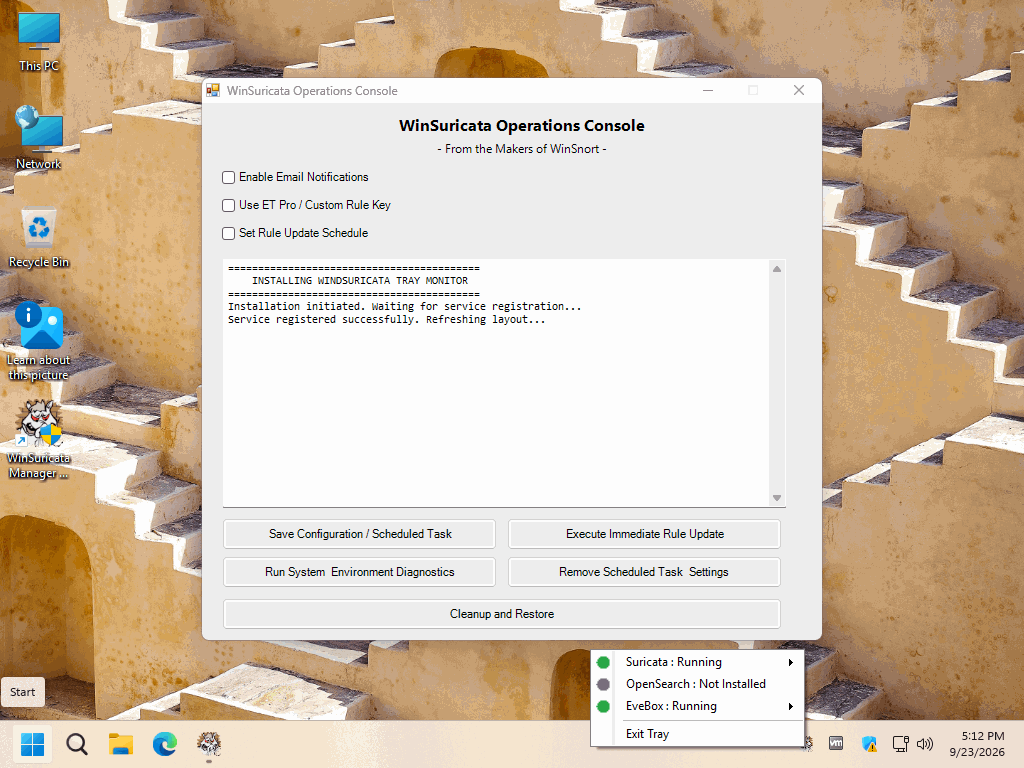
.auto-style1 { text-align: left; } The WinSuricata Operations Console provides a centralized administrative interface for managing the operational components of a WinSuricata installation. Rather than requiring administrators to manually locate individual utilities, scheduled tasks, configuration files, and maintenance tools, the Operations Console brings these functions together into a single interface. The console is also deployment-aware. Its available functions are determined by the components and options present in the particular WinSuricata installation. This allows the same Operations Console to be used on a standalone sensor, a centralized Host, or a Host configured for Remote Node deployment without presenting functions that are not applicable to that installation. Email Notifications The Enable Email Notifications option provides configuration for automated email reporting from the WinSuricata rule-update system. Administrators can configure the SMTP server, port, sender address, recipientaddress, username, and password. SMTP credentials are protected using machine-scope Windows DPAPI rather than being stored as plain-text credentials. The console also provides the Suppress "No Change" Emails option. When enabled, routine rule-update checks that produce no changes do not generate an email. Notifications are instead reserved for actual rule updates or errors. The Test SMTP Settings function allows the configured email settings to be tested directly from the Operations Console. ET Pro / Custom Rule Key The Use ET Pro / Custom Rule Key option allows administrators to configure a private rule-feed key for Emerging Threats Pro or another supported custom rule source. The key is stored using protected machine-scope configuration rather than being retained as unprotected plain text. This allows the rule updater to use the configured key while keeping the credential protected within the Windows installation. Rule Update Scheduling The Set Rule Update Schedule option provides automated scheduling for Suricata rule updates. Administrators can specify the update interval using the available hour and minute selections. When enabled, the Operations Console creates and manages the Windows Scheduled Task used to execute the WinSuricata rule updater. The scheduled task operates under the SYSTEM account with the required elevated execution level, allowing rule maintenance to continue without requiring an administrator to remain logged on. Execute Immediate Rule Update The Execute Immediate Rule Update function allows an administrator to manually initiate a rule update without waiting for the scheduled update interval. The update utility is launched without displaying a separate console window, while its output is captured and displayed directly within the Operations Console. This gives the administrator immediate visibility into the update process and its results. Manual execution also prevents the normal automated email notification process from generating a duplicate notification for the manually initiated update. System & Environment Diagnostics The System & Environment Diagnostics function performs a series of checks against the WinSuricata installation and its operating environment. The diagnostic process verifies items including: Administrative privileges The configured WinSuricata root path Registry configuration Log write access The Suricata executable The Suricata configuration file The results are reported directly in the Operations Console, providing an initial troubleshooting mechanism before more advanced investigation is required. Remove Scheduled Task & Settings The Remove Scheduled Task & Settings function removes the WinSuricata rule-update scheduled task and its associated configuration. This provides administrators with a controlled method of returning the rule-update configuration to an unconfigured state without manually navigating through Windows Task Scheduler or deleting configuration files themselves. The Operations Console also resets its displayed configuration to the appropriate default state following removal. Service Monitor The Activate Service Monitor function installs and activates the WinSuricata Service Monitor utility. The monitor provides ongoing awareness of the WinSuricata service environment and allows the installation to automatically monitor the required components. The Operations Console verifies the resulting installation by checking the relevant service, process, and registry state and reports the status through the integrated interface. Cleanup and Restore The Cleanup and Restore function provides access to the WinSuricata cleanup and restoration utility. This capability is different from the Host-dependent functions described later in this document. Cleanup and Restore does not require OpenSearch or a Host installation. Instead, its availability is determined by the Cleanup and Restore option selected during the original WinSuricata Headless Installer deployment. If the option was enabled during the initial deployment, the Cleanup and Restore utility is made available through the Operations Console. If the option was not enabled, the corresponding utility is not made available. This allows the original deployment configuration to determine whether the installation includes the additional cleanup and restoration capability. OpenSearch PKI Checker The OpenSearch-PKI-Checker provides a dedicated administrative utility for installations using the centralized WinSuricata Host and OpenSearch environment. The checker is used to examine the certificate and trust configuration associated with the OpenSearch environment and provides a troubleshooting mechanism for identifying PKI-related configuration problems. Because this function is specifically associated with the centralized Host/OpenSearch architecture, it is not presented on a standalone WinSuricata sensor. Host Detected — Add Remote Node The Host Detected - Add Remote Node function provides Host administrators with a direct method of initiating Remote Node deployment. When the Operations Console detects the WinSuricata Host/OpenSearch environment, the option becomes available. Selecting it expands the interface to provide fields for: Remote Node Alias Remote Node IP Address The console validates the supplied information and then launches the WinSuricata Node Setup utility with the configured node information. This allows a Host administrator to begin Remote Node provisioning directly from the Operations Console rather than manually locating and launching the Node Setup utility. Dynamic Operations Interface The Operations Console does not use a fixed interface for every WinSuricata deployment. When additional configuration sections are enabled, the interface dynamically adjusts itself to accommodate the expanded controls. For example, enabling Email Notifications or Remote Node provisioning changes the available form area and integrated log display so that the additional controls can be presented without unnecessarily enlarging the overall interface. This provides a consistent management experience while allowing additional functionality to appear only when required. Installation-Dependent Operations The Operations Console automatically adapts its available functions based on the components and options configured during the original WinSuricata deployment. This prevents functions from being presented when the required underlying component or installation option is not available. Host-Dependent Functions Two Operations Console functions are specifically dependent on detection of the WinSuricata Host/OpenSearch environment: OpenSearch-PKI-Checker The OpenSearch-PKI-Checker is displayed when the Operations Console detects the WinSuricata OpenSearch Host environment. It provides access to the dedicated PKI verification utility used to examine the certificate and trust configuration supporting centralized OpenSearch. A standalone WinSuricata sensor without the Host/OpenSearch installation does not display this function. Host Detected — Add Remote Node The Host Detected - Add Remote Node function is also displayed only when a WinSuricata Host/OpenSearch installation is detected. When selected, the Operations Console provides the Remote Node Alias and Remote Node IP Address fields required to initiate node provisioning. After validation, the console launches the WinSuricata Node Setup utility and passes the supplied information to the provisioning process. A standalone WinSuricata sensor therefore does not display the Remote Node provisioning controls. Deployment-Option-Dependent Functions Cleanup and Restore demonstrates a different type of availability condition. It is not dependent on Host detection. Instead, it depends on whether the feature was selected during the original Headless Installer deployment. This means that a standalone sensor can have Cleanup and Restore available, while another standalone sensor may not, depending on the options selected during its initial installation. The Operations Console therefore reflects the original deployment decision rather than assuming that the feature exists on every installation. How the Console Adapts The result is an Operations Console that can support multiple WinSuricata deployment configurations. Function Standalone Sensor Host Sensor Availability Condition Email Notifications Available Available None ET Pro / Custom Rule Key Available Available None Rule Update Scheduling Available Available None Immediate Rule Update Available Available None System & Environment Diagnostics Available Available None Scheduled Task & Settings Removal Available Available None Service Monitor Available Available None Cleanup and Restore If enabled If enabled Initial Headless Installer option OpenSearch PKI Checker Not available Available Host/OpenSearch detection Add Remote Node Not available Available Host/OpenSearch detection Deployment-Aware Administration This deployment-aware design is an important part of the Operations Console. The console does not simply provide a fixed collection of administrative buttons on every system. Instead, it determines which capabilities are appropriate for the particular WinSuricata installation and exposes those functions accordingly. A standalone sensor receives the tools required to manage its local Suricata deployment, rule updates, diagnostics, monitoring, and other locally configured functions. A Host installation additionally receives the OpenSearch PKI and Remote Node management capabilities required for centralized operation.
-
0 downloads
The EveBox Remote Node Agent — OpenSearch Edition extends an existing WinSuricata Headless sensor into a managed Remote Node within the centralized WinSuricata deployment framework. The Remote Node continues to operate as a local Suricata detection sensor, capturing network traffic, applying detection rules, and generating its local eve.json event stream. The EveBox Remote Agent operates alongside Suricata and securely forwards applicable alert telemetry to the designated WinSuricata Host, allowing the local sensor to retain its detection capabilities while participating in a centralized security monitoring environment. Each Remote Node is individually registered with the WinSuricata Host and receives a unique Host-generated authentication and configuration package that establishes its authorized communication relationship with the Host. Once deployed, the Remote Node becomes an identified sensor within the centralized EveBox/OpenSearch environment, where its alert telemetry can be stored, searched, visualized, and managed alongside other registered sensors. The Remote Node Edition therefore adds centralized connectivity and sensor integration to an existing WinSuricata Headless installation without replacing the local Suricata detection engine or requiring OpenSearch to be installed on the Remote Node itself. Complete installation instructions, deployment requirements, verification procedures, troubleshooting information, architecture details, and the final deployment checklist are included in the `README-INSTALL.txt` file contained within this package. Please review the included documentation before beginning the installation and retain it for future administration and troubleshooting. PACKAGE SECURITY & INTEGRITY Before extracting or installing the package, verify the downloaded ZIP file against the published SHA-1 hash to confirm that the archive has not been corrupted or altered. Archive Password : w1nsn03t.c0m SHA-1 Hash : 5B9032569517CF8C28264E6E94D8A420D1B176D4 To verify the package in Windows, run the following command from Command Prompt or PowerShell, replacing the filename if necessary: certutil -hashfile "EveBox-OpenSearch-Node-Installer.zip" SHA1 The calculated SHA-1 value must match the published value exactly. If the hash does not match, do not extract or install the package. Obtain a new copy from the authorized distribution source and perform the verification again. -
0 downloads
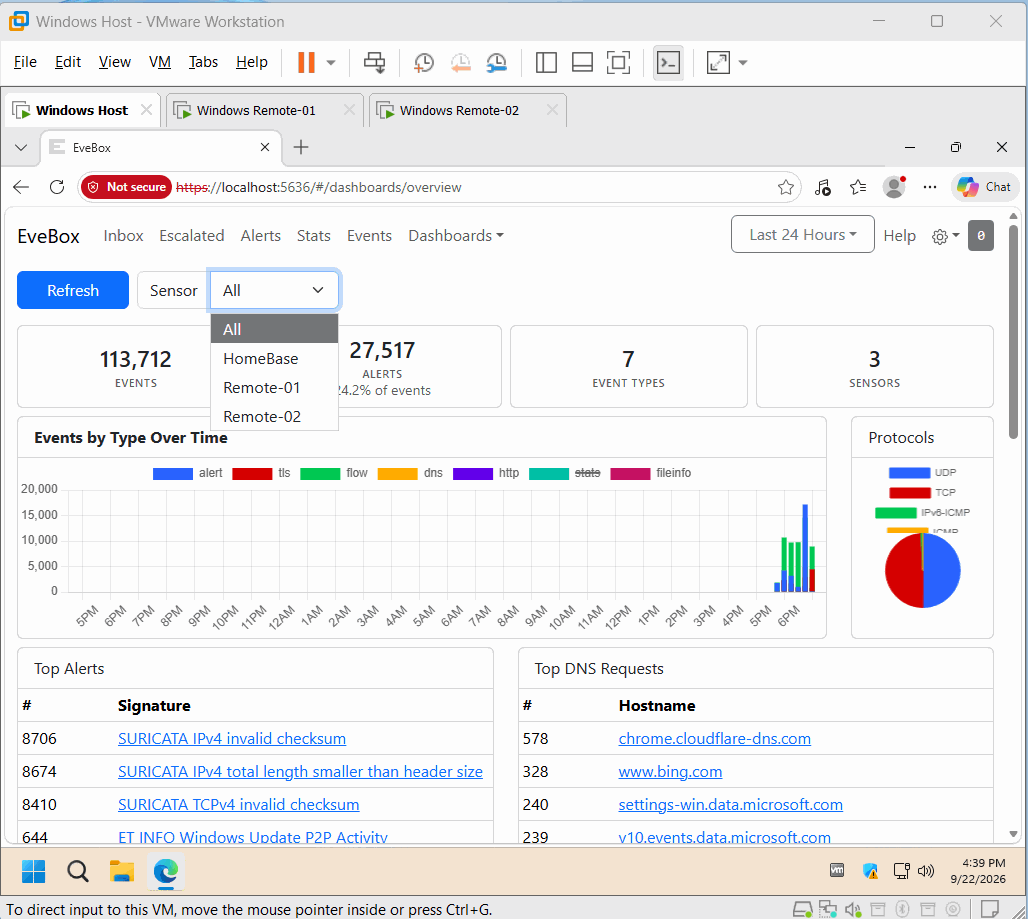
The EveBox + OpenSearch + OpenSSL Console — Host Edition extends an existing WinSuricata Headless sensor into a centralized security management and analytics platform. It deploys and configures EveBox, OpenSearch, OpenSSL-based PKI infrastructure, HTTPS/TLS security, centralized event storage, and the supporting Windows services required to transform the local Suricata EVE JSON event stream into a centralized alert management and analysis environment. The Host Edition builds directly on the WinSuricata Headless Edition and does not replace the underlying Suricata detection engine. The WinSuricata Host also provides the central integration point for Remote Nodes. Registered Remote Nodes can securely forward applicable Suricata alert telemetry to the Host using Host-generated authentication and TLS/PKI configuration, allowing multiple WinSuricata sensors to be monitored through a centralized EveBox and OpenSearch environment. Together, EveBox, OpenSearch, OpenSSL, and the WinSuricata PKI infrastructure provide centralized event storage, search, visualization, sensor management, authenticated Remote Node communication, and certificate validation and recovery while preserving Suricata's local detection and EVE JSON generation on each sensor. Complete installation instructions, deployment requirements, verification procedures, troubleshooting information, architecture details, and the final deployment checklist are included in the `README-INSTALL.txt` file contained within this package. Please review the included documentation before beginning the installation and retain it for future administration and troubleshooting. PACKAGE SECURITY & INTEGRITY Before extracting or installing the package, verify the downloaded ZIP file against the published SHA-1 hash to confirm that the archive has not been corrupted or altered. Archive Password : w1nsn03t.c0m SHA-1 Hash : AFF01040248980F9524F419E0E4FD1B69293EB6B To verify the package in Windows, run the following command from Command Prompt or PowerShell, replacing the filename if necessary: certutil -hashfile "EveBox-OpenSearch-Host-Installer.zip" SHA1 The calculated SHA-1 value must match the published value exactly. If the hash does not match, do not extract or install the package. Obtain a new copy from the authorized distribution source and perform the verification again. -
0 downloads
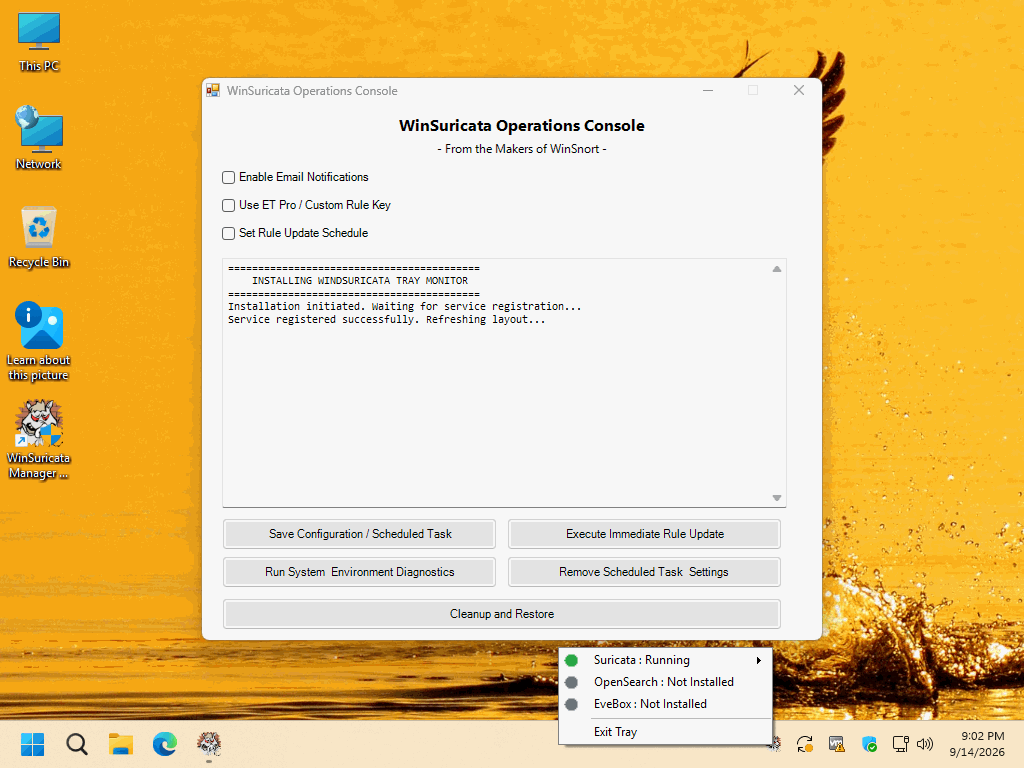
The WinSuricata Headless Edition — Engine Edition provides the foundational Windows sensor and detection engine for the WinSuricata deployment framework. It installs and configures the Suricata IDS/IPS engine, Npcap packet capture, rule management infrastructure, Windows service integration, and supporting system components required to inspect network traffic and generate the Suricata EVE JSON event stream. The installation operates independently and does not require EveBox or OpenSearch, making it the core sensor layer upon which the remaining WinSuricata deployment options are built. Once operational, the Headless Edition provides the complete local detection pipeline from network packet capture through Suricata inspection and EVE JSON event generation, together with the WinSuricata Operations Console, rule update management, diagnostics, service monitoring, and recovery utilities. The resulting eve.json event stream can then be consumed by the EveBox Standalone Console — SQLite Edition, the EveBox + OpenSearch + OpenSSL — Host Edition, or the EveBox Remote Node Agent — OpenSearch Edition, allowing the same core sensor installation to serve as a standalone sensor, centralized Host, or Remote Node foundation. Complete installation instructions, deployment requirements, verification procedures, troubleshooting information, architecture details, and the final deployment checklist are included in the `README-INSTALL.txt` file contained within this package. Please review the included documentation before beginning the installation and retain it for future administration and troubleshooting. PACKAGE SECURITY & INTEGRITY Before extracting or installing the package, verify the downloaded ZIP file against the published SHA-1 hash to confirm that the archive has not been corrupted or altered. Archive Password : w1nsn03t.c0m SHA-1 Hash : 963BC6599FCF5EC7201A71DE42106B59C185D346 To verify the package in Windows, run the following command from Command Prompt or PowerShell, replacing the filename if necessary: certutil -hashfile "WinSuricata-Headless-Installer.zip" SHA1 The calculated SHA-1 value must match the published value exactly. If the hash does not match, do not extract or install the package. Obtain a new copy from the authorized distribution source and perform the verification again. -
0 downloads
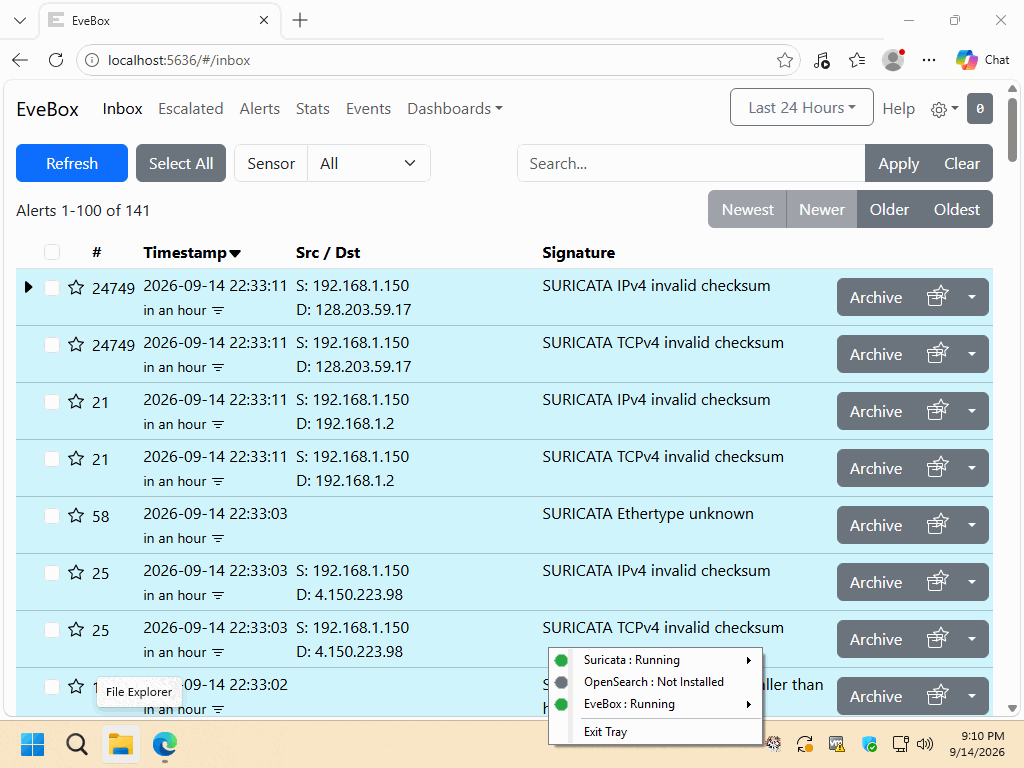
The EveBox Standalone Console — SQLite Edition adds a complete local web-based security console to an existing WinSuricata / Suricata sensor without requiring OpenSearch, a centralized Host, or Remote Node infrastructure. The installer automatically deploys and configures EveBox, establishes the live Suricata `eve.json` ingestion pipeline, provides local SQLite-backed event storage, registers EveBox as a Windows Service, and makes the console available through a web browser on TCP port 5636. Once installed, the sensor provides local alert management, event search, visualization, and persistent historical event storage while continuing to operate entirely within the local WinSuricata environment. This package is designed as an add-on to the WinSuricata Headless Sensor Edition and builds directly on the existing Suricata event stream. It does not replace the core sensor and does not require OpenSearch, OpenSearch PKI configuration, a centralized WinSuricata Host, or Remote Node registration. Installation, service registration, SQLite storage, EVE JSON ingestion, and local web access are automated to minimize manual configuration. Complete installation instructions, deployment requirements, verification procedures, troubleshooting information, architecture details, and the final deployment checklist are included in the `README-INSTALL.txt` file contained within this package. Please review the included documentation before beginning the installation and retain it for future administration and troubleshooting. PACKAGE SECURITY & INTEGRITY Before extracting or installing the package, verify the downloaded ZIP file against the published SHA-1 hash to confirm that the archive has not been corrupted or altered. Archive Password : w1nsn03t.c0m SHA-1 Hash : B7F88EF0AEBE566A64E311CEDA1A93427F4E606D To verify the package in Windows, run the following command from Command Prompt or PowerShell, replacing the filename if necessary: certutil -hashfile "EveBox-SQLite-Installer.zip" SHA1 The calculated SHA-1 value must match the published value exactly. If the hash does not match, do not extract or install the package. Obtain a new copy from the authorized distribution source and perform the verification again. -
Base Configuration Error
Morpheus replied to jnoute's topic in Discussing Manual Installation for Apache2 with MySQL Logging
You failed to follow the tutorial and made this an install that cannot be supported. Go back and start over following the tutorial and this will work so much better. -
You failed to follow the tutorial and made this an install that cannot be supported. Go back and start over following the tutorial and this will work so much better.
-
You will need to supply more information and what exactly is not working?
-
DB-Maintenance Utility Enhancement
Morpheus posted a topic in Technical Advisories - Auto-Installers
Following requests for enhanced event management, the DB-Maintenance Utility has been updated to include a time-based purge feature. Administrators can now automatically clear database events older than (X) days. Happy WinSnorting... -
This is the execution log output for the Automated Installation Framework of a WinSnort Windows Intrusion Detection System (WinIDS) configured as a remote node sensor. The deployment process is virtually identical for Windows Workstation or Windows Server environments. MySQL-Output.log PGSQL-Output.log
-
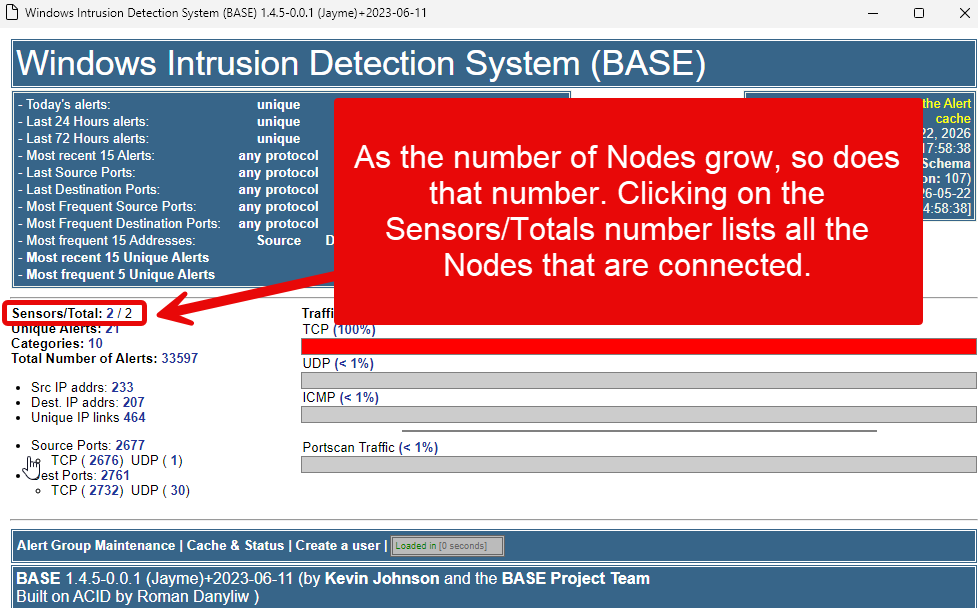
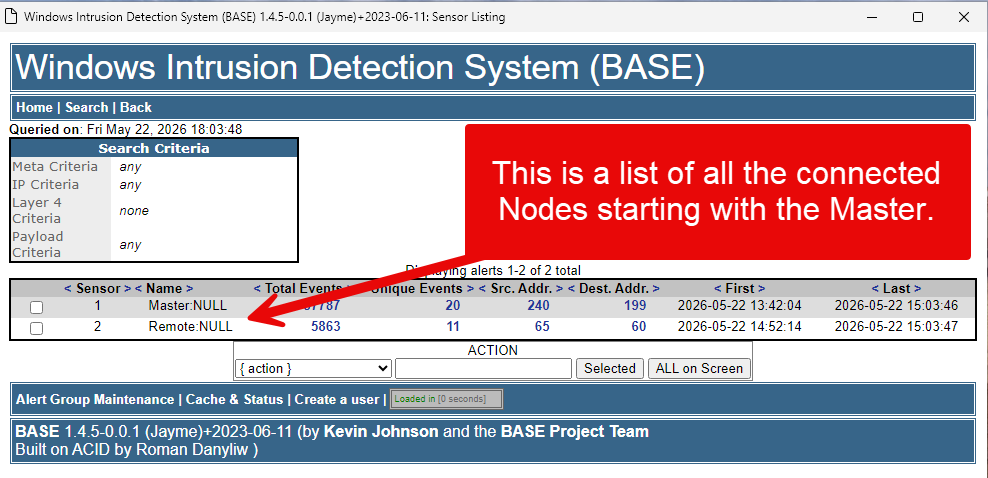
Opening the Master sensor will display the total number of connected nodes. If a node is missing, it simply means it hasn’t connected yet—this process can take a few minutes. (Note: MySQL handles this initial connection noticeably faster than PostgreSQL.)
-
This is the execution log output for the Automated Installation Framework of a WinSnort Windows Intrusion Detection System (WinIDS) configured as a Master/Standalone sensor. The deployment process is virtually identical for Windows Workstation or Windows Server environments, with the exception that Server architecture requires a distinct Internet Information Services (IIS) feature provisioning step. Output.log
-
This is the execution log output for the Automated Installation Framework of a WinSnort Windows Intrusion Detection System (WinIDS) configured as a Master/Standalone sensor. The deployment process is virtually identical for Windows Workstation or Windows Server environments, with the exception that Server architecture requires a distinct Internet Information Services (IIS) feature provisioning step. Output.log