


Morpheus
-
Posts
645 -
Joined
-
Last visited
-
Days Won
101
Content Type
Profiles
Forums
Downloads
Tutorials
Everything posted by Morpheus
-
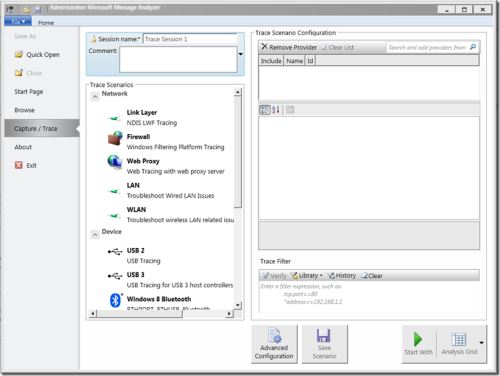
Version 1.4 Build 4.0.8112.0
162 downloads
Microsoft Message Analyzer is a tool for capturing, displaying, and analyzing protocol messaging traffic. It is the successor to NetMon 3.x and a key component of the Protocol Engineering Framework (PEF), created by Microsoft to improve protocol design, development, documentation, testing, and support. With Message Analyzer, you can capture live data or retrieve archived message collections from saved files such as traces and logs. Message Analyzer also allows you to display data in a default tree grid view as well as selectable graphical views that employ grids, charts, and timeline visualizer components, providing high-level data summaries and other statistics. Update: Microsoft Message Analyzer (MMA) was retired as of November 25, 2019. There is currently no Microsoft replacement for Microsoft Message Analyzer in development. Note: I would say it is a must-have tool for any network administrator, given how much you can accomplish with it. A dedicated TechNet blog for Microsoft Message Analyzer is available. -
 Try this one... snort.conf
 -
Attach your snort.conf
-
You should have already set up the switch for the correct interface, and you shouldn't be guessing at this point in the tutorial. The correct format, and has been fixed: 'include $RULE_PATH/test.rules' At this point there have been so many problems that my suggestion it wipe the drive and start over fresh and follow the tutorial verbatim.
-
It is normal for Barnyard2 to stop at waiting for data. There needs to be events triggered to move past that. To namually trigger events try this.
-
Did you go to the section titled Testing IIS, and the PHP installation and complete? Did the test.php display the PHP summary?
-
Go to the section titled Configuring IIS for PHP, and the Windows Intrusion Detection Systems security console and complete. Go to the section titled Testing IIS, and the PHP installation and complete. To manually start Barnyard2: Open a CMD window with Administrator privileges and type 'd:\winids\activators\start.bat' (less the outside quotes), and tap the 'Enter' key. Closing the window will close Barnyard2. Shrink the Barnyard2 window to the task bar for normal operations.
-
Make SURE barnyard2 is not running, but it shouldn't be. Uninstall the PostgreSQL server. You might be able to do this simply by running the PostgreSQL server install again, and choosing to uninstall. Remove everything the uninstall will allow. You can also go to the Add/Remove programs to uninstall. After uninstall go to the d:/winids folder and delete the PostgreSQL folder, and reboot. Go to the section titled Installing the PostgreSQL Database Server and complete. Go to the section titled Configuring the PostgreSQL Database Server and complete. At the CMD prompt type 'd:\winids\postgresql\bin\pg_ctl restart -w -t 10 -D d:\winids\postgresql\data\ -m f' (less the outside quotes), and tap the 'Enter' key. Go to the section titled Configuring Barnyard2 checking to make sure Barnyard2 was correctly configured, and continue to complete tutorial.
-
It appears you have not completed Configuring the PostgreSQL Database Server. Go back to that section and complete. It might be easier to just reinstall the database and start over?
-
Go back to the section titled Configuring IIS for PHP, and the Windows Intrusion Detection Systems security console and do it again.
-
Modder.vbs alternative
Morpheus replied to jop's topic in Discussing Manual Installation for IIS with MySQL Logging
Sure, just disassemble the script and manually preform each step. -
no alerts BASE HOME
Morpheus replied to elkabir's topic in Discussing Manual Installation for IIS with MySQL Logging
You need to follow the guide. The guides have all paths hard coded into them, as does any of the scripts that need to be ran. It is very possible to put programs anywhere as long as everything gets linked in the end. Missing one configuration would most likely cause a failure. If you have completed the tutorial using your custom configuration and have gotten to the end with no errors then its conceivable that everything is linked correctly. There are a lot of reasons why there are no events; Snort not running, Barnyard2 not running, misconfigured snort.conf, monitoring the wrong interface, connected to a switch with no mirroring enabled, possibly there are no events being triggered, etc... Did you try to manually trigger events. There is a topic on that, use the search function. -
no alerts BASE HOME
Morpheus replied to elkabir's topic in Discussing Manual Installation for IIS with MySQL Logging
If you follow the guide it works. What is the error you are receiving? Yes, you need barnyard2 in order to shuttle the events from the snort log to the database. -
There may be some corruption with the list of interfaces as the -W switch should bring up that list. If doesn't look like it will effect anything, as long as you know which interface to choose.
-
I'm not real sure, but you could try opening a CMD window and typing cmd.exe /c chcp 1252 Let us know if this works...
-
The above is normal. If you are getting a connection error than it's most likely related to user authentication, or possibly the database is not running?
-
Never seen that screen before. Did you follow the tutorial and ONLY install what the tutorial instructed? Did you install Winpcap ? There are ONLY two thing that need to be installed to use the -W switch Snort Winpcap Must be a problem with one of those, but best guess would to remove Winpcap and install. There is a possibility Winpcap is not seeing any lagitamate Network Interface Cards, or there are no Network Interface Cards installed?
-
Go into the add and remove programs and make sure Microsoft Visual C++ 2012 is installed. Go back to the tutorial and complete the section labeled: Configuring IIS for PHP, and the Windows Intrusion Detection Systems security console
-
Winsnort.com only supports specific versions of Windows which are posted in each tutorial. If a non-supported version are used then there may be quirks. There is no way for Winsnort.com to verify this, but this error 500 could be related to other issues. DISM is available in Windows 10, as it is with Server 2016. Once the install is completed it is recommended to close any holes and setup whatever it takes to secure the Windows Intrusion Detection System (WinIDS). If you want to write up short tip in securing the Apache Webserver, and Barnyard2 I think it could be of use to some users. If you do and it's something a novice could do during the install. I could add it to the tutorials. I'm really trying to stay away from some of this advanced stuff because it does cause additional work, and problems.
-
You may want to activate all the rules just to make sure everything is working correctly after installing Pulledpork. The policy switch in Pulledpork tells Snort which rules to activate, but in general you may not be seeing any events for some time. This procedure will activate ALL the rules. Make SURE at the end of the test that you revert back to original policy setting or you may end up with millions of events that could bog down the Windows Intrusion Detection System (WinIDS). To activate all the rules bypassing the original policy setting Open a CMD window and type notepad2 d:\winids\script\etc\enablesid.conf and tap the Enter key. Scroll down find and change the line below: Original Line: # pcre:. Change to: pcre:. Save the file and exit. At the CMD prompt type perl d:\winids\script\pulledpork.pl -c d:\winids\script\etc\pulledpork.conf -nPT and tap the Enter key. Note: The added switches (nP) instructs Pulledpork to process the local rules bypassing the ips_policy switch setting, and this process should take about two minutes. The below is displayed in the terminal window after a successful update. Rule Stats... New:-------0 Deleted:---0 Enabled Rules:----27325 Dropped Rules:----0 Disabled Rules:---0 Total Rules:------27325 No IP Blacklist Changes Done Please review d:\winids\snort\log\sid_changes.log for additional details Fly Piggy Fly! Note: The verbose output above will display the Rule Stats, showing both enabled rule count, and disabled rule count should be 0. Do not continue or intervene until 'Fly Piggy Fly!' is displayed in the terminal window. At the CMD prompt type net stop snort & net start snort and tap the Enter key. Note: Allow a couple of minutes for Barnyard2 to reconnect to the event log file after cycling Snort. At the CMD prompt type exit and tap the Enter key. Note: Once the test is complete it is imperative to return and complete this tutorial or the end database fill up with millions of useless events. To revert back to the original policy setting Open a CMD window and type notepad2 d:\winids\script\etc\enablesid.conf and tap the Enter key. Scroll down find and change the line below: Original Line: pcre:. Change to: # pcre:. Save the file and exit. At the CMD prompt type perl d:\winids\script\pulledpork.pl -c d:\winids\script\etc\pulledpork.conf -nPT and tap the Enter key. Note: The added switches (nP) instructs Pulledpork to process the local rules using the ips_policy switch setting, and this process should take about two minutes. The below is displayed in the terminal window after a successful update. Rule Stats... New:-------0 Deleted:---0 Enabled Rules:----9853 Dropped Rules:----0 Disabled Rules:---17472 Total Rules:------27325 No IP Blacklist Changes Done Please review d:\winids\snort\log\sid_changes.log for additional details Fly Piggy Fly! Note: The verbose output above will display the Rule Stats, showing both enabled rule count, and disabled rule count. Do not continue or intervene until 'Fly Piggy Fly!' is displayed in the terminal window. At the CMD prompt type net stop snort & net start snort and tap the Enter key. Note: Allow a couple of minutes for Barnyard2 to reconnect to the event log file after cycling Snort. At the CMD prompt type exit and tap the Enter key.
-
The ips_policy switch has three settings: balanced connectivity security The default ips_policy switch is set to security. If at any time you want to change the ips_policy switch in the pulledpork.conf it will require an additional two switches added to the end of the Pulledpork run line to process the new ips_policy. Open a CMD prompt type as Administrator and type 'perl d:\winids\pulledpork\pulledpork.pl -c d:\winids\pulledpork\etc\pulledpork.conf -nPT' (less the outside quotes) and tap the Enter key. The above run line will only process the local rules for the new policy change on the fly! This run line will not update the rules from the rules repository. It will only update the policy selection from the existing set of rules! The rules should be checked for errors after the update for validation, and Snort must be cycled! Open a CMD prompt type as Administratort 'd:\winids\snort\bin\snort -c d:\winids\snort\etc\snort.conf -l d:\winids\snort\log -ix -T' (less the outside quotes) and tap the 'Enter' key. Note: In the interface switch above (-ix), the x will be substituted for the Index number of the monitoring NIC. If all the tests are passed, the following is a confirmation that the Snort configuration file and rules have tested good. Snort successfully validated the configuration! Snort exiting
-
Yes, it does take some time on systems that have limited memory
-
1) I was waiting for Sourcefire to update the rule package to 2980 before releasing the updated tutorials. Not sure what is going on but there seems to be some disagreements between the two divisions that is causing a delay. However the updated tutorials are now online to fix this. I'm not sure why they pulled 2.9.7.6 from the repository. 2) I just checked on a new install a few days ago and the paths for Perl were added. 3) You might want to place an exclusion into McAfee for the signatures folder. That's a strange one...

-
Yea, that happens sometimes. Cutting and pasting works really well, but being very careful is a must...
-
Look at line 45 in the snort.conf file. Match line with the tutorial and that should get you to the fix. If problems still exist attach the snort.conf file.