


Morpheus
-
Posts
645 -
Joined
-
Last visited
-
Days Won
101
Content Type
Profiles
Forums
Downloads
Tutorials
Everything posted by Morpheus
-
 You should upgrade. It's a pretty painless process.
 -
uname is not relevant to Windows, bypass warning. The other error means the pulledpork.conf has not been configured per the tutorial.
-
I'm not sure I understand. It appears the connection has been made to the remote database. I'm assuming since Barnyard2 is setting at 'Waiting for data' because there have been no events sent to the remote database, that needs to happen next, and then finally verifying in Snorby the event has been logged. You will need to include the database schema on the remote sensor, and I believe the only schema needed is \barnyard2\schemas\create_mysql'. Snorby should give you the correct procedure. The only thing that matters between the two platforms are: Database name Connection Authentication As long as those match and the database has been setup per Snorby, all should be good. If you don't have the schema setup on the remote sensor, as soon as Snort detects an event, Snort will log the event, and then Barnyard2 will crash trying to shuttle the event to the remote database.
-
Down to the waiting is normal. If there would have been a misconfiguration of the database authentication a fatal error would have been thrown and Barnyard would crash. No Waldo file is normal on a fresh install, and will be created after Snort detects the first event. It appears the problem is that Snort is not detecting any events. Make SURE Snort is running, Check in Task manager. Make SURE you have the correct HOME_NET applied in the snort.conf. Make SURE Snort is attached to the correct interface Make SURE Snort is plugged into a HUB, TAP, or managed switch allowing Snort to see ALL the traffic. To test the rules and create events you can do this: Install Notepad ++ I'm assuming Snort has been setup per the tutorial. Copy the rules folder to your desktop Rename your original rules folder to rules-org Go into the desktop/rules folder and MOVE the deleted.rules to the desktop Go into the desktop/rules folder, select ALL the files, right-click one of the files and select 'Edit with Notepad ++', and this will load ALL the files into Notpad ++ for editing. Once all the files are loaded into Notepad ++ preform a Find, select the Replace tab, in the Find what dialog box type '# alert' (less the outside quote), in the Replace with dialog box type 'alert' (less the outside quotes), left-click the Replace all in Opened Documents button allowing the changes to all the .rules files. Once the replace has happened left-click the X in the upper right. A requestor will ask to save each of the files before closing, so make sure you select Yes for all files. Move the deleted.rules back to the desktop/rules folder. Copy the desktop/rules folder back to the snort folder. Snort will need to be cycled in order for Snort to activate the rules. Open a command window and navigate to the snort/bin folder and type 'net stop snort && net start snort' (less the outside quotes). If Snort is on the correct network and monitoring the correct interface it shouldn't take very long to start seeing traffic in the barnyard2 terminal window. If you are not seeing any, try rebooting. Make SURE you deactivate the new rules folder by renaming it to rules.all and the snort/rules.org folder back to rules. A reboot or snort recycle will be needed or in a few hours there will be millions of useless events in the database.
-
No there is nothing related to the installation of The Windows Intrusion Detection System that would prevent any Windows logon problems.
-
The above looks normal. If you open the command window in the task bar it should say waiting for data. if you see packets being displayed in the command window than there is a problem. Those packets should be registering in the security console. If you are not seeing any packets in the command window than there is nothing triggering events. There could be several reasons why; not on the same subnet, plugged into a switch and switches must have port mirroring set to the security consoles ip.
-
Looks like you ran into a problem installing and moving the IIS server. I'm not sure how this can be fixed as I've never seen the error. You might try reinstalling from scratch ands make SURE the command window is in Admin mode before running the move script.
-
Looks like you ran into a problem installing and moving the IIS server. I'm not sure how this can be fixed as I've never seen the error. You might try reinstalling from scratch ands make SURE the command window is in Admin mode before running the move script.
-
The Error 500 may be related to PHP not getting fully implemented correctly. Try using the URL: http:\\winids\base_main.php You might try going back to the below section and checking these two sections? Configuring PHP Configuring IIS for PHP, and the Windows Intrusion Detection Systems security console Note: I just created a new install and have no problem in the section titled: Testing IIS, and the PHP installations
-
Can you attach your snort.con as a file? Don't post it in a replay because the editor strips things out.
-
It appears that Sorcefire has added some items that will need additional configuring in the OS. For now edit the snort.conf to the below: Original Line(s): decompress_swf { deflate lzma } \ Change to: # decompress_swf { deflate lzma } \ The decompression fault for SWF files requires an additional library (LZMA). I have made a request to the development team to look into this problem, and they are looking into it.
-
Try this config file. snort.conf
-
What OS are you installing this on?
-
I have no idea where you got that snort.conf because it's not matching the one included in the current rules tarball, which is the one that must be used. You need to go back to the tutorial and start over, as there are numerous omissions in the snort.conf file.
-
How are you running snort?
-
It looks like it's not reading the snort.conf file. I'm guessing you are using something: d:\winids\snort\bin\snort -v -i1 Try: d:\winids\snort\bin\snort -v -c d:\winids\snort\config\snort.config -i1 The above line may need to be tailored to you specific needs? Note: Those WARNING: signs are usually only informational.
-
Some find it easier to copy and past the password from the tutorial, or the download page. They are identical passwords.
-
You are typing the wrong password. Go back and look again.
-
You need to mirror all the ports to the WinIDS, so you will need a managed switch. You could also connect a "Throwing Star LAN Tap" from greatscottgadgets.com into the connection.
-
The problem you are having is with the OS. I'm not sure why Visual C++ is failing to install, but is a requirement of Apache. This is the first time that problem has been reported. You might try a clean install of the OS and give it another try.
-
I completed a fresh install using Server 2008 R2 and when I preform the test for Barnyard2, I get the below: --== Initializing Barnyard2 ==-- Initializing Input Plugins! Initializing Output Plugins! Parsing config file "d:\winids\barnyard2\etc\barnyard2.conf" +[ Signature Suppress list ]+ ---------------------------- +[No entry in Signature Suppress List]+ ---------------------------- +[ Signature Suppress list ]+ WARNING: invalid Reference spec 'url,'. Ignored WARNING: invalid Reference spec 'url,'. Ignored WARNING: invalid Reference spec 'url,'. Ignored WARNING: invalid Reference spec 'url,'. Ignored WARNING: invalid Reference spec 'url,'. Ignored WARNING: invalid Reference spec 'url,'. Ignored WARNING: invalid Reference spec 'url,'. Ignored WARNING: invalid Reference spec 'url,'. Ignored Barnyard2 spooler: Event cache size set to [32768] INFO database: Defaulting Reconnect/Transaction Error limit to 10 INFO database: Defaulting Reconnect sleep time to 5 second ERROR database: postgresql_error: ERROR: operator does not exist: ` integer LINE 1: SELECT `ref_system_id`, ref_system_name FROM reference_syste... ^ HINT: No operator matches the given name and argument type(s). You might need to add explicit type casts. [CacheSynchronize()]:, SystemCacheSyncronize() call failed. ERROR: database [DatabaseInitFinalize()]: CacheSynchronize() call failed ... Fatal Error, Quitting.. Barnyard2 exiting database: Closing connection to database "snort" Attached is build 336 and it works. Your existing config file will work. I have a note in the Barnyard2 users group about this problem. barnyard2-2.1.14-build336.zip
-
It appears you have some sort of problem with the log folder (permission, etc...).
-
Make sure there is a log folder in the snort folder This looks odd: ERROR: Portscan log file 'log/\portscan.log' could not be opened: No such file or directory. Try this: preprocessor sfportscan: proto { all } memcap { 10000000 } sense_level { low } logfile { portscan.log }
-
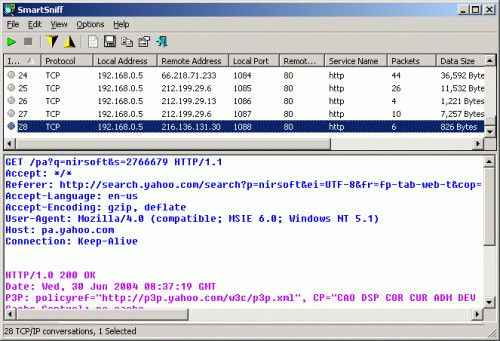
Version 2.29
217 downloads
SmartSniff is a free packet sniffing tool that allows you to capture TCP/IP packets passing through your network adapter and view the captured data as a sequence of conversations between clients and servers. With the help of this network monitoring utility, you can view TCP/IP conversations in ASCII mode or as a hex dump. -
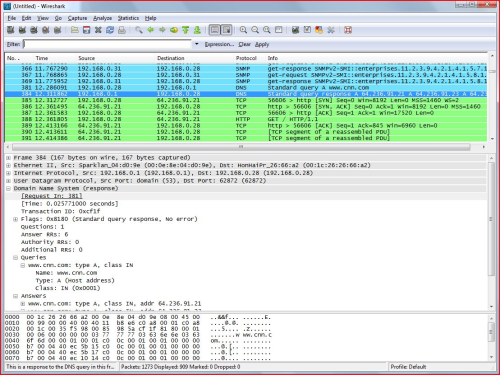
187 downloads
Wireshark is one of the popular free packet sniffing tools for Windows. This tool can give you an ability to see what’s happening on your network at a microscopic level.