

About This File
===============================================================================
    WinIDS-Suricata v1.0 Deployment Framework – Standalone Sensor Install
    Copyright © 2026 WinSnort.com | Michael Steele
===============================================================================
Operational Overview
This package contains an automated, high-performance deployment framework tailored for Suricata combined with EveBox as the native console interface on Windows 10/11 and Windows Server (2016–2025) 64-bit environments. Engineered with a completely self-contained footprint, the framework executes a bare-metal setup from start to finish in under 8 minutes and under 2 minutes if the files exist with zero manual dependency hunting.
Phase I: Pre-Deployment Specifications
Target Environment : Optimized for clean host installations or rapid sensor rollouts.
Package Security   : This package is password-protected: w1nsn03t.c0m
SHA-1 Verification : To ensure file integrity, verify that the SHA-1 hash matches: 09D05C90AD7D3022093C6DAAF4B0CBB025202CDA
Archive Integrity  : Extract all package contents directly to a dedicated local directory (e.g., D:\Temp).
Configuration Note : Ensure suricata.conf is fully configured with your desired parameters prior to running the installer.
Execution Rule     : Right-click Suricata-WinIDS-Installer.exe and select Run as Administrator.
Phase II: Configuration Setup (`config.conf`)
Locate the suricata.conf file in the local extraction directory, open it with any text editor, and configure the target parameters:
$TempDir            = ""    # Path for temporary installation/download files (e.g., "D:\Temp")
$WinIDSRoot         = ""    # Primary home directory for WinIDS installation (e.g., "D:\WinSuricata")
$EnableRestorePoint = $true # Set to $false to skip System Restore point creation
Save all changes to suricata.conf, close the editor and you are good to execute the installer.
Phase III: Architecture & Execution Engine
Automated Pipeline (Sub-8-Minute Deployment)
The framework streams and sequences the deployment automatically:
Rule Maintenance            : Pulls and extracts the latest stable Windows release of Suricata and the standalone EveBox binary (utilizing its high-efficiency embedded SQLite data store).
WinPcap/Npcap Integration   : Automatically validates and deploys network packet capture prerequisites required for Windows interface binding.
Rule Management             : Initializes automated rule-set downloading and compilation (pulling Emerging Threats or custom configurations) straight out of the box.
Service Registration        : Registers both Suricata and EveBox as native Windows Services configured with automatic recovery flags.
Recovery, Resiliency, and System Restore
Resume Capability          : If a download or dependency asset fails mid-stream due to network interruption, place the required file manually into `$TempDir` and re-run. The framework detects existing valid assets and resumes instantly without overwriting baseline configurations.
System Restore Integration : On compatible workstation OS builds, the utility flushes old snapshots, creates a clean pre-installation restore point if none exists, and resets service flags to manual to protect the baseline.
System Restore Limitations : This function is exclusively available on Windows Workstation operating systems. Windows Server architectures do not natively support System Restore points; this feature is automatically bypassed during server deployments.
Phase IV: Post-Deployment Management & Access
Upon completion, the management suite initializes local routing and registers shortcut hooks.
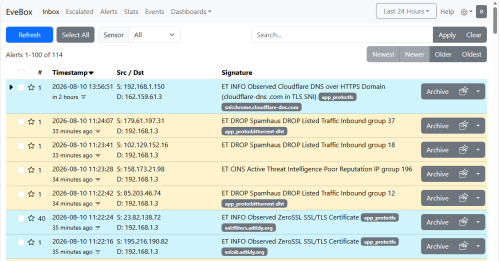
EveBox Console             : Accessible locally via web browser at `http://localhost:5636` (or via the desktop shortcut, providing an inbox-style alert review dashboard, real-time telemetry, and event searching.
Rule Maintenance           : Managed via manual updates executed from a Start Menu shortcut. Automatically preserves the initial default rule set during the first run to serve as a reliable baseline for future rollbacks.
System Restore             : Includes a dedicated System Restore shortcut in the Start Menu designed to completely remove the installation and revert the system back to its original pre-installation state (workstation only).
**Note**: A system reboot is recommended, but not required post-installation. A reboot will cleanly refresh path variables and confirm stable Windows Service execution states.
===============================================================================
    TECHNICAL DOCUMENTATION & SUPPORT: https://winsnort.com
===============================================================================