
All Activity
- Past hour
-

Testing
Morpheus posted a tutorial in Updating an existing Windows Intrusion Detection System (WinIDS)
/* Scope styling to prevent global conflicts */ .winids-guide { font-family: -apple-system, BlinkMacSystemFont, "Segoe UI", Roboto, Helvetica, Arial, sans-serif; line-height: 1.6; color: #333; max-width: 100%; /* Changed to full width */ margin: 0 auto; padding: 20px 40px; /* Enhanced horizontal breathing room for wide screens */ } .winids-guide .text-center { text-align: center; } .winids-guide h2 { font-size: 2rem; margin-bottom: 10px; font-style: italic; font-weight: 700; color: #1a1a1a; } .winids-guide h3 { font-size: 1.4rem; margin-top: 30px; margin-bottom: 15px; font-style: italic; color: #2c3e50; border-bottom: 1px solid #eee; padding-bottom: 5px; } .winids-guide p { margin-bottom: 15px; } .winids-guide .meta-info { margin-top: 15px; color: #666; font-style: italic; } .winids-guide .author { font-weight: 600; } /* Global Alert Box System */ .winids-guide .alert-box { padding: 15px 20px; margin: 20px 0; border-radius: 6px; background-color: #f8f9fa; border-left: 4px solid #ced4da; } .winids-guide .alert-danger { background-color: #fff5f5; border-left-color: #e03131; color: #c92a2a; } .winids-guide .alert-warning { background-color: #fff9db; border-left-color: #f59f00; color: #f08c00; } .winids-guide .alert-info { background-color: #e7f5ff; border-left-color: #1c7ed6; color: #1864ab; } .winids-guide .alert-success { background-color: #ebfbee; border-left-color: #37b24d; color: #2b8a3e; } /* Code block formatting with relative positioning for copy button */ .winids-guide pre { position: relative; margin: 10px 0 20px 0; } .winids-guide pre code { display: block; background: #f1f3f5; padding: 14px 16px; border-radius: 4px; font-family: "Consolas", "Courier New", Courier, monospace; font-size: 0.95rem; color: #212529; overflow-x: auto; border: 1px solid #dee2e6; } /* Copy Clipboard Button Styling */ .winids-guide .copy-btn { position: absolute; top: 8px; right: 8px; background: #fff; border: 1px solid #ced4da; padding: 4px 8px; font-size: 0.75rem; font-weight: 600; color: #495057; border-radius: 4px; cursor: pointer; opacity: 0.8; transition: all 0.2s ease; font-family: inherit; } .winids-guide .copy-btn:hover { opacity: 1; background: #e9ecef; border-color: #adb5bd; } .winids-guide .copy-btn.copied { background: #37b24d; color: #fff; border-color: #2b8a3e; } /* Lists and Links */ .winids-guide ul { margin-left: 20px; margin-bottom: 20px; } .winids-guide li { margin-bottom: 8px; } .winids-guide a { color: #1c7ed6; text-decoration: none; } .winids-guide a:hover { text-decoration: underline; } .winids-guide .download-link { font-weight: bold; font-style: italic; display: inline-flex; align-items: center; gap: 8px; } .winids-guide .text-red { color: #e03131; font-weight: bold; } /* Companion Docs List Layout */ .winids-guide .companion-list { list-style: square; } .winids-guide .companion-list li { margin-bottom: 18px; } .winids-guide .companion-list a { font-weight: bold; } .winids-guide .companion-desc { display: block; color: #555; margin-top: 4px; font-size: 0.95rem; } Compiling Barnyard2 on Windows using the Cygwin UNIX emulator Windows 10 / 11 / 2016 SE / 2019 SE / 2022 SE / 2025 SE Last Date Revised: May 12, 2026 Written by: Michael E. Steele Get Community Support! Introduction Barnyard2 will not compile on a 32-bit operating system using this tutorial! This tutorial provides a straightforward, step-by-step framework for compiling Barnyard2 on Windows using the Cygwin UNIX emulator to achieve MySQL/PostgreSQL database support. Copyright Notice This document is Copyright © 2003-2026 Michael Steele. All rights reserved. Permission to distribute this document is hereby granted providing that distribution is electronic, in its original form, no money is involved, and this copyright notice is maintained. Other requests for distribution will be considered. Use the information in this document at your own risk. Michael Steele disavows any potential liability of this document. Use of the concepts, examples, and/or other content of this document are entirely at your own risk. This guide is written in the hope that it will be useful, but without any warranty; without even the implied warranty of merchantability or fitness for a particular purpose. All copyrights are owned by their respective owners, unless specifically noted otherwise. Third-party trademarks or brand names are the property of their owners. Use of a term in this document should not be regarded as affecting the validity of any trademark or service mark. Naming of particular products or brands should not be seen as endorsements. Support Questions and Help All support questions related to this specific tutorial MUST be directed to the specific forum where this Windows Intrusion Detection System (WinIDS) tutorial resides! By request, a premium fee service is available for one-on-one dedicated support. If you have not acquired this tutorial directly from the winsnort.com website, you most likely do not have the latest revision! How to use this guide Critical Requirement: When asked to "Open a CMD window with Administrator privileges", it must be completed exactly as written or the installation will fail. Similarly, when asked to "Close a CMD window", you must do so or the sequence will fail. Note: The user deploying this installation MUST be an active member of the local Administrators group. Note: If the User Account Control (UAC) dialog box appears at ANY time during this installation, ALWAYS click "Yes" to continue, or the installation will fail. Instructions on starting a command prompt as an Administrator: In the Windows Search box, type cmd, and then press CTRL+SHIFT+ENTER. Operating System and Configuration Setup Using any 64-bit version of Windows with the latest service pack installed will suffice to compile Barnyard2. This tutorial offers two methods for compiling Barnyard2 on Windows using the Cygwin UNIX emulator. It supports automated or manual compilations for either PostgreSQL or MySQL databases. 1) Automated Script Process There is an included scripted process that, if set up properly, will automatically compile Barnyard2 into an executable. This automated routine compiles Barnyard2 and leaves the assimilated, compressed "Barnyard2" archive cleanly in the root of drive D:\. 2) Manual Step-by-Step Compile The manual installation pathway gives you foundational exposure to how UNIX environments operate via Cygwin (a Unix-like environment and command-line interface for Microsoft Windows). This tutorial runs on ANY modern 64-bit Microsoft Windows operating system and comes packaged with all necessary assets. Both the tutorial architecture and the automated script rely on hard-coded absolute directory paths. Prepping for the Windows Intrusion Detection System (WinIDS) Tutorial Downloading and extracting the 'WinIDS - Barnyard2 Software Development Pack' It is imperative to only use the files included in the "WinIDS - Barnyard2 Software Development Pack" highlighted below. These files have been thoroughly tested and verified as cross-compatible with all supported Windows Intrusion Detection Systems (WinIDS) tutorials. Download The 'WinIDS - Barnyard2 Software Development Pack' to a temporary location. Open File Explorer and navigate to your downloaded winids-b2sdp.zip file. Right-click the file and select Extract All.... In the target folder dialog box, type d:\by2temp. Uncheck the "Show extracted files when complete" checkbox and click extract. When prompted for a password, type w1nsn03t.c0m, click OK, and exit File Explorer. Downloading additional, required support files for target databases It is imperative to only use the exact files downloaded from the direct URL links below. These packages have been validated explicitly for this WinIDS track. Pick your target database application framework below and save the asset directly into your newly created d:\by2temp working folder. MySQL 8.0.46: Download and save the file to the d:\by2temp folder. PostgreSQL 18.3: Download and save the file to the d:\by2temp folder. Note: Intelligent detection handling handles versioning automatically: If it detects only the MySQL source code file, it will compile exclusively for MySQL. If it detects only the PostgreSQL source code file, it will compile exclusively for PostgreSQL. If it flags both engine source tarballs, it will gracefully compile support for both concurrently. Warning: If multiple versions of the same database source code are found in the execution directory, the smart detection engine will safely abort. How to compile Barnyard2 on Windows using the Cygwin UNIX emulator The automated process for compiling Barnyard2 Selectable deployment tracks natively support: Compiling Barnyard2 for MySQL Database Support Compiling Barnyard2 for PostgreSQL Database Support Compiling Barnyard2 for Concurrent MySQL and PostgreSQL Database Support Open a CMD window with Administrator privileges, type the following command, and press Enter: cd /d d:\by2temp At the command prompt, execute the automation playbook engine script and input your target selection options when requested: powershell -NoProfile -ExecutionPolicy Bypass -NoExit -File "Compile-WinSnort.ps1" Note: Depending on allocated bare-metal compute resources (RAM/CPU cores) and chosen build parameters, execution cycles can last between 10 to 60 minutes. You may close this reference manual now and interface directly with the script stdout feedback loops. The manual process for compiling Barnyard2 Installing Cygwin Open File Explorer and enter the d:\by2temp directory. Double-click setup-x64.exe to run the native Cygwin utility installation pipeline, then safely close the explorer host window. When the Cygwin Setup wizard welcomes you, select Next. At the Choose Installation Type page, leave the default Install from Internet radio flag marked and select Next. At the Choose Installation Directory step, navigate to the Select Root Install Directory input box, define it explicitly as d:\cygwin, and click Next. At the Select Local Package Directory step, alter the package input field tracking string to read precisely d:\cygwin\downloads, and select Next. When the notification alert prompts you stating "Directory d:\cygwin\downloads does not exist, would you like me to create it?", confirm by clicking Yes. At the Select Connection Type configuration panel, click Next. When the mirrors payload tracking site page Populates, choose http://cygwin.mirrors.hoobly.com out of the Choose A Download Site catalog, highlight it, and click Next. The fundamental core packages will begin initializing into your local environment directory. Installing required Cygwin packages When the Select Packages mapping interface displays, find the View selector option at the top and transition it from 'Minimal/Default' to Full. Use the search dialogue field consecutively to locate each package name variant highlighted below. For each item, look under the 'Package' block, select the dropdown selector to the right, and mark the latest stable software build number for inclusion: unzip zip bison automake cmake gcc-core gcc-g++ libtool libicu-devel libicu73 PostgreSQL Compiles Only: flex (Select for flex, flex-debuginfo, and flexdll) make libreadline-devel zlib zlib-devel perl patch libgmp-devel libedit-devel MySQL Compiles Only: libmariadb-devel MySQL Compiles Only: mariadb-common Once all matching package versions are systematically configured, click Next at the bottom right corner. Review the calculated change logs at the Review and confirm changes validation screen, and select Next. The progress dashboard window will display downloading and staging telemetry for the base components alongside structural dependencies. This operations cycle can take several minutes to run through. When you reach the Installation Status and Create Icons interface summary panel, click Finish. Installing the support programs From your Windows Desktop screen, launch the newly created shortcut labeled Cygwin Terminal to open the virtual command prompt environment. Execute the following commands sequentially, pressing Enter after each line code block block: unzip /cygdrive/d/by2temp/barnyard2-master.zip -d /cygdrive/d/cygwin mv /cygdrive/d/cygwin/barnyard2-master /cygdrive/d/cygwin/source unzip /cygdrive/d/by2temp/WpdPack_4_1_2.zip -d /cygdrive/d/cygwin cp -Rf /cygdrive/d/cygwin/WpdPack/Lib/* /cygdrive/d/cygwin/lib cp -Rf /cygdrive/d/cygwin/WpdPack/Include/* /cygdrive/d/cygwin/usr/include unzip /cygdrive/d/by2temp/includes.zip -d /cygdrive/d/cygwin/usr/include perl -pi -e 's/`ref_system_id`/ref_system_id/g;' /cygdrive/d/cygwin/source/src/output-plugins/spo_database_cache.h mv /cygdrive/d/cygwin/lib/libwpcap.a /cygdrive/d/cygwin/lib/libpcap.a Prepping MySQL support for Barnyard2 Bypass notice: Skip this section completely if PostgreSQL was chosen as your primary database framework infrastructure stack target! All core compilation processes must map directly to the active operational engine environment running live on your WinIDS server. Execute the following targeted source building operations steps cleanly inside the running Cygwin command console terminal: tar -zxvf /cygdrive/d/by2temp/mysql-8.0.46.tar.gz -C /cygdrive/d/cygwin perl -pi -e 's/AND NOT WIN32/AND WIN32/g' /cygdrive/d/cygwin/mysql-8.0.46/configure.cmake sed -i '1s/^/SET(CMAKE_LEGACY_CYGWIN_WIN32=1)\n/' /cygdrive/d/cygwin/mysql-8.0.46/CMakeLists.txt cd /cygdrive/d/cygwin/mysql-8.0.46 cmake . -DWITH_EDITLINE=system -DINSTALL_MYSQLTESTDIR= make mysqlclient && make install Prepping PostgreSQL support for Barnyard2 Bypass notice: Skip this section completely if MySQL was chosen as your primary database framework infrastructure stack target! All core compilation processes must map directly to the active operational engine environment running live on your WinIDS server. Execute the following targeted source building operations steps cleanly inside the running Cygwin command console terminal: tar -zxvf /cygdrive/d/by2temp/postgresql-18.3.tar.gz -C /cygdrive/d/cygwin cd /cygdrive/d/cygwin/postgresql-18.3 ./configure make && make install Assimilating the Barnyard2 executable, and the support files Run these structural file migration commands inside the open console prompt window to align build outputs into independent operational directory paths: mkdir /cygdrive/d/barnyard2 mkdir /cygdrive/d/barnyard2/etc mkdir /cygdrive/d/barnyard2/schemas cp /cygdrive/d/cygwin/source/schemas/create* /cygdrive/d/barnyard2/schemas cp /cygdrive/d/cygwin/usr/local/bin/barnyard2.exe /cygdrive/d/barnyard2 cp /cygdrive/d/cygwin/source/etc/barnyard2.conf /cygdrive/d/barnyard2/etc cp /cygdrive/d/cygwin/bin/cygz.dll /cygdrive/d/barnyard2 cp /cygdrive/d/cygwin/bin/cygwin1.dll /cygdrive/d/barnyard2 cp /cygdrive/d/cygwin/bin/cygstdc++-6.dll /cygdrive/d/barnyard2 MySQL Build Tracks Only: Port over supporting dependency driver runtime files to target architecture folder blocks: cp /cygdrive/d/cygwin/bin/cygmariadb-3.dll /cygdrive/d/barnyard2 cp /cygdrive/d/cygwin/bin/cygcrypto-1.1.dll /cygdrive/d/barnyard2 cp /cygdrive/d/cygwin/bin/cygiconv-2.dll /cygdrive/d/barnyard2 cp /cygdrive/d/cygwin/bin/cygssl-1.1.dll /cygdrive/d/barnyard2 PostgreSQL Build Tracks Only: Port over supporting dependency driver runtime files to target architecture folder blocks: cp /cygdrive/d/cygwin/usr/local/pgsql/lib/cygpq.dll /cygdrive/d/barnyard2 Creating the final compressed Barnyard2 asset Package the compiled installation outputs cleanly using zip tools via the following sequential steps inside the active Cygwin terminal: cd /cygdrive/d/barnyard2 zip -r /cygdrive/d/barnyard2-2.1.14-b337.zip * exit The fully compiled, assimilated, and compressed Barnyard2 archive is now safely located in the root of your D:\ drive storage volume. Cleaning up the Barnyard2 compile environment residue Open a native Windows command prompt window running with Administrator privileges and purge the remaining temporary development workspace using these tracking lines: rmdir /S /Q d:\cygwin RMDIR /S /Q "%PROGRAMDATA%\Microsoft\Windows\Start Menu\Programs\Cygwin" del %PUBLIC%\Desktop\Cygwin* exit In Conclusion Congratulations, you have successfully completed compiling a standalone copy of Barnyard2 tailored specifically for native Windows operations using the Cygwin UNIX environment emulator with customized database linking extensions! I hope this modular tutorial has served your framework objectives effectively. Please provide operational loop context, bug observations, or general strategy feedback. The architectural mission was to give you clear transparency into how these intricate software components communicate, helping you upgrade, modify, and manage your custom Windows Intrusion Detection System (WinIDS) configuration arrays with confidence. Optional Companion Documents Explore our companion add-on documentation library to expand your active Windows Intrusion Detection System (WinIDS) ecosystem footprint: How to add Event Logging to a local Syslog Server Learn step-by-step methods to route baseline Snort alert logs down to localized logging server targets sitting inside active system topologies. How to add Event Logging to a remote Syslog Server Configure system rules to relay event packets outwards across dedicated networks to a remote logging collection engine. How to add Email Alerting to an existing Windows Intrusion Detection System (WinIDS) Set up automatic email notifications for critical, high-priority events triggered by your intrusion detection system. How to configure Barnyard2 to run as a service Configure Barnyard2 to run seamlessly in the background as a native Windows service. How to compile Barnyard2 on Windows using Cygwin A step-by-step reference layout covering modular definitions within building tracks. How to build and deploy a passive Ethernet tap A hardware-centric blueprint manual detailing low-level fabrication methods to construct raw, physical network tap mechanisms. Updating Major Windows Intrusion Detection Systems (WinIDS) Components How to update the Snort Intrusion Detection Engine Keep your main detection core updated with the latest security releases and optimization patches. How to update the Windows Intrusion Detection Systems rules Maintain an updated signature database to defend your environment against modern threat signatures. Debugging Installation Errors Check the native Windows Event Viewer application. The majority of these infrastructure helper programs output actionable FATAL diagnostics sequences into the default Application log container when processing errors occur. General Tutorial Issues For general technical inquiries regarding this tutorial, click the support button at the top of this article or navigate to our community support forums. Feedback We welcome your feedback, update proposals, or recommendations. Please submit your thoughts directly to us HERE. Michael E. Steele | Microsoft Certified Systems Engineer (MCSE) Email Support: support@winsnort.com Snort: Open Source Network IDS - www.snort.org - Last week
-
WinSnort.com is a premier resource dedicated to the advancement of network security through the WinIDS (Windows Intrusion Detection System) stack. Our mission is to provide the security community with the tools, documentation, and automation necessary to deploy professional-grade intrusion detection and prevention systems on Windows platforms. At the core of our platform is the WinIDS Automated Deployment Framework, a comprehensive suite designed to streamline the installation and configuration of industry-standard security tools. We focus on the seamless integration of: Snort: The world's most widely deployed IDS/IPS engine. Barnyard2: For efficient spooling and processing of security event data. Database Integration: Optimized configurations for MySQL and PostgreSQL backends. PulledPork: Automated rule management and synchronization. Web Consoles: Professional deployment of Apache2 and IIS environments for real-time monitoring. Our Mission We believe in empowering security administrators and researchers with automated, reliable, and high-performance security solutions. By moving away from complex manual setups, WinSnort allows users to focus on what matters most: identifying threats and securing their network infrastructure. The WinIDS Framework Our latest project, WinIDS v4.1, represents a ground-up rewrite of our deployment scripts, utilizing PowerShell and advanced automation to ensure a "plug-and-play" experience for complex security environments. From local sensor management to remote node initialization, we provide the technical blueprints for a robust defense-in-depth strategy. Community & Innovation Beyond software, WinSnort.com serves as a hub for tutorials, technical documentation, and community support. Whether you are a seasoned systems administrator or a security enthusiast, our resources are crafted to help you master the intricacies of the Snort ecosystem.
- Earlier
-
Morpheus changed their profile photo
-
We are pleased to provide updated guidance on utilizing the PulledPork rule updater for your Windows Intrusion Detection systems. Whether you are managing a standalone sensor or a fleet of remote nodes, following these best practices will help ensure your detection rules remain current and reliable. Deployment Scenarios Standalone Sensors For standalone installations, the updater can be executed directly from the desktop shortcut. Note: While the script may function without elevated permissions, we recommend selecting Run as Administrator to ensure the utility has the necessary access to update system files successfully. Remotely Managed Nodes While the updater is fully compatible with standalone sensors, it is optimized for remotely managed environments. For these deployments, we recommend enabling all three configuration options (Silent Mode, Email Notifications, and Task Scheduling) to ensure seamless, automated maintenance. Recommended Configurations You can optimize the script by adjusting the following variables within the configuration file: Silent Mode ($silent): Set to 1 to mute console output. This reduces overhead and is recommended for remote, automated nodes. Email Notifications ($sendmail): Set to 1 to receive status alerts, requires SMTP setting added. Failsafe Mechanism: If an update fails, the script will automatically roll back to the previous stable ruleset and send a notification detailing the cause of the failure. Scheduling: For instructions on automating your update cycles, please refer to our dedicated tutorial: Scheduling and Updating Windows IDS Rules. Feedback & Continuous Improvement Several fail-safes have been built-in; the process is constantly looking to improve the stability and performance. We welcome your input! If you have any recommendations or encounter issues, please submit your feedback.
-
6 downloads
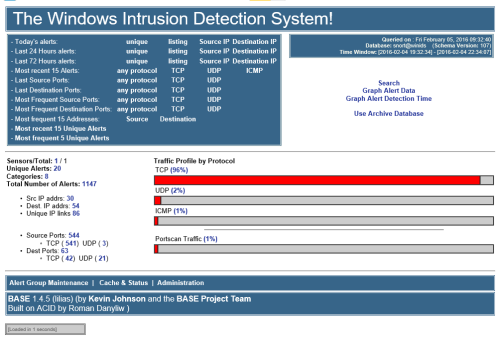
=========================================================== WinIDS v4.1 Deployment Framework - Remote Node & Host Conversion Install Guide Copyright © 2026 WinSnort.com | Michael Steele =========================================================== OPERATIONAL OVERVIEW This toolkit provides the automated framework required to convert a standalone sensor into a Master Host and facilitate the deployment of WinIDS Remote Nodes. This architecture enables decentralized packet inspection paired with centralized database logging. ARCHITECTURAL PREREQUISITES * Active Instance : A functional Standalone WinIDS Sensor is required. * Node Conversion : This process upgrades a Standalone Sensor to a Master Management Server role and initializes the Remote Node environment. ------------------------------------------------------------------------------- PHASE I: PRE-DEPLOYMENT SPECIFICATIONS ------------------------------------------------------------------------------- * Target Environment : Optimized for clean OS installations. * Archive Integrity : Extract all package contents to a dedicated directory. * Archive Security : w1nsn03t.c0m ------------------------------------------------------------------------------- PHASE II: MASTER SERVER PROVISIONING ------------------------------------------------------------------------------- To allow inbound database traffic, the Master Management Server must be provisioned prior to remote node initialization. Ensure you have the Remote Node IP address ready before beginning. Access the $WinIDSRoot/tools directory on the Master Host. Right-click 'InitializeNode.exe' and select "Run as Administrator" and enter the IP of the remote Node at the input prompt. TECHNICAL IMPACT: This utility automates Windows Firewall scoping and configures database permissions for that specified $RemoteIP. Upon completion, the executable will display the Master Host’s IP Address and Database Port. Record these values; they are required for Phases III and IV. Note: Run this process for every new remote node added to the environment. ------------------------------------------------------------------------------- PHASE III: CONNECTIVITY & VALIDATION ------------------------------------------------------------------------------- Perform these steps on the Remote Node. You will need the Master Host IP and Database Port recorded during Phase II. Access the local extraction directory on the Remote Node. Right-click 'Node2Host.exe' and select "Run as Administrator" and enter the IP of the Master Host. Next it will ask for the Database port. If using the default port, press [Enter] to initiate an automated port scan. If using a custom port, type the port number and press [Enter]. CRITICAL: Connection verification is mandatory. If the handshake fails, troubleshoot the network path before proceeding to Phase IV. ------------------------------------------------------------------------------- PHASE IV: REMOTE SENSOR DEPLOYMENT ------------------------------------------------------------------------------- Locate the config.conf file in the local extraction directory on the Remote Node. Open it with a text editor (such as Notepad) and configure the following variables: $TempDir = "" # Path for temporary installation/download files (e.g., "D:\files") $WinIDSRoot = "" # Primary home directory for WinIDS installation (e.g., "D:\home") $Oinkcode = "" # Your 40-character Snort.org Oinkcode for rule updates $SensorName = "" # A unique name for this Node Sensor (e.g., "NodeName") $EnableAllRules = $true # Set to $false to disable rule testing and high-volume logging $EnableRestorePoint = $true # Set to $false to skip System Restore point creation The credentials below must match the SnortUser and SnortPass defined during the Master Host configuration. These allow Barnyard2 to authenticate with the Master ALERT database. $SnortUser = "snort" # Master Host ALERT Database Username $SnortPass = "l0gg3r" # Master Host ALERT Database Password Input the MasterHostIP and MasterHostPort acquired in Phase II to establish the network link between the Remote Node and the Master Host. $MasterHostIP = "" # Master Host IP Address (e.g., "192.168.1.50") $MasterHostPort = "" # Master Host Database Port (e.g., "3306") Save all changes to config.conf and close the editor. Right-click Installer.exe and select "Run as Administrator" to begin the installation. DEPLOYMENT DURATION ESTIMATES Completion times vary based on the selected database engine and host operating system. The following estimates are based on standard network throughput and hardware resource availability. Workstation standalone or node deployments generally complete in ~15 minutes. Server host deployments generally complete in ~40 minutes. Performance is directly influenced by available system resources and network bandwidth. RECOVERY AND RESILIENCY LOGIC The WinIDS framework is designed with automated resume capability. In the event of a package acquisition failure, you will need to manually download the required asset to your defined $TempDir and re-initialize the installer. The framework will automatically detect the local file and resume the deployment. Do not terminate the installer during active system modifications or registry updates to prevent system corruption. SYSTEM RESTORE OPERATIONS In workstation environments, when EnableRestorePoint is active, the installer generates a system restore point prior to setup. This process initializes the required snapshot services, clears existing restore points, and creates a fresh baseline snapshot before cycling the services back to manual. This specific sequence ensures the "first-run" pre-installation snapshot remains protected from automatic purging. If a valid "first-run" snapshot is already present—often the result of a previous removal via the RestorePoint utility—the installer will bypass the creation step to preserve the original baseline for the new installation. SYSTEM RECOVERY PROCESS The RestorePoint utility relies on the initial "first-run" snapshot to execute a rollback. If this snapshot is detected, the utility will revert the system to its original pre-installation state. However, if the snapshot is missing, the process will automatically terminate to prevent system instability. Without a valid snapshot, a clean rollback cannot be performed. In this scenario, you must manually resolve the conflict, restore from a full system backup, or initiate a fresh installation. Note that while the recovery process leaves $WinIDSRoot and $TempDir untouched, performing a new installation will permanently delete all data within the $WinIDSRoot directory. DATA INTEGRITY The System Restore feature is intended for configuration recovery and is not a replacement for a comprehensive backup solution. System Restore services are set to manual and toggled as needed. Windows Restore Points are transient and may be purged during routine maintenance cycles if those services are running. ENVIRONMENTAL CONSTRAINTS & BEST PRACTICES Server Deployments: Since Windows Server architectures do not natively support System Restore points, this feature is automatically bypassed during Server OS deployments. PULLEDPORK RULE MAINTENANCE The original PulledPork by Shirkdog is housed within a sophisticated wrapper, accessible via the WinSnort Start Menu. While the utility is designed for "out-of-the-box" functionality with no manual configuration required, the wrapper offers a highly verbose interface with integrated system checks. Every update attempt is documented in the PulledPork log folder. To maintain system stability, the utility automatically rolls back to the last known-good rule set if an update fails. The Rule Updater includes a built-in scheduler with configurable intervals ranging from 15 to 60 minutes. It supports automated retention of successful updates and SMTP email notifications. While "Silent Mode" is available for remote or unmanaged sensors, the updater will default to a verbose display if launched manually from the desktop while in "Silent Mode". If executed in silent mode without SMTP, the system continues to capture errors and failures within the local log files. ------------------------------------------------------------------------------- PHASE V: POST-DEPLOYMENT MANAGEMENT ------------------------------------------------------------------------------- Upon successful completion, the WinIDS Management Suite will be accessible via Start Menu > WinSnort. Core utilities include: * Rules Updater : PulledPork-driven rule-set synchronization. * System Restore : System Restore Point (SRP) Utility (Workstation Only). Although a system reboot is not strictly mandatory, it is recommended to ensure all environment variables are refreshed. Please note that the WinSnort Start Menu group may not appear in the Start Menu until a system restart has been completed. ------------------------------------------------------------------------------- PHASE VI: POST-DEPLOYMENT VERIFICATION ------------------------------------------------------------------------------- Management Server Validation: 1. Launch the WinIDS Console on the Master Management Server. 2. Monitor the "Sensors/Total" telemetry indicator. 3. A successful link displays "2/2" (or greater). Verify that "$SensorName" is actively reporting logs to the centralized dashboard. =============================================================================== TECHNICAL DOCUMENTATION & SUPPORT: http://winsnort.com =============================================================================== -
 Frank joined the community
 -
The WinIDS installation includes a Rules Updater utility (located in the WinSnort group in the Start Menu). By default, this utility performs a standard rule sync with Sourcefire and applies updates automatically. For administrators who require remote monitoring, the utility includes an optional Email Utility. When activated, it sends a status report to a designated email address, confirming whether rules were updated, already current, or if a validation error occurred. Configuration Procedure To activate and configure the email notification system, follow these steps: 1. Open the Script for Editing Navigate to your WinIDS installation directory and locate the PowerShell script: Path: \scripts\rules-update.ps1 Action: Right-click the file and select Edit (or open it with Notepad/VS Code). 2. Enable the Mail Utility Locate the User Configuration section at the top of the script. Change the $sendmail value from 0 to 1: $sendmail = 1 # Activates the email reporting feature 3. Configure SMTP Settings Input your mail server details between the quotes in the configuration block: $smtpServer: Your mail server address (e.g., smtp.gmail.com or internal relay IP). $smtpPort: Use 587 for SSL/TLS or 25 for standard internal relays. $smtpUser / $smtpPassword: Enter valid credentials if your server requires authentication. $from / $to: Enter the sender and recipient email addresses. 4. Save and Test Save the file. Open the Start Menu and navigate to the WinSnort group. Click the Rules Updater link to execute the script. Observe the console output. If successful, you will see: An Email report of the Rules update has been sent... Troubleshooting & Support Execution Policy: Ensure the script is run with Administrative privileges. Port Blocking: If using Port 25, ensure your antivirus or firewall is not blocking outbound SMTP traffic from PowerShell. Logs: Check the \pulledpork\log\ folder for detailed execution logs if an update fails. Technical Support: Issues during setup, please visit the WinSnort.com Forums under the Auto-Installer section for community-led support and troubleshooting tips.
-
 Vgr joined the community
 -
If the High-Volume Logging/Testing option was enabled during the initial Auto-Installer setup, the system likely generated a significant number of events. While this setting is an excellent diagnostic tool to verify that the Windows Intrusion Detection System (WinIDS) is actively receiving data—especially in environments where default traffic might take hours to trigger an alert—it is recommended to revert to the default policy once connectivity is confirmed. Procedure to Restore Default Rule Policy Follow these steps to deactivate the testing rules and return to the standard configuration: Modify Configuration: Navigate to the Pulledpork\etc folder via File Explorer. Right-click enablesid.conf and open it with Notepad. Locate the line beginning with pcre:. Comment out the line by adding a # at the start (e.g., # pcre:.) Save and exit. Clear Temporary Files: Navigate to the Pulledpork\temp folder. Delete the two files located in this directory. Close File Explorer. Update Rule Set: Open the Start Menu and locate and open the WinSnort folder. Run the Rules Updater. This process will fetch the latest rule definitions and reconfigure Snort to the default policy setting, ensuring optimal performance and manageable log volumes.
-
 mdken joined the community
 -
2 downloads
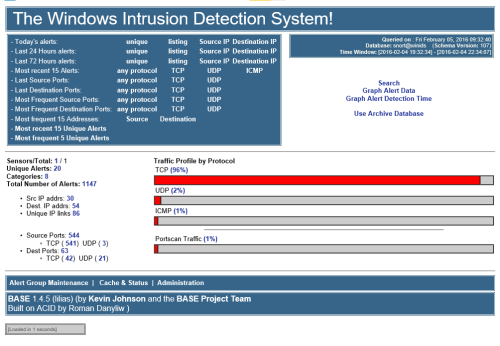
============================================================ WinIDS v4.1 Deployment Framework - Standalone Sensor Install Guide Copyright © 2026 WinSnort.com | Michael Steele ============================================================ OPERATIONAL OVERVIEW This package contains a specialized deployment framework for the Windows Intrusion Detection System (WinIDS). It is engineered for high-performance installations on Windows 10/11 and Windows Server (2016-2025) 64-bit. ------------------------------------------------------------------------------- PHASE I: PRE-DEPLOYMENT SPECIFICATIONS ------------------------------------------------------------------------------- * Target Environment : Optimized for clean OS installations. * Archive Integrity : Extract all package contents to a dedicated directory. * Archive Security : w1nsn03t.c0m ------------------------------------------------------------------------------- PHASE II: STANDALONE SENSOR DEPLOYMENT ------------------------------------------------------------------------------- Locate the config.conf file in the local extraction directory on the Host. Open it with a text editor (such as Notepad) and configure the following variables: $TempDir = "" # Path for temporary installation/download files (e.g., "D:\files") $WinIDSRoot = "" # Primary home directory for WinIDS installation (e.g., "D:\home") $Oinkcode = "" # Your 40-character Snort.org Oinkcode for rule updates $SensorName = "" # A unique name for this Host Sensor (e.g., "HostName") $EnableAllRules = $true # Set to $false to disable rule testing and high-volume logging $EnableRestorePoint = $true # Set to $false to skip System Restore point creation $SnortUser = "snort" # Master Host ALERT Database Username $SnortPass = "l0gg3r" # Master Host ALERT Database Password $RootUser = "root" # Master Host (Root) MySQL/PostgreSQL Database Username $RootPass = "d1ngd0ng" # Master Host (Root) MySQL/PostgreSQL Database Password Save all changes to config.conf and close the editor. Right-click Installer.exe and select "Run as Administrator" to begin the installation. ------------------------------------------------------------------------------- PHASE III: PARAMETER CONFIGURATION ------------------------------------------------------------------------------- SECURITY RECOMMENDATIONS The Username and password values above are defaults. For production environments, it is strongly advised to update these credentials to enhance network security but if there is any doubt, leave them as is. DATABASE Roles The SnortUser/Pass credentials are used by Barnyard2 to authenticate with the ALERT database. These credentials also facilitate the connection between remote nodes and the Master Host across the LAN/WAN. The RootUser/Pass credentials are administrative and used for command-line database management post-installation and also used for the Database manager utility. DOCUMENTATION Use caution when modifying default settings. Ensure all changes are recorded for future administrative reference. DEPLOYMENT DURATION ESTIMATES Completion times vary based on the selected database engine and host operating system. The following estimates are based on standard network throughput and hardware resource availability. Workstation standalone or node deployments generally complete in ~15 minutes. Server host deployments generally complete in ~40 minutes. Performance is directly influenced by available system resources and network bandwidth. RECOVERY AND RESILIENCY LOGIC The WinIDS framework is designed with automated resume capability. In the event of a package acquisition failure, you will need to manually download the required asset to your defined $TempDir and re-initialize the installer. The framework will automatically detect the local file and resume the deployment. Do not terminate the installer during active system modifications or registry updates to prevent system corruption. SYSTEM RESTORE OPERATIONS In workstation environments, when EnableRestorePoint is active, the installer generates a system restore point prior to setup. This process initializes the required snapshot services, clears existing restore points, and creates a fresh baseline snapshot before cycling the services back to manual. This specific sequence ensures the "first-run" pre-installation snapshot remains protected from automatic purging. If a valid "first-run" snapshot is already present—often the result of a previous removal via the RestorePoint utility—the installer will bypass the creation step to preserve the original baseline for the new installation. SYSTEM RECOVERY PROCESS The RestorePoint utility relies on the initial "first-run" snapshot to execute a rollback. If this snapshot is detected, the utility will revert the system to its original pre-installation state. However, if the snapshot is missing, the process will automatically terminate to prevent system instability. Without a valid snapshot, a clean rollback cannot be performed. In this scenario, you must manually resolve the conflict, restore from a full system backup, or initiate a fresh installation. Note that while the recovery process leaves $WinIDSRoot and $TempDir untouched, performing a new installation will permanently delete all data within the $WinIDSRoot directory. DATA INTEGRITY The System Restore feature is intended for configuration recovery and is not a replacement for a comprehensive backup solution. System Restore services are set to manual and toggled as needed. Windows Restore Points are transient and may be purged during routine maintenance cycles if those services are running. ENVIRONMENTAL CONSTRAINTS & BEST PRACTICES Server Deployments: Since Windows Server architectures do not natively support System Restore points, this feature is automatically bypassed during Server OS deployments. PULLEDPORK RULE MAINTENANCE The original PulledPork by Shirkdog is housed within a sophisticated wrapper, accessible via the WinSnort Start Menu. While the utility is designed for "out-of-the-box" functionality with no manual configuration required, the wrapper offers a highly verbose interface with integrated system checks. Every update attempt is documented in the PulledPork log folder. To maintain system stability, the utility automatically rolls back to the last known-good rule set if an update fails. The Rule Updater includes a built-in scheduler with configurable intervals ranging from 15 to 60 minutes. It supports automated retention of successful updates and SMTP email notifications. While "Silent Mode" is available for remote or unmanaged sensors, the updater will default to a verbose display if launched manually from the desktop while in "Silent Mode". If executed in silent mode without SMTP, the system continues to capture errors and failures within the local log files. ------------------------------------------------------------------------------- PHASE IV: POST-DEPLOYMENT MANAGEMENT ------------------------------------------------------------------------------- Upon successful completion, the WinIDS Management Suite will be accessible via Start Menu > WinSnort. Core utilities include: * WinIDS Console : Real-time telemetry, event monitoring, and analysis. * Rules Updater : PulledPork-driven rule-set synchronization. * System Restore : System Restore Point (SRP) Utility (Workstation Only). * Database Utility : Database maintenance utility. Although a system reboot is not strictly mandatory, it is recommended to ensure all environment variables are refreshed. Please note that the WinSnort Start Menu group may not appear in the Start Menu until a system restart has been completed. =============================================================================== TECHNICAL DOCUMENTATION & SUPPORT: http://winsnort.com =============================================================================== -

4 downloads
============================================================ WinIDS v4.1 Deployment Framework - Standalone Sensor Install Guide Copyright © 2026 WinSnort.com | Michael Steele ============================================================ OPERATIONAL OVERVIEW This package contains a specialized deployment framework for the Windows Intrusion Detection System (WinIDS). It is engineered for high-performance installations on Windows 10/11 and Windows Server (2016-2025) 64-bit. ------------------------------------------------------------------------------- PHASE I: PRE-DEPLOYMENT SPECIFICATIONS ------------------------------------------------------------------------------- * Target Environment : Optimized for clean OS installations. * Archive Integrity : Extract all package contents to a dedicated directory. * Archive Security : w1nsn03t.c0m ------------------------------------------------------------------------------- PHASE II: STANDALONE SENSOR DEPLOYMENT ------------------------------------------------------------------------------- Locate the config.conf file in the local extraction directory on the Host. Open it with a text editor (such as Notepad) and configure the following variables: $TempDir = "" # Path for temporary installation/download files (e.g., "D:\files") $WinIDSRoot = "" # Primary home directory for WinIDS installation (e.g., "D:\home") $Oinkcode = "" # Your 40-character Snort.org Oinkcode for rule updates $SensorName = "" # A unique name for this Host Sensor (e.g., "HostName") $EnableAllRules = $true # Set to $false to disable rule testing and high-volume logging $EnableRestorePoint = $true # Set to $false to skip System Restore point creation $SnortUser = "snort" # Master Host ALERT Database Username $SnortPass = "l0gg3r" # Master Host ALERT Database Password $RootUser = "root" # Master Host (Root) MySQL/PostgreSQL Database Username $RootPass = "d1ngd0ng" # Master Host (Root) MySQL/PostgreSQL Database Password Save all changes to config.conf and close the editor. Right-click Installer.exe and select "Run as Administrator" to begin the installation. ------------------------------------------------------------------------------- PHASE III: PARAMETER CONFIGURATION ------------------------------------------------------------------------------- SECURITY RECOMMENDATIONS The Username and password values above are defaults. For production environments, it is strongly advised to update these credentials to enhance network security but if there is any doubt, leave them as is. DATABASE Roles The SnortUser/Pass credentials are used by Barnyard2 to authenticate with the ALERT database. These credentials also facilitate the connection between remote nodes and the Master Host across the LAN/WAN. The RootUser/Pass credentials are administrative and used for command-line database management post-installation and also used for the Database manager utility. DOCUMENTATION Use caution when modifying default settings. Ensure all changes are recorded for future administrative reference. DEPLOYMENT DURATION ESTIMATES Completion times vary based on the selected database engine and host operating system. The following estimates are based on standard network throughput and hardware resource availability. Workstation standalone or node deployments generally complete in ~15 minutes. Server host deployments generally complete in ~40 minutes. Performance is directly influenced by available system resources and network bandwidth. RECOVERY AND RESILIENCY LOGIC The WinIDS framework is designed with automated resume capability. In the event of a package acquisition failure, you will need to manually download the required asset to your defined $TempDir and re-initialize the installer. The framework will automatically detect the local file and resume the deployment. Do not terminate the installer during active system modifications or registry updates to prevent system corruption. SYSTEM RESTORE OPERATIONS In workstation environments, when EnableRestorePoint is active, the installer generates a system restore point prior to setup. This process initializes the required snapshot services, clears existing restore points, and creates a fresh baseline snapshot before cycling the services back to manual. This specific sequence ensures the "first-run" pre-installation snapshot remains protected from automatic purging. If a valid "first-run" snapshot is already present—often the result of a previous removal via the RestorePoint utility—the installer will bypass the creation step to preserve the original baseline for the new installation. SYSTEM RECOVERY PROCESS The RestorePoint utility relies on the initial "first-run" snapshot to execute a rollback. If this snapshot is detected, the utility will revert the system to its original pre-installation state. However, if the snapshot is missing, the process will automatically terminate to prevent system instability. Without a valid snapshot, a clean rollback cannot be performed. In this scenario, you must manually resolve the conflict, restore from a full system backup, or initiate a fresh installation. Note that while the recovery process leaves $WinIDSRoot and $TempDir untouched, performing a new installation will permanently delete all data within the $WinIDSRoot directory. DATA INTEGRITY The System Restore feature is intended for configuration recovery and is not a replacement for a comprehensive backup solution. System Restore services are set to manual and toggled as needed. Windows Restore Points are transient and may be purged during routine maintenance cycles if those services are running. ENVIRONMENTAL CONSTRAINTS & BEST PRACTICES Server Deployments: Since Windows Server architectures do not natively support System Restore points, this feature is automatically bypassed during Server OS deployments. PULLEDPORK RULE MAINTENANCE The original PulledPork by Shirkdog is housed within a sophisticated wrapper, accessible via the WinSnort Start Menu. While the utility is designed for "out-of-the-box" functionality with no manual configuration required, the wrapper offers a highly verbose interface with integrated system checks. Every update attempt is documented in the PulledPork log folder. To maintain system stability, the utility automatically rolls back to the last known-good rule set if an update fails. The Rule Updater includes a built-in scheduler with configurable intervals ranging from 15 to 60 minutes. It supports automated retention of successful updates and SMTP email notifications. While "Silent Mode" is available for remote or unmanaged sensors, the updater will default to a verbose display if launched manually from the desktop while in "Silent Mode". If executed in silent mode without SMTP, the system continues to capture errors and failures within the local log files. ------------------------------------------------------------------------------- PHASE IV: POST-DEPLOYMENT MANAGEMENT ------------------------------------------------------------------------------- Upon successful completion, the WinIDS Management Suite will be accessible via Start Menu > WinSnort. Core utilities include: * WinIDS Console : Real-time telemetry, event monitoring, and analysis. * Rules Updater : PulledPork-driven rule-set synchronization. * System Restore : System Restore Point (SRP) Utility (Workstation Only). * Database Utility : Database maintenance utility. Although a system reboot is not strictly mandatory, it is recommended to ensure all environment variables are refreshed. Please note that the WinSnort Start Menu group may not appear in the Start Menu until a system restart has been completed. =============================================================================== TECHNICAL DOCUMENTATION & SUPPORT: http://winsnort.com =============================================================================== -

0 downloads
============================================================ WinIDS v4.1 Deployment Framework - Standalone Sensor Install Guide Copyright © 2026 WinSnort.com | Michael Steele ============================================================ OPERATIONAL OVERVIEW This package contains a specialized deployment framework for the Windows Intrusion Detection System (WinIDS). It is engineered for high-performance installations on Windows 10/11 and Windows Server (2016-2025) 64-bit. ------------------------------------------------------------------------------- PHASE I: PRE-DEPLOYMENT SPECIFICATIONS ------------------------------------------------------------------------------- * Target Environment : Optimized for clean OS installations. * Archive Integrity : Extract all package contents to a dedicated directory. * Archive Security : w1nsn03t.c0m ------------------------------------------------------------------------------- PHASE II: STANDALONE SENSOR DEPLOYMENT ------------------------------------------------------------------------------- Locate the config.conf file in the local extraction directory on the Host. Open it with a text editor (such as Notepad) and configure the following variables: $TempDir = "" # Path for temporary installation/download files (e.g., "D:\files") $WinIDSRoot = "" # Primary home directory for WinIDS installation (e.g., "D:\home") $Oinkcode = "" # Your 40-character Snort.org Oinkcode for rule updates $SensorName = "" # A unique name for this Host Sensor (e.g., "HostName") $EnableAllRules = $true # Set to $false to disable rule testing and high-volume logging $EnableRestorePoint = $true # Set to $false to skip System Restore point creation $SnortUser = "snort" # Master Host ALERT Database Username $SnortPass = "l0gg3r" # Master Host ALERT Database Password $RootUser = "root" # Master Host (Root) MySQL/PostgreSQL Database Username $RootPass = "d1ngd0ng" # Master Host (Root) MySQL/PostgreSQL Database Password Save all changes to config.conf and close the editor. Right-click Installer.exe and select "Run as Administrator" to begin the installation. ------------------------------------------------------------------------------- PHASE III: PARAMETER CONFIGURATION ------------------------------------------------------------------------------- SECURITY RECOMMENDATIONS The Username and password values above are defaults. For production environments, it is strongly advised to update these credentials to enhance network security but if there is any doubt, leave them as is. DATABASE Roles The SnortUser/Pass credentials are used by Barnyard2 to authenticate with the ALERT database. These credentials also facilitate the connection between remote nodes and the Master Host across the LAN/WAN. The RootUser/Pass credentials are administrative and used for command-line database management post-installation and also used for the Database manager utility. DOCUMENTATION Use caution when modifying default settings. Ensure all changes are recorded for future administrative reference. DEPLOYMENT DURATION ESTIMATES Completion times vary based on the selected database engine and host operating system. The following estimates are based on standard network throughput and hardware resource availability. Workstation standalone or node deployments generally complete in ~15 minutes. Server host deployments generally complete in ~40 minutes. Performance is directly influenced by available system resources and network bandwidth. RECOVERY AND RESILIENCY LOGIC The WinIDS framework is designed with automated resume capability. In the event of a package acquisition failure, you will need to manually download the required asset to your defined $TempDir and re-initialize the installer. The framework will automatically detect the local file and resume the deployment. Do not terminate the installer during active system modifications or registry updates to prevent system corruption. SYSTEM RESTORE OPERATIONS In workstation environments, when EnableRestorePoint is active, the installer generates a system restore point prior to setup. This process initializes the required snapshot services, clears existing restore points, and creates a fresh baseline snapshot before cycling the services back to manual. This specific sequence ensures the "first-run" pre-installation snapshot remains protected from automatic purging. If a valid "first-run" snapshot is already present—often the result of a previous removal via the RestorePoint utility—the installer will bypass the creation step to preserve the original baseline for the new installation. SYSTEM RECOVERY PROCESS The RestorePoint utility relies on the initial "first-run" snapshot to execute a rollback. If this snapshot is detected, the utility will revert the system to its original pre-installation state. However, if the snapshot is missing, the process will automatically terminate to prevent system instability. Without a valid snapshot, a clean rollback cannot be performed. In this scenario, you must manually resolve the conflict, restore from a full system backup, or initiate a fresh installation. Note that while the recovery process leaves $WinIDSRoot and $TempDir untouched, performing a new installation will permanently delete all data within the $WinIDSRoot directory. DATA INTEGRITY The System Restore feature is intended for configuration recovery and is not a replacement for a comprehensive backup solution. System Restore services are set to manual and toggled as needed. Windows Restore Points are transient and may be purged during routine maintenance cycles if those services are running. ENVIRONMENTAL CONSTRAINTS & BEST PRACTICES Server Deployments: Since Windows Server architectures do not natively support System Restore points, this feature is automatically bypassed during Server OS deployments. PULLEDPORK RULE MAINTENANCE The original PulledPork by Shirkdog is housed within a sophisticated wrapper, accessible via the WinSnort Start Menu. While the utility is designed for "out-of-the-box" functionality with no manual configuration required, the wrapper offers a highly verbose interface with integrated system checks. Every update attempt is documented in the PulledPork log folder. To maintain system stability, the utility automatically rolls back to the last known-good rule set if an update fails. The Rule Updater includes a built-in scheduler with configurable intervals ranging from 15 to 60 minutes. It supports automated retention of successful updates and SMTP email notifications. While "Silent Mode" is available for remote or unmanaged sensors, the updater will default to a verbose display if launched manually from the desktop while in "Silent Mode". If executed in silent mode without SMTP, the system continues to capture errors and failures within the local log files. ------------------------------------------------------------------------------- PHASE IV: POST-DEPLOYMENT MANAGEMENT ------------------------------------------------------------------------------- Upon successful completion, the WinIDS Management Suite will be accessible via Start Menu > WinSnort. Core utilities include: * WinIDS Console : Real-time telemetry, event monitoring, and analysis. * Rules Updater : PulledPork-driven rule-set synchronization. * System Restore : System Restore Point (SRP) Utility (Workstation Only). * Database Utility : Database maintenance utility. Although a system reboot is not strictly mandatory, it is recommended to ensure all environment variables are refreshed. Please note that the WinSnort Start Menu group may not appear in the Start Menu until a system restart has been completed. =============================================================================== TECHNICAL DOCUMENTATION & SUPPORT: http://winsnort.com =============================================================================== -

0 downloads
============================================================ WinIDS v4.1 Deployment Framework - Standalone Sensor Install Guide Copyright © 2026 WinSnort.com | Michael Steele ============================================================ OPERATIONAL OVERVIEW This package contains a specialized deployment framework for the Windows Intrusion Detection System (WinIDS). It is engineered for high-performance installations on Windows 10/11 and Windows Server (2016-2025) 64-bit. ------------------------------------------------------------------------------- PHASE I: PRE-DEPLOYMENT SPECIFICATIONS ------------------------------------------------------------------------------- * Target Environment : Optimized for clean OS installations. * Archive Integrity : Extract all package contents to a dedicated directory. * Archive Security : w1nsn03t.c0m ------------------------------------------------------------------------------- PHASE II: STANDALONE SENSOR DEPLOYMENT ------------------------------------------------------------------------------- Locate the config.conf file in the local extraction directory on the Host. Open it with a text editor (such as Notepad) and configure the following variables: $TempDir = "" # Path for temporary installation/download files (e.g., "D:\files") $WinIDSRoot = "" # Primary home directory for WinIDS installation (e.g., "D:\home") $Oinkcode = "" # Your 40-character Snort.org Oinkcode for rule updates $SensorName = "" # A unique name for this Host Sensor (e.g., "HostName") $EnableAllRules = $true # Set to $false to disable rule testing and high-volume logging $EnableRestorePoint = $true # Set to $false to skip System Restore point creation $SnortUser = "snort" # Master Host ALERT Database Username $SnortPass = "l0gg3r" # Master Host ALERT Database Password $RootUser = "root" # Master Host (Root) MySQL/PostgreSQL Database Username $RootPass = "d1ngd0ng" # Master Host (Root) MySQL/PostgreSQL Database Password Save all changes to config.conf and close the editor. Right-click Installer.exe and select "Run as Administrator" to begin the installation. ------------------------------------------------------------------------------- PHASE III: PARAMETER CONFIGURATION ------------------------------------------------------------------------------- SECURITY RECOMMENDATIONS The Username and password values above are defaults. For production environments, it is strongly advised to update these credentials to enhance network security but if there is any doubt, leave them as is. DATABASE Roles The SnortUser/Pass credentials are used by Barnyard2 to authenticate with the ALERT database. These credentials also facilitate the connection between remote nodes and the Master Host across the LAN/WAN. The RootUser/Pass credentials are administrative and used for command-line database management post-installation and also used for the Database manager utility. DOCUMENTATION Use caution when modifying default settings. Ensure all changes are recorded for future administrative reference. DEPLOYMENT DURATION ESTIMATES Completion times vary based on the selected database engine and host operating system. The following estimates are based on standard network throughput and hardware resource availability. Workstation standalone or node deployments generally complete in ~15 minutes. Server host deployments generally complete in ~40 minutes. Performance is directly influenced by available system resources and network bandwidth. RECOVERY AND RESILIENCY LOGIC The WinIDS framework is designed with automated resume capability. In the event of a package acquisition failure, you will need to manually download the required asset to your defined $TempDir and re-initialize the installer. The framework will automatically detect the local file and resume the deployment. Do not terminate the installer during active system modifications or registry updates to prevent system corruption. SYSTEM RESTORE OPERATIONS In workstation environments, when EnableRestorePoint is active, the installer generates a system restore point prior to setup. This process initializes the required snapshot services, clears existing restore points, and creates a fresh baseline snapshot before cycling the services back to manual. This specific sequence ensures the "first-run" pre-installation snapshot remains protected from automatic purging. If a valid "first-run" snapshot is already present—often the result of a previous removal via the RestorePoint utility—the installer will bypass the creation step to preserve the original baseline for the new installation. SYSTEM RECOVERY PROCESS The RestorePoint utility relies on the initial "first-run" snapshot to execute a rollback. If this snapshot is detected, the utility will revert the system to its original pre-installation state. However, if the snapshot is missing, the process will automatically terminate to prevent system instability. Without a valid snapshot, a clean rollback cannot be performed. In this scenario, you must manually resolve the conflict, restore from a full system backup, or initiate a fresh installation. Note that while the recovery process leaves $WinIDSRoot and $TempDir untouched, performing a new installation will permanently delete all data within the $WinIDSRoot directory. DATA INTEGRITY The System Restore feature is intended for configuration recovery and is not a replacement for a comprehensive backup solution. System Restore services are set to manual and toggled as needed. Windows Restore Points are transient and may be purged during routine maintenance cycles if those services are running. ENVIRONMENTAL CONSTRAINTS & BEST PRACTICES Server Deployments: Since Windows Server architectures do not natively support System Restore points, this feature is automatically bypassed during Server OS deployments. PULLEDPORK RULE MAINTENANCE The original PulledPork by Shirkdog is housed within a sophisticated wrapper, accessible via the WinSnort Start Menu. While the utility is designed for "out-of-the-box" functionality with no manual configuration required, the wrapper offers a highly verbose interface with integrated system checks. Every update attempt is documented in the PulledPork log folder. To maintain system stability, the utility automatically rolls back to the last known-good rule set if an update fails. The Rule Updater includes a built-in scheduler with configurable intervals ranging from 15 to 60 minutes. It supports automated retention of successful updates and SMTP email notifications. While "Silent Mode" is available for remote or unmanaged sensors, the updater will default to a verbose display if launched manually from the desktop while in "Silent Mode". If executed in silent mode without SMTP, the system continues to capture errors and failures within the local log files. ------------------------------------------------------------------------------- PHASE IV: POST-DEPLOYMENT MANAGEMENT ------------------------------------------------------------------------------- Upon successful completion, the WinIDS Management Suite will be accessible via Start Menu > WinSnort. Core utilities include: * WinIDS Console : Real-time telemetry, event monitoring, and analysis. * Rules Updater : PulledPork-driven rule-set synchronization. * System Restore : System Restore Point (SRP) Utility (Workstation Only). * Database Utility : Database maintenance utility. Although a system reboot is not strictly mandatory, it is recommended to ensure all environment variables are refreshed. Please note that the WinSnort Start Menu group may not appear in the Start Menu until a system restart has been completed. =============================================================================== TECHNICAL DOCUMENTATION & SUPPORT: http://winsnort.com ===============================================================================