


Morpheus
-
Posts
645 -
Joined
-
Last visited
-
Days Won
101
Content Type
Profiles
Forums
Downloads
Tutorials
Everything posted by Morpheus
-
 If a WinSuricata Host is reinstalled, the Host will generate a new registration key causing the Remote Node's to stop communicating with the newly installed Host. This does not normally require reinstalling the Remote Node. WinSuricata includes the WinSuricata Node Key Updater in the Host's management console specifically for this situation. The utility allows an existing Remote Node to receive the new registration information from the Host and update its EveBox Agent configuration without performing a complete Node installation. Important — Each Remote Node Must Be Updated Individually This procedure demonstrates the complete recovery process for one Remote Node. If a Host has multiple Remote Nodes that need to be reconnected, this procedure must be completed separately for every Remote Node. Each Remote Node has its own: Remote Node Alias Remote Node IP address Registration key EveBox Agent configuration Updating one Remote Node does not update any other Remote Nodes. For example, if a Host has Remote-01, Remote-02, and Remote-03, each Node that needs to reconnect must go through its own key-recovery process. Step 1 — Generate the New Node Registration on the Host On the newly installed WinSuricata Host, open the WinSuricata Management Console. Go to the Remote Node configuration area and select: Host Detected - Add Remote Node Enter the information for the specific Remote Node being recovered: Remote Node Alias: Enter the existing alias assigned to that Node. Remote Node IP: Enter the IP address of that Node. The Management Console will generate the new Node registration information using the Host's current registration key. The generated registration files are stored on the Host under: $WinIDSRoot\Nodes\<Remote Alias> For example: D:\WinSuricata\Nodes\date-Remote-01 The Node-specific folder contains the registration information required to update that particular Remote Node. Step 2 — Copy the New Registration Files to the Node Temp Folder Before the Remote Node can reconnect to the Host the new key file must be added. Transfer the two files below from the Host to the Node: For example: D:\WinSuricata\Nodes\Date-Remote-01\ Remote-01-NodeConfig.json root-ca.pem Copy the required files to: D:\WinSuricata\Temp\ Remote-01-NodeConfig.json root-ca.pem Important The Management Console will not display the option to reinstall/update the Node key until the required registration files have been detected in $WinIDSRoot\Temp folder. Step 3 — Use the Management Console to Reinstall the Node Key Once the registration files have been placed in the Node's Temp folder, open or refresh the WinSuricata Management Console. The Node key reinstallation/update option will now be available because the required registration files have been detected. Select the option to reinstall/update the Node key. The Management Console will use the registration information found in the Temp folder to reconnect the Node to the Host. Step 4 — Verify the Remote Node After the Node Key Updater completes, verify that the EveBox Agent service is running on the Remote Node. The Node should now be using the Host's current registration key and should be able to reconnect to the Host. Allow a few moments for the Node to reconnect and begin sending events. Step 5 — Repeat the Process for Every Remote Node If additional Remote Nodes were connected to the Host before the Host was reinstalled, repeat Steps 1 through 6 for every Remote Node that needs to reconnect. For each Remote Node: On the new Host generate the Node registration information using its existing alias and IP address. Locate its registration files under $WinIDSRoot\Nodes\<Remote Alias>. Copy the required registration files to $WinIDSRoot\Temp on the Node. Run the WinSuricata Node Key Updater from the Management console on that Node. Verify that the EveBox Agent reconnects.
 -
WinSuricata OnDemand Rule Updating
Morpheus posted a topic in WinSuricata Management Console Support
Keeping Suricata rules current is an important part of maintaining an effective intrusion detection system. WinSuricata performs an initial rule update during the installation process so that the system begins operation with a current ruleset. After the initial installation, however, Windows users can encounter a significant limitation when attempting to run the Suricata suricata-update utility again. The underlying problem is not with the Suricata detection engine itself. suricata-update is the official Suricata rule-management utility and is the same utility used on Linux and other Unix-based systems. Suricata's documentation recommends suricata-update for downloading, managing, enabling, and disabling rule sources. The difficulty is the Windows execution environment used by suricata-update. The utility is written in Python, and Windows handles temporary files, open file handles, file replacement, and related filesystem operations differently from Unix/Linux systems. These differences have resulted in longstanding Windows-specific problems with suricata-update. Suricata developers have publicly acknowledged these issues, including problems involving temporary files and Windows file handling, and have stated that Windows support has not been well tested or supported. The WinSuricata Solution Rather than attempting to modify or replace the official suricata-update utility, WinSuricata takes a different approach. WinSuricata provides a lightweight Cygwin environment on Windows and uses it as the execution environment for suricata-update. Cygwin provides a Unix-like environment within Windows, allowing the official rule-management utility to operate using the filesystem and command-line environment it was designed to work with. This allows WinSuricata to use the same suricata-update process used on Unix/Linux systems instead of attempting to maintain a separate Windows-specific rule-management implementation. Cygwin is designed to install and maintain individual Unix-like packages on 64-bit Windows systems. The first time an on-demand rule update is requested, WinSuricata automatically installs Cygwin and the packages required to process Suricata rules. Once this installation has been completed, Cygwin remains installed on the system. It does not need to be reinstalled every time the rules are updated. Subsequent rule updates use the existing Cygwin environment and execute suricata-update directly through that environment. Full suricata-update Functionality An important advantage of this approach is that WinSuricata is not creating a limited or proprietary replacement for suricata-update. The official utility is being used to perform the rule update. This preserves the functionality provided by suricata-update, including rule-source management and the ability to control which rules are enabled or disabled. The Suricata documentation specifically identifies suricata-update as the official mechanism for managing rules and provides functionality for updating sources, enabling sources, disabling rules, and rebuilding the active ruleset. The result is a practical solution for Windows installations: Suricata continues to run natively on Windows, while the rule-management operation is provided with a Unix-compatible execution environment when an update is required. On-Demand Rule Updates After the initial installation of Cygwin, the WinSuricata user can perform subsequent rule updates on demand without reinstalling the supporting environment. The process is therefore divided into two stages: Initial WinSuricata Installation Suricata is installed and configured. An initial rules update is performed. The system is prepared for normal operation. First On-Demand Rule Update WinSuricata detects that the Cygwin rule-update environment is not yet installed. Cygwin is installed. Required packages and dependencies are installed. The official suricata-update utility is executed through Cygwin. The updated Suricata rules are placed into the WinSuricata rules environment. Future Rule Updates The existing Cygwin installation is reused. No Cygwin reinstallation is required. The official suricata-update utility is executed again. The user can perform additional rule updates whenever needed. Why WinSuricata Uses This Approach The objective is not to work around Suricata itself. The objective is to provide Windows users with a reliable path to the same rule-management functionality that Suricata users on Unix/Linux systems have available. The Suricata project continues to recognize Windows rule-management limitations. In a recent developer discussion, the Suricata team specifically identified the Python implementation and the lack of Windows-specific expertise as reasons that suricata-update has not been well supported on Windows, while also noting that work toward a future Rust-based implementation with Windows as a first-class concern is underway. Until native Windows rule management provides equivalent reliability and functionality, WinSuricata's Cygwin-based approach provides a practical bridge. It allows Windows users to remain on a native Windows Suricata deployment while still having access to the established suricata-update rule-management workflow. In short, WinSuricata does not replace suricata-update—it provides the environment needed to run it reliably on Windows. This gives WinSuricata users an ongoing, on-demand rule-update capability while preserving the functionality and rule-management model used by the Suricata project on Unix/Linux platforms. -
.auto-style1 { text-align: left; } The WinSuricata Operations Console provides a centralized administrative interface for managing the operational components of a WinSuricata installation. Rather than requiring administrators to manually locate individual utilities, scheduled tasks, configuration files, and maintenance tools, the Operations Console brings these functions together into a single interface. The console is also deployment-aware. Its available functions are determined by the components and options present in the particular WinSuricata installation. This allows the same Operations Console to be used on a standalone sensor, a centralized Host, or a Host configured for Remote Node deployment without presenting functions that are not applicable to that installation. Email Notifications The Enable Email Notifications option provides configuration for automated email reporting from the WinSuricata rule-update system. Administrators can configure the SMTP server, port, sender address, recipientaddress, username, and password. SMTP credentials are protected using machine-scope Windows DPAPI rather than being stored as plain-text credentials. The console also provides the Suppress "No Change" Emails option. When enabled, routine rule-update checks that produce no changes do not generate an email. Notifications are instead reserved for actual rule updates or errors. The Test SMTP Settings function allows the configured email settings to be tested directly from the Operations Console. ET Pro / Custom Rule Key The Use ET Pro / Custom Rule Key option allows administrators to configure a private rule-feed key for Emerging Threats Pro or another supported custom rule source. The key is stored using protected machine-scope configuration rather than being retained as unprotected plain text. This allows the rule updater to use the configured key while keeping the credential protected within the Windows installation. Rule Update Scheduling The Set Rule Update Schedule option provides automated scheduling for Suricata rule updates. Administrators can specify the update interval using the available hour and minute selections. When enabled, the Operations Console creates and manages the Windows Scheduled Task used to execute the WinSuricata rule updater. The scheduled task operates under the SYSTEM account with the required elevated execution level, allowing rule maintenance to continue without requiring an administrator to remain logged on. Execute Immediate Rule Update The Execute Immediate Rule Update function allows an administrator to manually initiate a rule update without waiting for the scheduled update interval. The update utility is launched without displaying a separate console window, while its output is captured and displayed directly within the Operations Console. This gives the administrator immediate visibility into the update process and its results. Manual execution also prevents the normal automated email notification process from generating a duplicate notification for the manually initiated update. System & Environment Diagnostics The System & Environment Diagnostics function performs a series of checks against the WinSuricata installation and its operating environment. The diagnostic process verifies items including: Administrative privileges The configured WinSuricata root path Registry configuration Log write access The Suricata executable The Suricata configuration file The results are reported directly in the Operations Console, providing an initial troubleshooting mechanism before more advanced investigation is required. Remove Scheduled Task & Settings The Remove Scheduled Task & Settings function removes the WinSuricata rule-update scheduled task and its associated configuration. This provides administrators with a controlled method of returning the rule-update configuration to an unconfigured state without manually navigating through Windows Task Scheduler or deleting configuration files themselves. The Operations Console also resets its displayed configuration to the appropriate default state following removal. Service Monitor The Activate Service Monitor function installs and activates the WinSuricata Service Monitor utility. The monitor provides ongoing awareness of the WinSuricata service environment and allows the installation to automatically monitor the required components. The Operations Console verifies the resulting installation by checking the relevant service, process, and registry state and reports the status through the integrated interface. Cleanup and Restore The Cleanup and Restore function provides access to the WinSuricata cleanup and restoration utility. This capability is different from the Host-dependent functions described later in this document. Cleanup and Restore does not require OpenSearch or a Host installation. Instead, its availability is determined by the Cleanup and Restore option selected during the original WinSuricata Headless Installer deployment. If the option was enabled during the initial deployment, the Cleanup and Restore utility is made available through the Operations Console. If the option was not enabled, the corresponding utility is not made available. This allows the original deployment configuration to determine whether the installation includes the additional cleanup and restoration capability. OpenSearch PKI Checker The OpenSearch-PKI-Checker provides a dedicated administrative utility for installations using the centralized WinSuricata Host and OpenSearch environment. The checker is used to examine the certificate and trust configuration associated with the OpenSearch environment and provides a troubleshooting mechanism for identifying PKI-related configuration problems. Because this function is specifically associated with the centralized Host/OpenSearch architecture, it is not presented on a standalone WinSuricata sensor. Host Detected — Add Remote Node The Host Detected - Add Remote Node function provides Host administrators with a direct method of initiating Remote Node deployment. When the Operations Console detects the WinSuricata Host/OpenSearch environment, the option becomes available. Selecting it expands the interface to provide fields for: Remote Node Alias Remote Node IP Address The console validates the supplied information and then launches the WinSuricata Node Setup utility with the configured node information. This allows a Host administrator to begin Remote Node provisioning directly from the Operations Console rather than manually locating and launching the Node Setup utility. Dynamic Operations Interface The Operations Console does not use a fixed interface for every WinSuricata deployment. When additional configuration sections are enabled, the interface dynamically adjusts itself to accommodate the expanded controls. For example, enabling Email Notifications or Remote Node provisioning changes the available form area and integrated log display so that the additional controls can be presented without unnecessarily enlarging the overall interface. This provides a consistent management experience while allowing additional functionality to appear only when required. Installation-Dependent Operations The Operations Console automatically adapts its available functions based on the components and options configured during the original WinSuricata deployment. This prevents functions from being presented when the required underlying component or installation option is not available. Host-Dependent Functions Two Operations Console functions are specifically dependent on detection of the WinSuricata Host/OpenSearch environment: OpenSearch-PKI-Checker The OpenSearch-PKI-Checker is displayed when the Operations Console detects the WinSuricata OpenSearch Host environment. It provides access to the dedicated PKI verification utility used to examine the certificate and trust configuration supporting centralized OpenSearch. A standalone WinSuricata sensor without the Host/OpenSearch installation does not display this function. Host Detected — Add Remote Node The Host Detected - Add Remote Node function is also displayed only when a WinSuricata Host/OpenSearch installation is detected. When selected, the Operations Console provides the Remote Node Alias and Remote Node IP Address fields required to initiate node provisioning. After validation, the console launches the WinSuricata Node Setup utility and passes the supplied information to the provisioning process. A standalone WinSuricata sensor therefore does not display the Remote Node provisioning controls. Deployment-Option-Dependent Functions Cleanup and Restore demonstrates a different type of availability condition. It is not dependent on Host detection. Instead, it depends on whether the feature was selected during the original Headless Installer deployment. This means that a standalone sensor can have Cleanup and Restore available, while another standalone sensor may not, depending on the options selected during its initial installation. The Operations Console therefore reflects the original deployment decision rather than assuming that the feature exists on every installation. How the Console Adapts The result is an Operations Console that can support multiple WinSuricata deployment configurations. Function Standalone Sensor Host Sensor Availability Condition Email Notifications Available Available None ET Pro / Custom Rule Key Available Available None Rule Update Scheduling Available Available None Immediate Rule Update Available Available None System & Environment Diagnostics Available Available None Scheduled Task & Settings Removal Available Available None Service Monitor Available Available None Cleanup and Restore If enabled If enabled Initial Headless Installer option OpenSearch PKI Checker Not available Available Host/OpenSearch detection Add Remote Node Not available Available Host/OpenSearch detection Deployment-Aware Administration This deployment-aware design is an important part of the Operations Console. The console does not simply provide a fixed collection of administrative buttons on every system. Instead, it determines which capabilities are appropriate for the particular WinSuricata installation and exposes those functions accordingly. A standalone sensor receives the tools required to manage its local Suricata deployment, rule updates, diagnostics, monitoring, and other locally configured functions. A Host installation additionally receives the OpenSearch PKI and Remote Node management capabilities required for centralized operation.
-
0 downloads
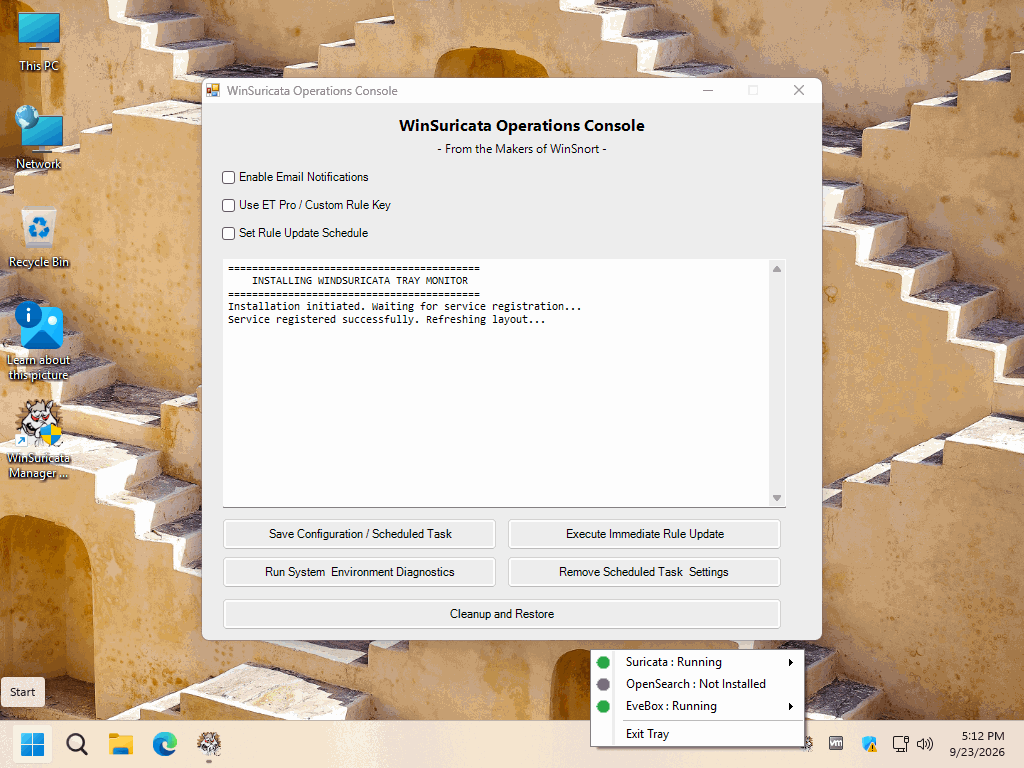
The EveBox Remote Node Agent — OpenSearch Edition extends an existing WinSuricata Headless sensor into a managed Remote Node within the centralized WinSuricata deployment framework. The Remote Node continues to operate as a local Suricata detection sensor, capturing network traffic, applying detection rules, and generating its local eve.json event stream. The EveBox Remote Agent operates alongside Suricata and securely forwards applicable alert telemetry to the designated WinSuricata Host, allowing the local sensor to retain its detection capabilities while participating in a centralized security monitoring environment. Each Remote Node is individually registered with the WinSuricata Host and receives a unique Host-generated authentication and configuration package that establishes its authorized communication relationship with the Host. Once deployed, the Remote Node becomes an identified sensor within the centralized EveBox/OpenSearch environment, where its alert telemetry can be stored, searched, visualized, and managed alongside other registered sensors. The Remote Node Edition therefore adds centralized connectivity and sensor integration to an existing WinSuricata Headless installation without replacing the local Suricata detection engine or requiring OpenSearch to be installed on the Remote Node itself. Complete installation instructions, deployment requirements, verification procedures, troubleshooting information, architecture details, and the final deployment checklist are included in the `README-INSTALL.txt` file contained within this package. Please review the included documentation before beginning the installation and retain it for future administration and troubleshooting. PACKAGE SECURITY & INTEGRITY Before extracting or installing the package, verify the downloaded ZIP file against the published SHA-1 hash to confirm that the archive has not been corrupted or altered. Archive Password : w1nsn03t.c0m SHA-1 Hash : 5B9032569517CF8C28264E6E94D8A420D1B176D4 To verify the package in Windows, run the following command from Command Prompt or PowerShell, replacing the filename if necessary: certutil -hashfile "EveBox-OpenSearch-Node-Installer.zip" SHA1 The calculated SHA-1 value must match the published value exactly. If the hash does not match, do not extract or install the package. Obtain a new copy from the authorized distribution source and perform the verification again. -
0 downloads
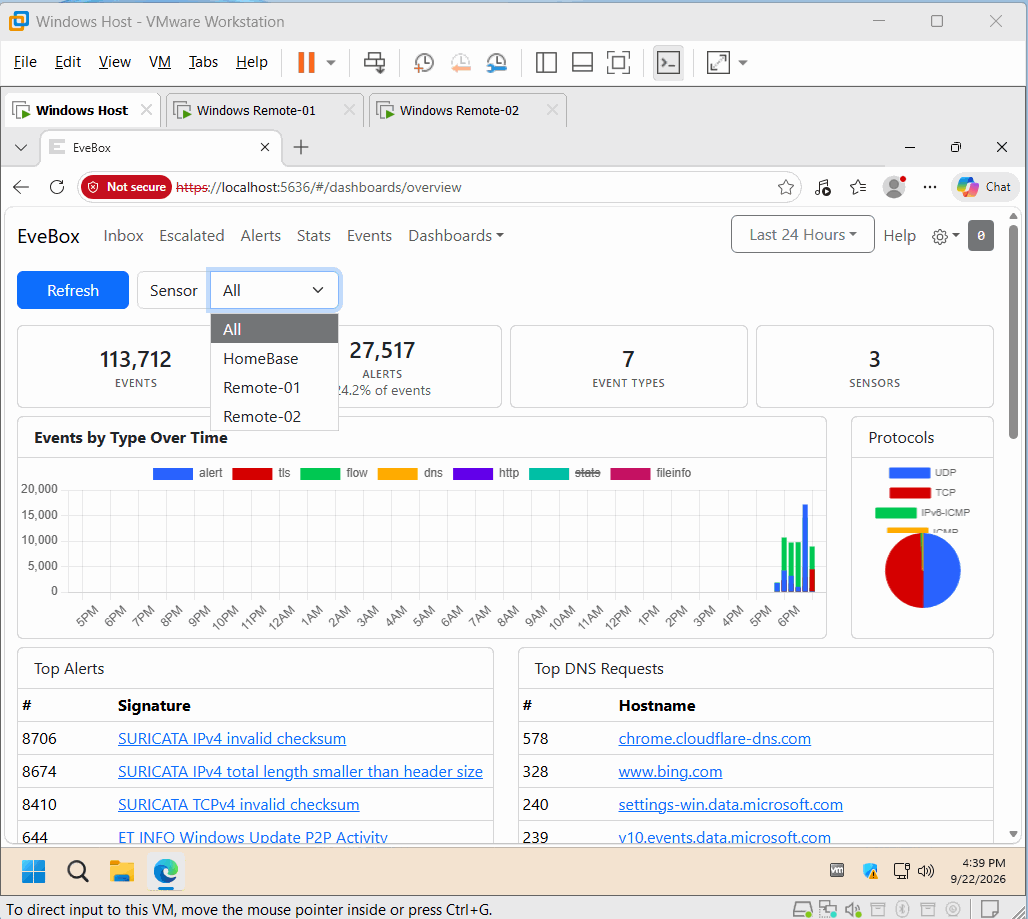
The EveBox + OpenSearch + OpenSSL Console — Host Edition extends an existing WinSuricata Headless sensor into a centralized security management and analytics platform. It deploys and configures EveBox, OpenSearch, OpenSSL-based PKI infrastructure, HTTPS/TLS security, centralized event storage, and the supporting Windows services required to transform the local Suricata EVE JSON event stream into a centralized alert management and analysis environment. The Host Edition builds directly on the WinSuricata Headless Edition and does not replace the underlying Suricata detection engine. The WinSuricata Host also provides the central integration point for Remote Nodes. Registered Remote Nodes can securely forward applicable Suricata alert telemetry to the Host using Host-generated authentication and TLS/PKI configuration, allowing multiple WinSuricata sensors to be monitored through a centralized EveBox and OpenSearch environment. Together, EveBox, OpenSearch, OpenSSL, and the WinSuricata PKI infrastructure provide centralized event storage, search, visualization, sensor management, authenticated Remote Node communication, and certificate validation and recovery while preserving Suricata's local detection and EVE JSON generation on each sensor. Complete installation instructions, deployment requirements, verification procedures, troubleshooting information, architecture details, and the final deployment checklist are included in the `README-INSTALL.txt` file contained within this package. Please review the included documentation before beginning the installation and retain it for future administration and troubleshooting. PACKAGE SECURITY & INTEGRITY Before extracting or installing the package, verify the downloaded ZIP file against the published SHA-1 hash to confirm that the archive has not been corrupted or altered. Archive Password : w1nsn03t.c0m SHA-1 Hash : AFF01040248980F9524F419E0E4FD1B69293EB6B To verify the package in Windows, run the following command from Command Prompt or PowerShell, replacing the filename if necessary: certutil -hashfile "EveBox-OpenSearch-Host-Installer.zip" SHA1 The calculated SHA-1 value must match the published value exactly. If the hash does not match, do not extract or install the package. Obtain a new copy from the authorized distribution source and perform the verification again. -
0 downloads
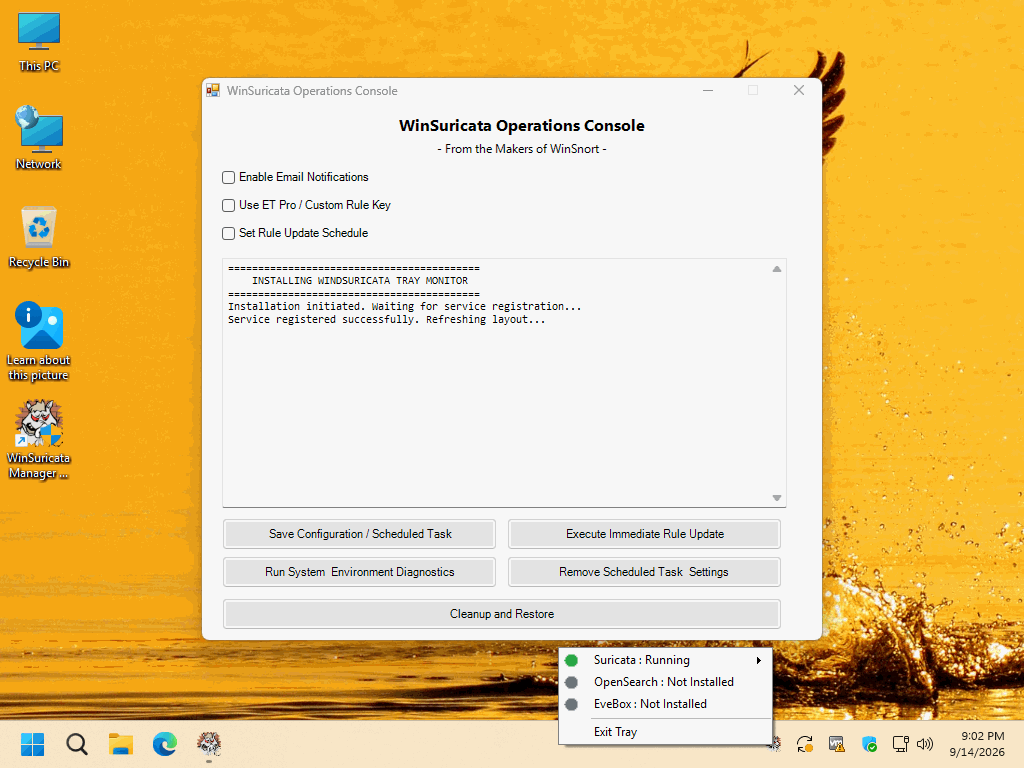
The WinSuricata Headless Edition — Engine Edition provides the foundational Windows sensor and detection engine for the WinSuricata deployment framework. It installs and configures the Suricata IDS/IPS engine, Npcap packet capture, rule management infrastructure, Windows service integration, and supporting system components required to inspect network traffic and generate the Suricata EVE JSON event stream. The installation operates independently and does not require EveBox or OpenSearch, making it the core sensor layer upon which the remaining WinSuricata deployment options are built. Once operational, the Headless Edition provides the complete local detection pipeline from network packet capture through Suricata inspection and EVE JSON event generation, together with the WinSuricata Operations Console, rule update management, diagnostics, service monitoring, and recovery utilities. The resulting eve.json event stream can then be consumed by the EveBox Standalone Console — SQLite Edition, the EveBox + OpenSearch + OpenSSL — Host Edition, or the EveBox Remote Node Agent — OpenSearch Edition, allowing the same core sensor installation to serve as a standalone sensor, centralized Host, or Remote Node foundation. Complete installation instructions, deployment requirements, verification procedures, troubleshooting information, architecture details, and the final deployment checklist are included in the `README-INSTALL.txt` file contained within this package. Please review the included documentation before beginning the installation and retain it for future administration and troubleshooting. PACKAGE SECURITY & INTEGRITY Before extracting or installing the package, verify the downloaded ZIP file against the published SHA-1 hash to confirm that the archive has not been corrupted or altered. Archive Password : w1nsn03t.c0m SHA-1 Hash : 963BC6599FCF5EC7201A71DE42106B59C185D346 To verify the package in Windows, run the following command from Command Prompt or PowerShell, replacing the filename if necessary: certutil -hashfile "WinSuricata-Headless-Installer.zip" SHA1 The calculated SHA-1 value must match the published value exactly. If the hash does not match, do not extract or install the package. Obtain a new copy from the authorized distribution source and perform the verification again. -
0 downloads
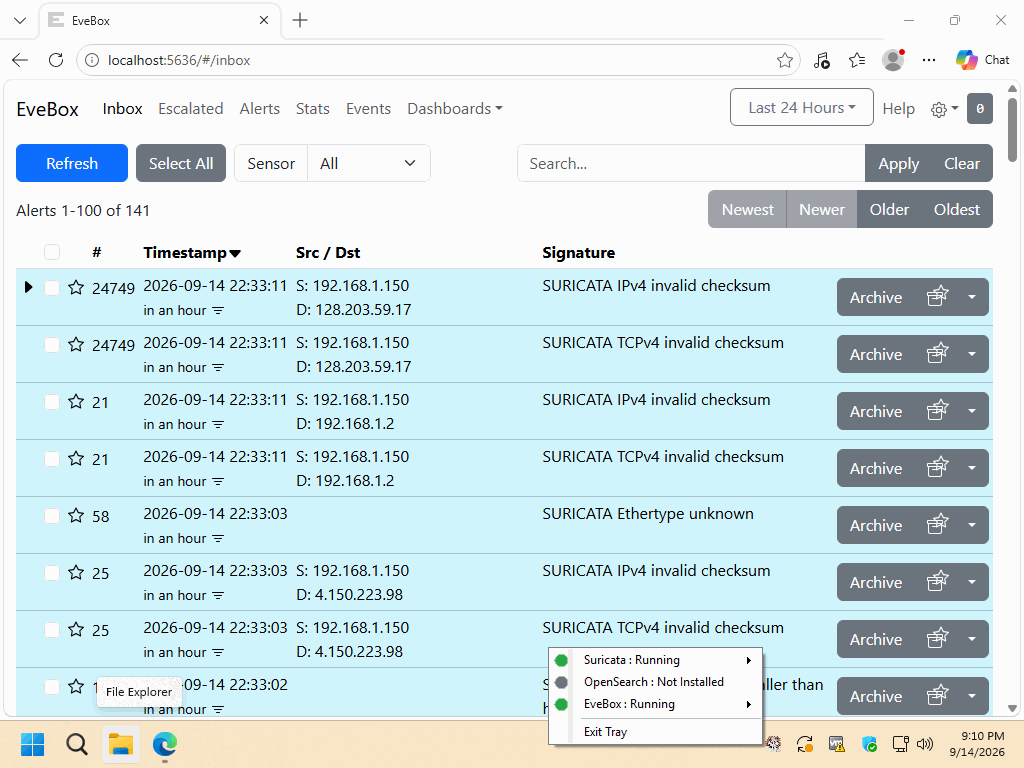
The EveBox Standalone Console — SQLite Edition adds a complete local web-based security console to an existing WinSuricata / Suricata sensor without requiring OpenSearch, a centralized Host, or Remote Node infrastructure. The installer automatically deploys and configures EveBox, establishes the live Suricata `eve.json` ingestion pipeline, provides local SQLite-backed event storage, registers EveBox as a Windows Service, and makes the console available through a web browser on TCP port 5636. Once installed, the sensor provides local alert management, event search, visualization, and persistent historical event storage while continuing to operate entirely within the local WinSuricata environment. This package is designed as an add-on to the WinSuricata Headless Sensor Edition and builds directly on the existing Suricata event stream. It does not replace the core sensor and does not require OpenSearch, OpenSearch PKI configuration, a centralized WinSuricata Host, or Remote Node registration. Installation, service registration, SQLite storage, EVE JSON ingestion, and local web access are automated to minimize manual configuration. Complete installation instructions, deployment requirements, verification procedures, troubleshooting information, architecture details, and the final deployment checklist are included in the `README-INSTALL.txt` file contained within this package. Please review the included documentation before beginning the installation and retain it for future administration and troubleshooting. PACKAGE SECURITY & INTEGRITY Before extracting or installing the package, verify the downloaded ZIP file against the published SHA-1 hash to confirm that the archive has not been corrupted or altered. Archive Password : w1nsn03t.c0m SHA-1 Hash : B7F88EF0AEBE566A64E311CEDA1A93427F4E606D To verify the package in Windows, run the following command from Command Prompt or PowerShell, replacing the filename if necessary: certutil -hashfile "EveBox-SQLite-Installer.zip" SHA1 The calculated SHA-1 value must match the published value exactly. If the hash does not match, do not extract or install the package. Obtain a new copy from the authorized distribution source and perform the verification again. -
Base Configuration Error
Morpheus replied to jnoute's topic in Discussing Manual Installation for Apache2 with MySQL Logging
You failed to follow the tutorial and made this an install that cannot be supported. Go back and start over following the tutorial and this will work so much better. -
You failed to follow the tutorial and made this an install that cannot be supported. Go back and start over following the tutorial and this will work so much better.
-
You will need to supply more information and what exactly is not working?
-
DB-Maintenance Utility Enhancement
Morpheus posted a topic in Technical Advisories - Auto-Installers
Following requests for enhanced event management, the DB-Maintenance Utility has been updated to include a time-based purge feature. Administrators can now automatically clear database events older than (X) days. Happy WinSnorting... -
This is the execution log output for the Automated Installation Framework of a WinSnort Windows Intrusion Detection System (WinIDS) configured as a remote node sensor. The deployment process is virtually identical for Windows Workstation or Windows Server environments. MySQL-Output.log PGSQL-Output.log
-
Opening the Master sensor will display the total number of connected nodes. If a node is missing, it simply means it hasn’t connected yet—this process can take a few minutes. (Note: MySQL handles this initial connection noticeably faster than PostgreSQL.)
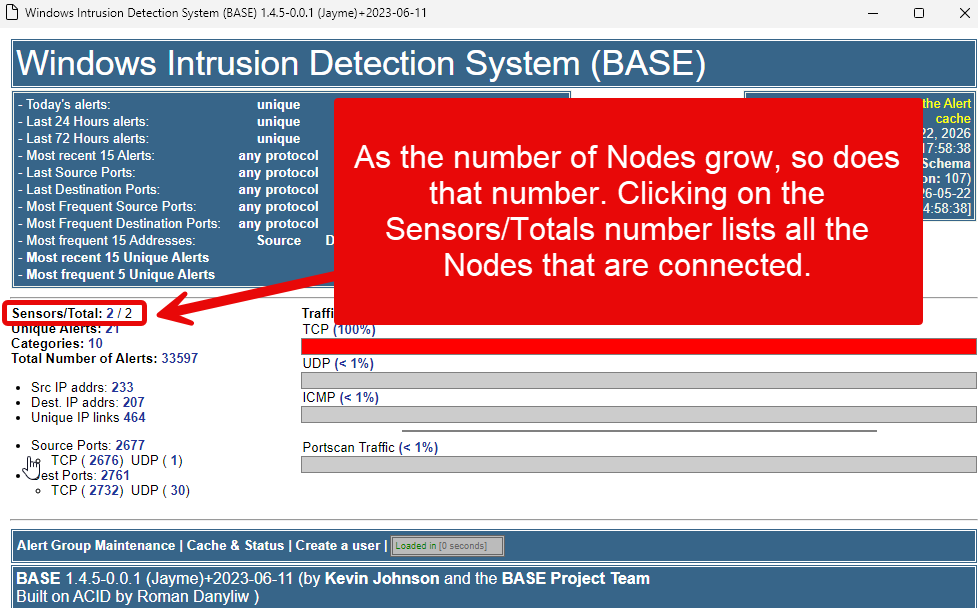
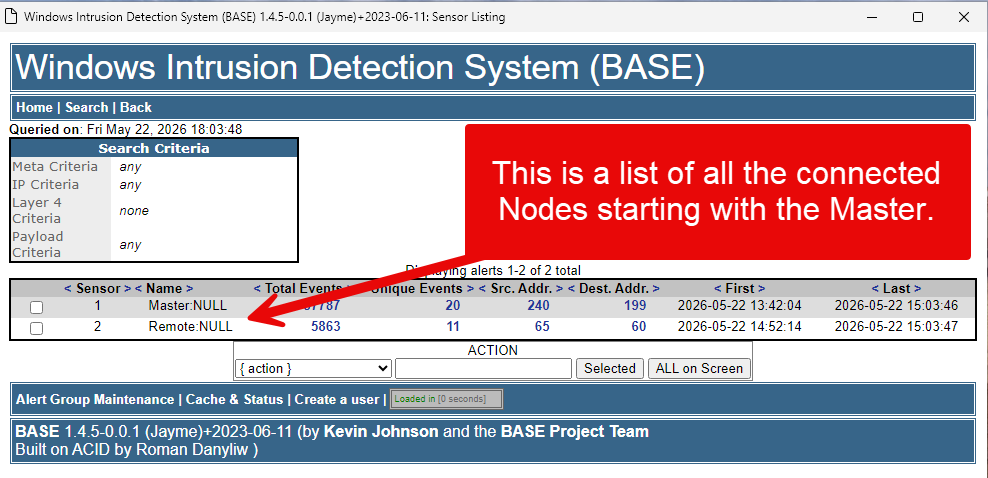
-
This is the execution log output for the Automated Installation Framework of a WinSnort Windows Intrusion Detection System (WinIDS) configured as a Master/Standalone sensor. The deployment process is virtually identical for Windows Workstation or Windows Server environments, with the exception that Server architecture requires a distinct Internet Information Services (IIS) feature provisioning step. Output.log
-
This is the execution log output for the Automated Installation Framework of a WinSnort Windows Intrusion Detection System (WinIDS) configured as a Master/Standalone sensor. The deployment process is virtually identical for Windows Workstation or Windows Server environments, with the exception that Server architecture requires a distinct Internet Information Services (IIS) feature provisioning step. Output.log
-
This is the execution log output for the Automated Installation Framework of a WinSnort Windows Intrusion Detection System (WinIDS) configured as a Master/Standalone sensor. The deployment process is virtually identical for Windows Workstation or Windows Server environments, with the exception that Server architecture requires a distinct Internet Information Services (IIS) feature provisioning step. Output.log
-
This is the execution log output for the Automated Installation Framework of a WinSnort Windows Intrusion Detection System (WinIDS) configured as a Master/Standalone sensor. The deployment process is virtually identical for Windows Workstation or Windows Server environments, with the exception that Server architecture requires a distinct Internet Information Services (IIS) feature provisioning step. output.log
-
WinSnort.com is a premier resource dedicated to the advancement of network security through the WinIDS (Windows Intrusion Detection System) stack. Our mission is to provide the security community with the tools, documentation, and automation necessary to deploy professional-grade intrusion detection and prevention systems on Windows platforms. At the core of our platform is the WinIDS Automated Deployment Framework, a comprehensive suite designed to streamline the installation and configuration of industry-standard security tools. We focus on the seamless integration of: Snort: The world's most widely deployed IDS/IPS engine. Barnyard2: For efficient spooling and processing of security event data. Database Integration: Optimized configurations for MySQL and PostgreSQL backends. PulledPork: Automated rule management and synchronization. Web Consoles: Professional deployment of Apache2 and IIS environments for real-time monitoring. Our Mission We believe in empowering security administrators and researchers with automated, reliable, and high-performance security solutions. By moving away from complex manual setups, WinSnort allows users to focus on what matters most: identifying threats and securing their network infrastructure. The WinIDS Framework Our latest project, WinIDS v4.1, represents a ground-up rewrite of our deployment scripts, utilizing PowerShell and advanced automation to ensure a "plug-and-play" experience for complex security environments. From local sensor management to remote node initialization, we provide the technical blueprints for a robust defense-in-depth strategy. Community & Innovation Beyond software, WinSnort.com serves as a hub for tutorials, technical documentation, and community support. Whether you are a seasoned systems administrator or a security enthusiast, our resources are crafted to help you master the intricacies of the Snort ecosystem.
-
We are pleased to provide updated guidance on utilizing the PulledPork rule updater for your Windows Intrusion Detection systems. Whether you are managing a standalone sensor or a fleet of remote nodes, following these best practices will help ensure your detection rules remain current and reliable. Deployment Scenarios Standalone Sensors For standalone installations, the updater can be executed directly from the desktop shortcut. Note: While the script may function without elevated permissions, we recommend selecting Run as Administrator to ensure the utility has the necessary access to update system files successfully. Remotely Managed Nodes While the updater is fully compatible with standalone sensors, it is optimized for remotely managed environments. For these deployments, we recommend enabling all three configuration options (Silent Mode, Email Notifications, and Task Scheduling) to ensure seamless, automated maintenance. Recommended Configurations You can optimize the script by adjusting the following variables within the configuration file: Silent Mode ($silent): Set to 1 to mute console output. This reduces overhead and is recommended for remote, automated nodes. Email Notifications ($sendmail): Set to 1 to receive status alerts, requires SMTP setting added. Failsafe Mechanism: If an update fails, the script will automatically roll back to the previous stable ruleset and send a notification detailing the cause of the failure. Scheduling: For instructions on automating your update cycles, please refer to our dedicated tutorial: Scheduling and Updating Windows IDS Rules. Feedback & Continuous Improvement Several fail-safes have been built-in; the process is constantly looking to improve the stability and performance. We welcome your input! If you have any recommendations or encounter issues, please submit your feedback.
-
9 downloads
=============================================================================== WinIDS v4.1 Deployment Framework Remote Node Install Guide Copyright © 2026 WinSnort.com | Michael Steele =============================================================================== OPERATIONAL OVERVIEW This toolkit provides the automated framework required to convert a standalone sensor into a Master Host and facilitate the deployment of WinIDS Remote Nodes. This architecture enables decentralized packet inspection paired with centralized database logging. ARCHITECTURAL PREREQUISITES • Active Instance : A functional Standalone WinIDS Sensor is required. • Node Conversion : This process upgrades a Standalone Sensor to a Master Management Server role and initializes the Remote Node environment. =============================================================================== PHASE I: PRE-DEPLOYMENT SPECIFICATIONS =============================================================================== • Target Environment : Optimized for clean OS installations. • Archive Integrity : Extract all package contents to a dedicated directory. COMPONENT STACK • Snort : Network Intrusion Detection System (NIDS) engine handling packet inspection and alert generation. • Npcap : Windows packet capture library enabling Snort to sniff live network interface traffic. • NSSM : Non-Sucking Service Manager wrapper used to run Barnyard2 as background Windows services. • Barnyard2 : Dedicated spooler and fast log processor that offloads event data writing from Snort to the database. • Strawberry Perl : Open-source Perl environment for Windows used to execute management, automation, and rule update scripts. • PulledPork : Perl-based rule management tool that automates downloading, processing, and updating Snort signature rulesets. PACKAGE SECURITY & INTEGRITY • Archive Password : w1nsn03t.c0m • SHA-1 Hash : 362FB71D4F60014696D556E3532A31C386DC6815 =============================================================================== PHASE II: MASTER SERVER PROVISIONING =============================================================================== To allow inbound database traffic, the Master Management Server must be provisioned prior to remote node initialization. Ensure you have the Remote Node IP address ready before beginning. Access the $WinIDSRoot/tools directory on the Master Host. Right-click 'InitializeNode.exe', select 'Run as Administrator', and enter the IP of the remote Node at the input prompt. TECHNICAL IMPACT: This utility automates Windows Firewall scoping and configures database permissions for that specified $RemoteIP. Upon completion, the executable will display the Master Host’s IP Address and Database Port. Record these values; they are required for Phases III and IV. Note: Run this process for every new remote node added to the environment. =============================================================================== PHASE III: CONNECTIVITY & VALIDATION =============================================================================== Perform these steps on the Remote Node. You will need the Master Host IP and Database Port recorded during Phase II. Note: This only verifies the connection from the Node to the Host. Access the local extraction directory on the Remote Node. Right-click 'Node2Host.exe', select 'Run as Administrator', and enter the IP of the Master Host. Next, it will ask for the Database port. If using the default port, press [Enter] to initiate an automated port scan. If using a custom port, type the port number and press [Enter]. CRITICAL: Connection verification is mandatory. If the handshake fails, troubleshoot the network path before proceeding to Phase IV. =============================================================================== PHASE IV: REMOTE SENSOR DEPLOYMENT =============================================================================== Locate the config.conf file in the local extraction directory on the Remote Node. Open it with a text editor (such as Notepad) and configure the following variables: $TempDir = "" # Temporary download directory (e.g., "D:\Temp") $WinIDSRoot = "" # Primary installation directory (e.g., "D:\WinSnort") $Oinkcode = "" # Your 40-character Snort.org Oinkcode for rule updates $SensorName = "" # A unique name for this Host Sensor (e.g., "HostName") $EnableAllRules = $true # Set to $false to disable rule testing and logging $EnableRestorePoint = $true # Set to $false to skip System Restore point creation The credentials below must match the SnortUser and SnortPass defined during the Master Host configuration. These allow Barnyard2 to authenticate with the Master ALERT database. $SnortUser = "snort" # Master Host ALERT Database Username $SnortPass = "l0gg3r" # Master Host ALERT Database Password Input the MasterHostIP and MasterHostPort acquired in Phase II. This establishes the network link between the Remote Node and the Master Host. $MasterHostIP = "" # Master Host IP Address (e.g., "192.168.1.50") $MasterHostPort = "" # Master Host Database Port (e.g., "3306") Save all changes to config.conf and close the editor. Right-click 'Installer.exe' and select 'Run as Administrator' to begin setup. DEPLOYMENT DURATION ESTIMATES Completion times vary based on the selected database engine and host operating system. The following estimates are based on standard network throughput and hardware resource availability. Workstation standalone or node deployments generally complete in ~15 minutes. Server host deployments generally complete in ~40 minutes. Performance is directly influenced by available system resources and network bandwidth. RECOVERY AND RESILIENCY LOGIC The WinIDS framework is designed with automated resume capability. In the event of a package acquisition failure, you will need to manually download the required asset to your defined $TempDir and re-initialize the installer. The framework will automatically detect the local file and resume deployment. Do not terminate the installer during active system modifications or registry updates to prevent system corruption. SYSTEM RESTORE OPERATIONS In workstation environments, when EnableRestorePoint is active, the installer generates a system restore point prior to setup. This process initializes the required snapshot services, clears existing restore points, and creates a fresh baseline snapshot before cycling the services back to manual. This specific sequence ensures the 'first-run' pre-installation snapshot remains protected from automatic purging. If a valid 'first-run' snapshot is already present—often the result of a previous removal via the RestorePoint utility—the installer will bypass the creation step to preserve the original baseline for the new installation. SYSTEM RECOVERY PROCESS The RestorePoint utility relies on the initial 'first-run' snapshot to execute a rollback. If this snapshot is detected, the utility will revert the system to its original pre-installation state. However, if the snapshot is missing, the process will automatically terminate to prevent system instability. Without a valid snapshot, a clean rollback cannot be performed. In this scenario, you must manually resolve the conflict, restore from a full system backup, or initiate a fresh installation. Note that while the recovery process leaves $WinIDSRoot and $TempDir untouched, performing a new installation will permanently delete all data within the $WinIDSRoot directory. DATA INTEGRITY The System Restore feature is intended for configuration recovery and is not a replacement for a comprehensive backup solution. System Restore services are set to manual and toggled as needed. Windows Restore Points are transient and may be purged during routine maintenance cycles if those services are running. ENVIRONMENTAL CONSTRAINTS & BEST PRACTICES Server Deployments: Since Windows Server architectures do not natively support System Restore points, this feature is automatically bypassed during Server OS deployments. PULLEDPORK RULE MAINTENANCE The original PulledPork by Shirkdog is housed within a sophisticated wrapper, accessible via the WinSnort Start Menu. While the utility is designed for 'out-of-the-box' functionality with no manual configuration required, the wrapper offers a highly verbose interface with integrated system checks. Every update attempt is documented in the PulledPork log folder. To maintain system stability, the utility automatically rolls back to the last known-good rule set if an update fails. The Rule Updater includes a built-in scheduler with configurable intervals ranging from 15 to 60 minutes. It supports automated retention of successful updates and SMTP email notifications. While 'Silent Mode' is available for remote or unmanaged sensors, the updater will default to a verbose display if launched manually from the desktop while in 'Silent Mode'. If executed in silent mode without SMTP, the system continues to capture errors and failures within the local log files. =============================================================================== PHASE V: POST-DEPLOYMENT MANAGEMENT =============================================================================== Upon successful completion, the WinIDS Management Suite will be accessible via Start Menu > WinSnort. Core utilities include: • Rules Updater : PulledPork-driven rule-set synchronization. • System Restore : System Restore Point (SRP) Utility (Workstation Only). Although a system reboot is not strictly mandatory, it is recommended to ensure all environment variables are refreshed. Please note that the WinSnort Start Menu group may not appear in the Start Menu until a system restart has been completed. =============================================================================== PHASE VI: POST-DEPLOYMENT VERIFICATION =============================================================================== Management Server Validation: • Launch the WinIDS Console on the Master Management Server. • Monitor the 'Sensors/Total' telemetry indicator. • A successful link displays '2/2' (or greater). Verify that '$SensorName' is actively reporting logs to the centralized dashboard. =============================================================================== TECHNICAL DOCUMENTATION & SUPPORT =============================================================================== WinSnort.com Website: https://winsnort.com Maintainer: Michael Steele =============================================================================== -
The WinIDS installation includes a Rules Updater utility (located in the WinSnort group in the Start Menu). By default, this utility performs a standard rule sync with Sourcefire and applies updates automatically. For administrators who require remote monitoring, the utility includes an optional Email Utility. When activated, it sends a status report to a designated email address, confirming whether rules were updated, already current, or if a validation error occurred. Configuration Procedure To activate and configure the email notification system, follow these steps: 1. Open the Script for Editing Navigate to your WinIDS installation directory and locate the PowerShell script: Path: \scripts\rules-update.ps1 Action: Right-click the file and select Edit (or open it with Notepad/VS Code). 2. Enable the Mail Utility Locate the User Configuration section at the top of the script. Change the $sendmail value from 0 to 1: $sendmail = 1 # Activates the email reporting feature 3. Configure SMTP Settings Input your mail server details between the quotes in the configuration block: $smtpServer: Your mail server address (e.g., smtp.gmail.com or internal relay IP). $smtpPort: Use 587 for SSL/TLS or 25 for standard internal relays. $smtpUser / $smtpPassword: Enter valid credentials if your server requires authentication. $from / $to: Enter the sender and recipient email addresses. 4. Save and Test Save the file. Open the Start Menu and navigate to the WinSnort group. Click the Rules Updater link to execute the script. Observe the console output. If successful, you will see: An Email report of the Rules update has been sent... Troubleshooting & Support Execution Policy: Ensure the script is run with Administrative privileges. Port Blocking: If using Port 25, ensure your antivirus or firewall is not blocking outbound SMTP traffic from PowerShell. Logs: Check the \pulledpork\log\ folder for detailed execution logs if an update fails. Technical Support: Issues during setup, please visit the WinSnort.com Forums under the Auto-Installer section for community-led support and troubleshooting tips.
-
If the High-Volume Logging/Testing option was enabled during the initial Auto-Installer setup, the system likely generated a significant number of events. While this setting is an excellent diagnostic tool to verify that the Windows Intrusion Detection System (WinIDS) is actively receiving data—especially in environments where default traffic might take hours to trigger an alert—it is recommended to revert to the default policy once connectivity is confirmed. Procedure to Restore Default Rule Policy Follow these steps to deactivate the testing rules and return to the standard configuration: Modify Configuration: Navigate to the Pulledpork\etc folder via File Explorer. Right-click enablesid.conf and open it with Notepad. Locate the line beginning with pcre:. Comment out the line by adding a # at the start (e.g., # pcre:.) Save and exit. Clear Temporary Files: Navigate to the Pulledpork\temp folder. Delete the two files located in this directory. Close File Explorer. Update Rule Set: Open the Start Menu and locate and open the WinSnort folder. Run the Rules Updater. This process will fetch the latest rule definitions and reconfigure Snort to the default policy setting, ensuring optimal performance and manageable log volumes.
-
2 downloads
=============================================================================== WinIDS v4.1 Deployment Framework WinSnort Standalone Sensor - BASE Console (IIS & MySQL) Installation Guide Copyright © 2026 WinSnort.com | Michael Steele =============================================================================== OPERATIONAL OVERVIEW This package contains a specialized deployment framework for the Windows Intrusion Detection System (WinIDS). It is engineered for high-performance installations on Windows 10/11 and Windows Server (2016-2025) 64-bit using Internet Information Services (IIS) and a local or remote MySQL backend. =============================================================================== PHASE I: PRE-DEPLOYMENT SPECIFICATIONS =============================================================================== • Target Environment : Optimized for clean OS installations. • Archive Integrity : Extract all package contents to a dedicated directory. COMPONENT STACK • Snort : Network Intrusion Detection System (NIDS) engine handling packet inspection and alert generation. • Npcap : Windows packet capture library enabling Snort to sniff live network interface traffic. • NSSM : Non-Sucking Service Manager wrapper used to run Barnyard2 as background Windows services. • Barnyard2 : Dedicated spooler and fast log processor that offloads event data writing from Snort to the database. • MySQL : Relational database management system storing normalized alert data and event history. • IIS : Web server providing the HTTP interface to host the security monitoring web application. • PHP : Server-side scripting language rendering the web console interface and database interactions. • Strawberry Perl : Open-source Perl environment for Windows used to execute management, automation, and rule update scripts. • PulledPork : Perl-based rule management tool that automates downloading, processing, and updating Snort signature rulesets. • ADOdb : Database abstraction library for PHP ensuring seamless communication with MySQL. • BASE : Basic Analysis and Security Engine web interface for querying, searching, and analyzing alert databases. PACKAGE SECURITY & INTEGRITY • Archive Password : w1nsn03t.c0m • SHA-1 Hash : F11F493DEC0D58D5CC376AD455168BE15A007041 =============================================================================== PHASE II: STANDALONE SENSOR DEPLOYMENT =============================================================================== Locate the config.conf file in the local extraction directory on the Host. Open it with a text editor (such as Notepad) and configure the following variables: $TempDir = "" # Temporary download directory (e.g., "D:\Temp") $WinIDSRoot = "" # Primary installation directory (e.g., "D:\WinSnort") $Oinkcode = "" # Your 40-character Snort.org Oinkcode for rule updates $SensorName = "" # A unique name for this Host Sensor (e.g., "HostName") $EnableAllRules = $true # Set to $false to disable rule testing and logging $EnableRestorePoint = $true # Set to $false to skip System Restore point creation $SnortUser = "snort" # Master Host ALERT Database Username $SnortPass = "l0gg3r" # Master Host ALERT Database Password $RootUser = "root" # Master Host (Root) MySQL/PostgreSQL Database Username $RootPass = "d1ngd0ng" # Master Host (Root) MySQL/PostgreSQL Database Password Save all changes to config.conf and close the editor. Right-click 'Installer.exe' and select 'Run as Administrator' to begin setup. =============================================================================== PHASE III: PARAMETER CONFIGURATION =============================================================================== SECURITY RECOMMENDATIONS The Username and password values above are defaults. For production environments, it is strongly advised to update these credentials to enhance network security, but if there is any doubt, leave them as is. DATABASE ROLES The SnortUser/Pass credentials are used by Barnyard2 to authenticate with the ALERT database. These credentials also facilitate the connection between remote nodes and the Master Host across the LAN/WAN. The RootUser/Pass credentials are administrative and used for command-line database management post-installation and also used for the Database manager utility. CORE INFRASTRUCTURE SERVICES (IIS & MySQL) The automated installer provisions and integrates two core underlying components to power the local management stack: • MySQL Database Engine: Initializes the relational database instances and configures system tables for Snort event logging. Barnyard2 authenticates using $SnortUser to populate alert tables, while administrative maintenance and schema operations are handled via $RootUser. • IIS Web Server & BASE Console: Installs and configures Internet Information Services (IIS) along with the PHP execution environment. IIS hosts the BASE (Basic Analysis and Security Engine) interface, linking directly to MySQL to provide local web-based event analysis, alert searching, and graphical telemetry reporting. DOCUMENTATION Use caution when modifying default settings. Ensure all changes are recorded for future administrative reference. DEPLOYMENT DURATION ESTIMATES Completion times vary based on the selected database engine and host operating system. The following estimates are based on standard network throughput and hardware resource availability. Workstation standalone or node deployments generally complete in ~15 minutes. Server host deployments generally complete in ~40 minutes. Performance is directly influenced by available system resources and network bandwidth. RECOVERY AND RESILIENCY LOGIC The WinIDS framework is designed with automated resume capability. In the event of a package acquisition failure, you will need to manually download the required asset to your defined $TempDir and re-initialize the installer. The framework will automatically detect the local file and resume deployment. Do not terminate the installer during active system modifications or registry updates to prevent system corruption. SYSTEM RESTORE OPERATIONS In workstation environments, when EnableRestorePoint is active, the installer generates a system restore point prior to setup. This process initializes the required snapshot services, clears existing restore points, and creates a fresh baseline snapshot before cycling the services back to manual. This specific sequence ensures the 'first-run' pre-installation snapshot remains protected from automatic purging. If a valid 'first-run' snapshot is already present—often the result of a previous removal via the RestorePoint utility—the installer will bypass the creation step to preserve the original baseline for the new installation. SYSTEM RECOVERY PROCESS The RestorePoint utility relies on the initial 'first-run' snapshot to execute a rollback. If this snapshot is detected, the utility will revert the system to its original pre-installation state. However, if the snapshot is missing, the process will automatically terminate to prevent system instability. Without a valid snapshot, a clean rollback cannot be performed. In this scenario, you must manually resolve the conflict, restore from a full system backup, or initiate a fresh installation. Note that while the recovery process leaves $WinIDSRoot and $TempDir untouched, performing a new installation will permanently delete all data within the $WinIDSRoot directory. DATA INTEGRITY The System Restore feature is intended for configuration recovery and is not a replacement for a comprehensive backup solution. System Restore services are set to manual and toggled as needed. Windows Restore Points are transient and may be purged during routine maintenance cycles if those services are running. ENVIRONMENTAL CONSTRAINTS & BEST PRACTICES Server Deployments: Since Windows Server architectures do not natively support System Restore points, this feature is automatically bypassed during Server OS deployments. PULLEDPORK RULE MAINTENANCE The original PulledPork by Shirkdog is housed within a sophisticated wrapper, accessible via the WinSnort Start Menu. While the utility is designed for 'out-of-the-box' functionality with no manual configuration required, the wrapper offers a highly verbose interface with integrated system checks. Every update attempt is documented in the PulledPork log folder. To maintain system stability, the utility automatically rolls back to the last known-good rule set if an update fails. The Rule Updater includes a built-in scheduler with configurable intervals ranging from 15 to 60 minutes. It supports automated retention of successful updates and SMTP email notifications. While 'Silent Mode' is available for remote or unmanaged sensors, the updater will default to a verbose display if launched manually from the desktop while in 'Silent Mode'. If executed in silent mode without SMTP, the system continues to capture errors and failures within the local log files. =============================================================================== PHASE IV: POST-DEPLOYMENT MANAGEMENT =============================================================================== Upon successful completion, the WinIDS Management Suite will be accessible via Start Menu > WinSnort. Core utilities include: • WinIDS Console : Real-time telemetry, event monitoring, and analysis. • Rules Updater : PulledPork-driven rule-set synchronization. • System Restore : System Restore Point (SRP) Utility (Workstation Only). • Database Utility : Database maintenance utility. Although a system reboot is not strictly mandatory, it is recommended to ensure all environment variables are refreshed. Please note that the WinSnort Start Menu group may not appear in the Start Menu until a system restart has been completed. =============================================================================== TECHNICAL DOCUMENTATION & SUPPORT =============================================================================== WinSnort.com Website: https://winsnort.com Maintainer: Michael Steele =============================================================================== -

4 downloads
=============================================================================== WinIDS v4.1 Deployment Framework WinSnort Standalone Sensor - BASE Console (IIS & PostgreSQL) Installation Guide Copyright (c) 2026 WinSnort.com | Michael Steele =============================================================================== OPERATIONAL OVERVIEW This package contains a specialized deployment framework for the Windows Intrusion Detection System (WinIDS). It is engineered for high-performance installations on Windows 10/11 and Windows Server (2016-2025) 64-bit using Internet Information Services (IIS) and a local or remote PostgreSQL backend. =============================================================================== PHASE I: PRE-DEPLOYMENT SPECIFICATIONS =============================================================================== • Target Environment : Optimized for clean OS installations. • Archive Integrity : Extract all package contents to a dedicated directory. COMPONENT STACK • Snort : Network Intrusion Detection System (NIDS) engine handling packet inspection and alert generation. • Npcap : Windows packet capture library enabling Snort to sniff live network interface traffic. • NSSM : Non-Sucking Service Manager wrapper used to run Barnyard2 as background Windows services. • Barnyard2 : Dedicated spooler and fast log processor that offloads event data writing from Snort to the database. • PostgreSQL : Relational database management system storing normalized alert data and event history. • IIS : Web server providing the HTTP interface to host the security monitoring web application. • PHP : Server-side scripting language rendering the web console interface and database interactions. • Strawberry Perl : Open-source Perl environment for Windows used to execute management, automation, and rule update scripts. • PulledPork : Perl-based rule management tool that automates downloading, processing, and updating Snort signature rulesets. • ADOdb : Database abstraction library for PHP ensuring seamless communication with PostgreSQL. • BASE : Basic Analysis and Security Engine web interface for querying, searching, and analyzing alert databases. PACKAGE SECURITY & INTEGRITY • Archive Password : w1nsn03t.c0m • SHA-1 Hash : FE565ED55BFD118FD53D85B69903D97457CF617D =============================================================================== PHASE II: STANDALONE SENSOR DEPLOYMENT =============================================================================== Locate the config.conf file in the local extraction directory on the Host. Open it with a text editor (such as Notepad) and configure the following variables: $TempDir = "" # Temporary download directory (e.g., "D:\Temp") $WinIDSRoot = "" # Primary installation directory (e.g., "D:\WinSnort") $Oinkcode = "" # Your 40-character Snort.org Oinkcode for rule updates $SensorName = "" # A unique name for this Host Sensor (e.g., "HostName") $EnableAllRules = $true # Set to $false to disable rule testing and logging $EnableRestorePoint = $true # Set to $false to skip System Restore point creation $SnortUser = "snort" # Master Host ALERT Database Username $SnortPass = "l0gg3r" # Master Host ALERT Database Password $RootUser = "postgres" # Master Host (Root/Administrative) PostgreSQL Database Username $RootPass = "d1ngd0ng" # Master Host (Root/Administrative) PostgreSQL Database Password Save all changes to config.conf and close the editor. Right-click 'Installer.exe' and select 'Run as Administrator' to begin setup. =============================================================================== PHASE III: PARAMETER CONFIGURATION =============================================================================== SECURITY RECOMMENDATIONS The Username and password values above are defaults. For production environments, it is strongly advised to update these credentials to enhance network security, but if there is any doubt, leave them as is. DATABASE ROLES The SnortUser/Pass credentials are used by Barnyard2 to authenticate with the ALERT database. These credentials also facilitate the connection between remote nodes and the Master Host across the LAN/WAN. The RootUser/Pass credentials are administrative and used for command-line database management post-installation and also used for the Database manager utility. CORE INFRASTRUCTURE SERVICES (IIS & PostgreSQL) The automated installer provisions and integrates two core underlying components to power the local management stack: • PostgreSQL Database Engine: Initializes the relational database instances and configures schemas and system tables for Snort event logging. Barnyard2 authenticates using $SnortUser to populate alert tables, while administrative maintenance and schema operations are handled via $RootUser. • IIS Web Server & BASE Console: Installs and configures Internet Information Services (IIS) along with the PHP execution environment. IIS hosts the BASE (Basic Analysis and Security Engine) interface, linking directly to PostgreSQL to provide local web-based event analysis, alert searching, and graphical telemetry reporting. DOCUMENTATION Use caution when modifying default settings. Ensure all changes are recorded for future administrative reference. DEPLOYMENT DURATION ESTIMATES Completion times vary based on the selected database engine and host operating system. The following estimates are based on standard network throughput and hardware resource availability. Workstation standalone or node deployments generally complete in ~15 minutes. Server host deployments generally complete in ~40 minutes. Performance is directly influenced by available system resources and network bandwidth. RECOVERY AND RESILIENCY LOGIC The WinIDS framework is designed with automated resume capability. In the event of a package acquisition failure, you will need to manually download the required asset to your defined $TempDir and re-initialize the installer. The framework will automatically detect the local file and resume deployment. Do not terminate the installer during active system modifications or registry updates to prevent system corruption. SYSTEM RESTORE OPERATIONS In workstation environments, when EnableRestorePoint is active, the installer generates a system restore point prior to setup. This process initializes the required snapshot services, clears existing restore points, and creates a fresh baseline snapshot before cycling the services back to manual. This specific sequence ensures the 'first-run' pre-installation snapshot remains protected from automatic purging. If a valid 'first-run' snapshot is already present--often the result of a previous removal via the RestorePoint utility--the installer will bypass the creation step to preserve the original baseline for the new installation. SYSTEM RECOVERY PROCESS The RestorePoint utility relies on the initial 'first-run' snapshot to execute a rollback. If this snapshot is detected, the utility will revert the system to its original pre-installation state. However, if the snapshot is missing, the process will automatically terminate to prevent system instability. Without a valid snapshot, a clean rollback cannot be performed. In this scenario, you must manually resolve the conflict, restore from a full system backup, or initiate a fresh installation. Note that while the recovery process leaves $WinIDSRoot and $TempDir untouched, performing a new installation will permanently delete all data within the $WinIDSRoot directory. DATA INTEGRITY The System Restore feature is intended for configuration recovery and is not a replacement for a comprehensive backup solution. System Restore services are set to manual and toggled as needed. Windows Restore Points are transient and may be purged during routine maintenance cycles if those services are running. ENVIRONMENTAL CONSTRAINTS & BEST PRACTICES Server Deployments: Since Windows Server architectures do not natively support System Restore points, this feature is automatically bypassed during Server OS deployments. PULLEDPORK RULE MAINTENANCE The original PulledPork by Shirkdog is housed within a sophisticated wrapper, accessible via the WinSnort Start Menu. While the utility is designed for 'out-of-the-box' functionality with no manual configuration required, the wrapper offers a highly verbose interface with integrated system checks. Every update attempt is documented in the PulledPork log folder. To maintain system stability, the utility automatically rolls back to the last known-good rule set if an update fails. The Rule Updater includes a built-in scheduler with configurable intervals ranging from 15 to 60 minutes. It supports automated retention of successful updates and SMTP email notifications. While 'Silent Mode' is available for remote or unmanaged sensors, the updater will default to a verbose display if launched manually from the desktop while in 'Silent Mode'. If executed in silent mode without SMTP, the system continues to capture errors and failures within the local log files. =============================================================================== PHASE IV: POST-DEPLOYMENT MANAGEMENT =============================================================================== Upon successful completion, the WinIDS Management Suite will be accessible via Start Menu > WinSnort. Core utilities include: • WinIDS Console : Real-time telemetry, event monitoring, and analysis. • Rules Updater : PulledPork-driven rule-set synchronization. • System Restore : System Restore Point (SRP) Utility (Workstation Only). • Database Utility : Database maintenance utility. Although a system reboot is not strictly mandatory, it is recommended to ensure all environment variables are refreshed. Please note that the WinSnort Start Menu group may not appear in the Start Menu until a system restart has been completed. =============================================================================== TECHNICAL DOCUMENTATION & SUPPORT =============================================================================== WinSnort.com Website: https://winsnort.com Maintainer: Michael Steele =============================================================================== -

0 downloads
=============================================================================== WinIDS v4.1 Deployment Framework WinSnort Standalone Sensor - BASE Console (Apache2 & MySQL) Installation Guide Copyright (c) 2026 WinSnort.com | Michael Steele =============================================================================== OPERATIONAL OVERVIEW This package contains a specialized deployment framework for the Windows Intrusion Detection System (WinIDS). It is engineered for high-performance installations on Windows 10/11 and Windows Server (2016-2025) 64-bit using Apache2 HTTP Server and a local or remote MySQL backend. =============================================================================== PHASE I: PRE-DEPLOYMENT SPECIFICATIONS =============================================================================== • Target Environment : Optimized for clean OS installations. • Archive Integrity : Extract all package contents to a dedicated directory. COMPONENT STACK • Snort : Network Intrusion Detection System (NIDS) engine handling packet inspection and alert generation. • Npcap : Windows packet capture library enabling Snort to sniff live network interface traffic. • NSSM : Non-Sucking Service Manager wrapper used to run Barnyard2 as background Windows services. • Barnyard2 : Dedicated spooler and fast log processor that offloads event data writing from Snort to the database. • MySQL : Relational database management system storing normalized alert data and event history. • Apache2 : Web server providing the HTTP interface to host the security monitoring web application. • PHP : Server-side scripting language rendering the web console interface and database interactions. • Strawberry Perl : Open-source Perl environment for Windows used to execute management, automation, and rule update scripts. • PulledPork : Perl-based rule management tool that automates downloading, processing, and updating Snort signature rulesets. • ADOdb : Database abstraction library for PHP ensuring seamless communication with MySQL. • BASE : Basic Analysis and Security Engine web interface for querying, searching, and analyzing alert databases. PACKAGE SECURITY & INTEGRITY • Archive Password : w1nsn03t.c0m • SHA-1 Hash : 6A83735053A000D737C3AB215804C26B767A9291 =============================================================================== PHASE II: STANDALONE SENSOR DEPLOYMENT =============================================================================== Locate the config.conf file in the local extraction directory on the Host. Open it with a text editor (such as Notepad) and configure the following variables: $TempDir = "" # Temporary download directory (e.g., "D:\Temp") $WinIDSRoot = "" # Primary installation directory (e.g., "D:\WinSnort") $Oinkcode = "" # Your 40-character Snort.org Oinkcode for rule updates $SensorName = "" # A unique name for this Host Sensor (e.g., "HostName") $EnableAllRules = $true # Set to $false to disable rule testing and logging $EnableRestorePoint = $true # Set to $false to skip System Restore point creation $SnortUser = "snort" # Master Host ALERT Database Username $SnortPass = "l0gg3r" # Master Host ALERT Database Password $RootUser = "root" # Master Host (Root) MySQL Database Username $RootPass = "d1ngd0ng" # Master Host (Root) MySQL Database Password Save all changes to config.conf and close the editor. Right-click 'Installer.exe' and select 'Run as Administrator' to begin setup. =============================================================================== PHASE III: PARAMETER CONFIGURATION =============================================================================== SECURITY RECOMMENDATIONS The Username and password values above are defaults. For production environments, it is strongly advised to update these credentials to enhance network security, but if there is any doubt, leave them as is. DATABASE ROLES The SnortUser/Pass credentials are used by Barnyard2 to authenticate with the ALERT database. These credentials also facilitate the connection between remote nodes and the Master Host across the LAN/WAN. The RootUser/Pass credentials are administrative and used for command-line database management post-installation and also used for the Database manager utility. CORE INFRASTRUCTURE SERVICES (Apache2 & MySQL) The automated installer provisions and integrates two core underlying components to power the local management stack: • MySQL Database Engine: Initializes the relational database instances and configures system tables for Snort event logging. Barnyard2 authenticates using $SnortUser to populate alert tables, while administrative maintenance and schema operations are handled via $RootUser. • Apache2 Web Server & BASE Console: Installs and configures the Apache2 HTTP Server along with the PHP execution environment. Apache2 hosts the BASE (Basic Analysis and Security Engine) interface, linking directly to MySQL to provide local web-based event analysis, alert searching, and graphical telemetry reporting. DOCUMENTATION Use caution when modifying default settings. Ensure all changes are recorded for future administrative reference. DEPLOYMENT DURATION ESTIMATES Completion times vary based on the selected database engine and host operating system. The following estimates are based on standard network throughput and hardware resource availability. Workstation standalone or node deployments generally complete in ~15 minutes. Server host deployments generally complete in ~40 minutes. Performance is directly influenced by available system resources and network bandwidth. RECOVERY AND RESILIENCY LOGIC The WinIDS framework is designed with automated resume capability. In the event of a package acquisition failure, you will need to manually download the required asset to your defined $TempDir and re-initialize the installer. The framework will automatically detect the local file and resume deployment. Do not terminate the installer during active system modifications or registry updates to prevent system corruption. SYSTEM RESTORE OPERATIONS In workstation environments, when EnableRestorePoint is active, the installer generates a system restore point prior to setup. This process initializes the required snapshot services, clears existing restore points, and creates a fresh baseline snapshot before cycling the services back to manual. This specific sequence ensures the 'first-run' pre-installation snapshot remains protected from automatic purging. If a valid 'first-run' snapshot is already present--often the result of a previous removal via the RestorePoint utility--the installer will bypass the creation step to preserve the original baseline for the new installation. SYSTEM RECOVERY PROCESS The RestorePoint utility relies on the initial 'first-run' snapshot to execute a rollback. If this snapshot is detected, the utility will revert the system to its original pre-installation state. However, if the snapshot is missing, the process will automatically terminate to prevent system instability. Without a valid snapshot, a clean rollback cannot be performed. In this scenario, you must manually resolve the conflict, restore from a full system backup, or initiate a fresh installation. Note that while the recovery process leaves $WinIDSRoot and $TempDir untouched, performing a new installation will permanently delete all data within the $WinIDSRoot directory. DATA INTEGRITY The System Restore feature is intended for configuration recovery and is not a replacement for a comprehensive backup solution. System Restore services are set to manual and toggled as needed. Windows Restore Points are transient and may be purged during routine maintenance cycles if those services are running. ENVIRONMENTAL CONSTRAINTS & BEST PRACTICES Server Deployments: Since Windows Server architectures do not natively support System Restore points, this feature is automatically bypassed during Server OS deployments. PULLEDPORK RULE MAINTENANCE The original PulledPork by Shirkdog is housed within a sophisticated wrapper, accessible via the WinSnort Start Menu. While the utility is designed for 'out-of-the-box' functionality with no manual configuration required, the wrapper offers a highly verbose interface with integrated system checks. Every update attempt is documented in the PulledPork log folder. To maintain system stability, the utility automatically rolls back to the last known-good rule set if an update fails. The Rule Updater includes a built-in scheduler with configurable intervals ranging from 15 to 60 minutes. It supports automated retention of successful updates and SMTP email notifications. While 'Silent Mode' is available for remote or unmanaged sensors, the updater will default to a verbose display if launched manually from the desktop while in 'Silent Mode'. If executed in silent mode without SMTP, the system continues to capture errors and failures within the local log files. =============================================================================== PHASE IV: POST-DEPLOYMENT MANAGEMENT =============================================================================== Upon successful completion, the WinIDS Management Suite will be accessible via Start Menu > WinSnort. Core utilities include: • WinIDS Console : Real-time telemetry, event monitoring, and analysis. • Rules Updater : PulledPork-driven rule-set synchronization. • System Restore : System Restore Point (SRP) Utility (Workstation Only). • Database Utility : Database maintenance utility. Although a system reboot is not strictly mandatory, it is recommended to ensure all environment variables are refreshed. Please note that the WinSnort Start Menu group may not appear in the Start Menu until a system restart has been completed. =============================================================================== TECHNICAL DOCUMENTATION & SUPPORT =============================================================================== WinSnort.com Website: https://winsnort.com Maintainer: Michael Steele ===============================================================================